




 Regenerate
No prompt, one click
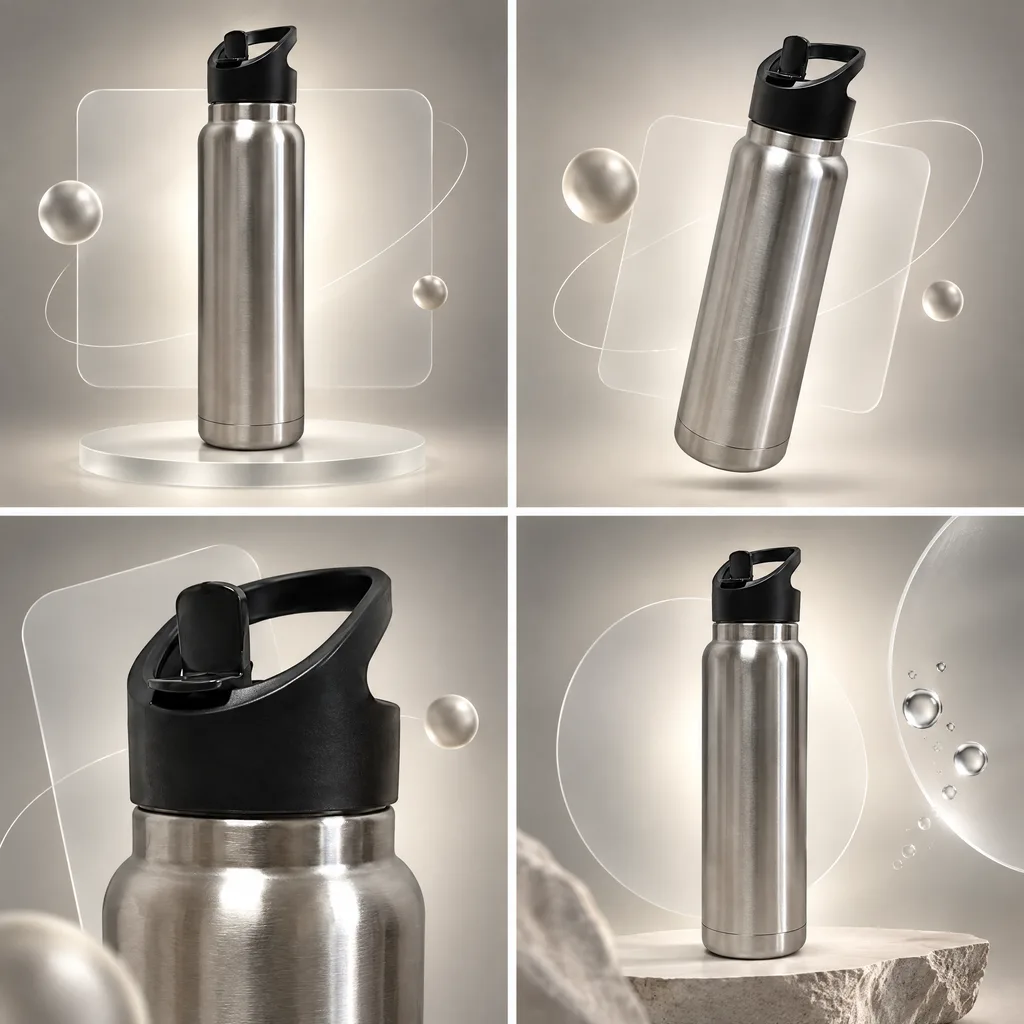
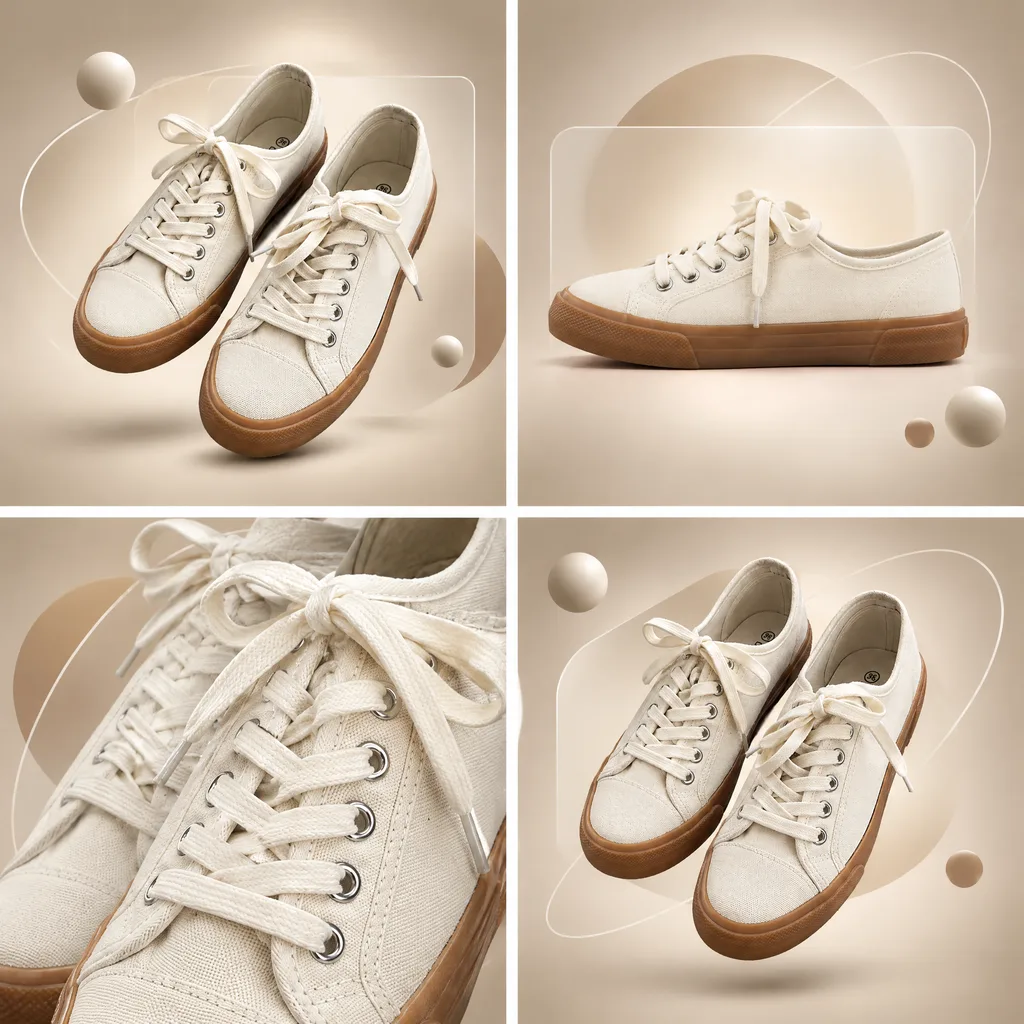
Show one product in four compositions
Review results, manage assets and access generation history in AI Studio.
Make a compact product set from a reference and an optional brief. Start with a four-panel sheet, or switch the output format to four separately generated images.
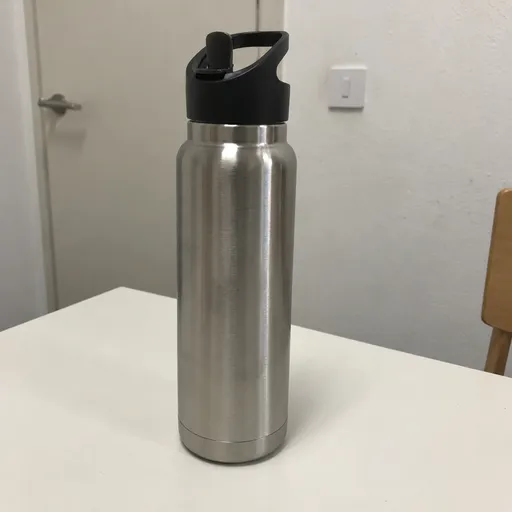
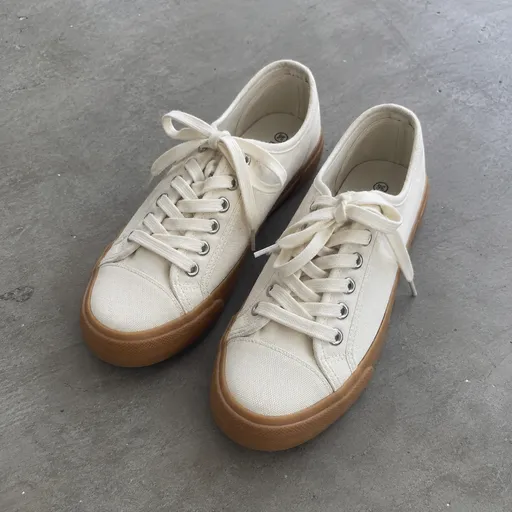
Upload at least one clear product image. Add a setting or mood if needed; the system plans four compositions for the product.
The default result is a 2×2 sheet that can be cut into four images. The separate-images option instead submits four tasks. Inspect details and consistency in either format.
Choose images that make the shape, color and material easy to see.
Choose a four-panel sheet or four separate images. Optionally describe the setting, mood or required text; base product claims on the facts you supply.
Inspect all four compositions. For a sheet, check the cut lines before downloading the cells; for separate outputs, review each successful result.
Every card below is a real job run here. Tap one and the source photos and prompt load — run it yourself.
RegenerateNo prompt, one click
 Regenerate
No prompt, one click
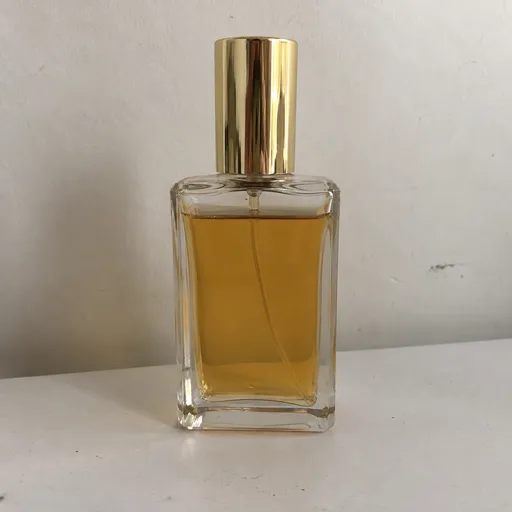
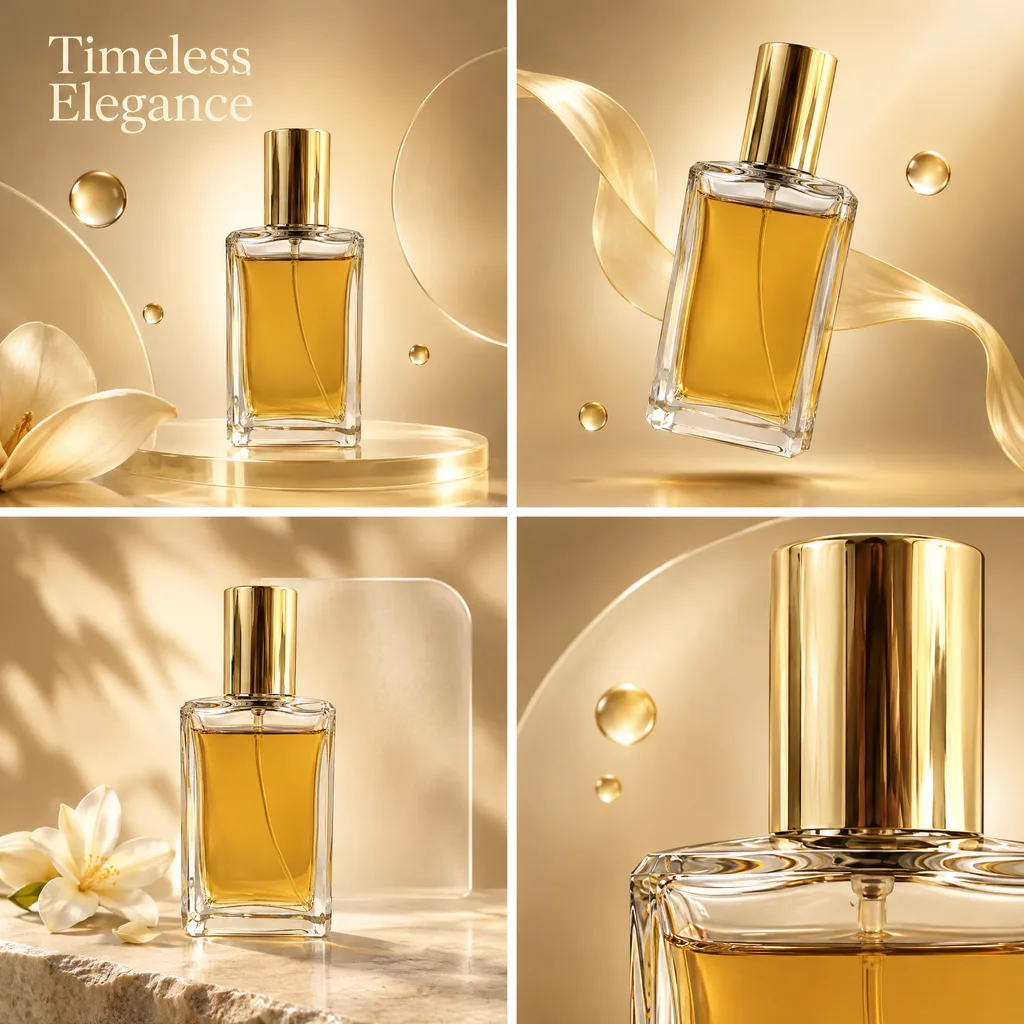 Regenerate
One serif tagline
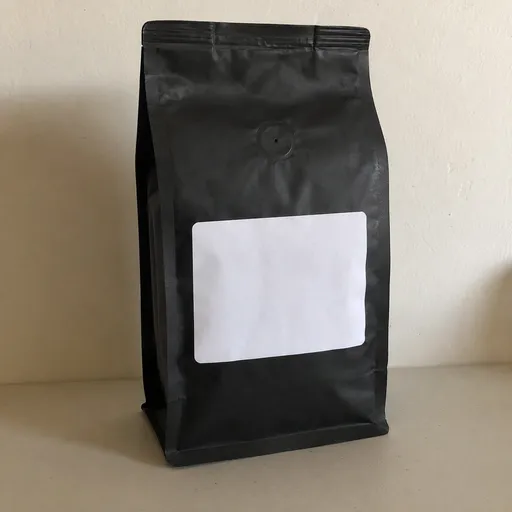
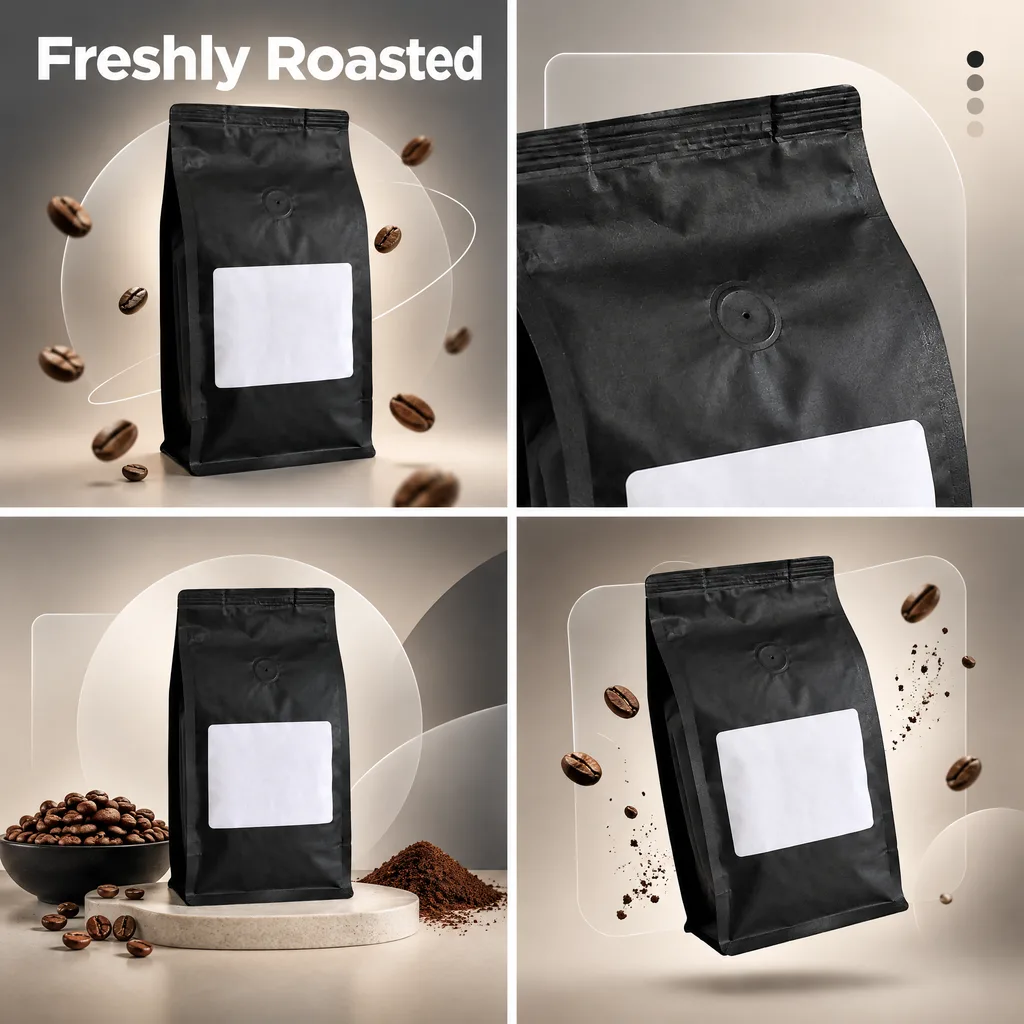 Regenerate
Named headline, hero frame only
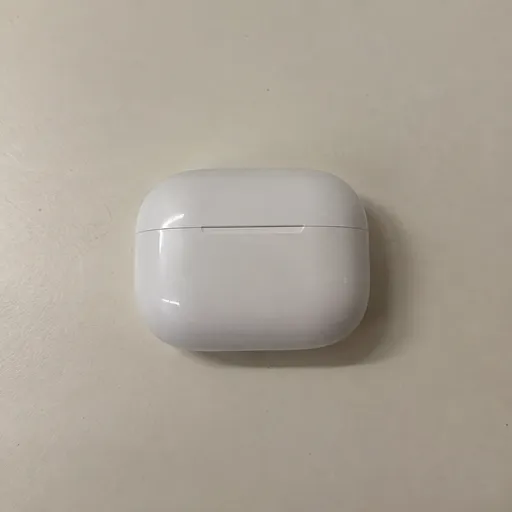
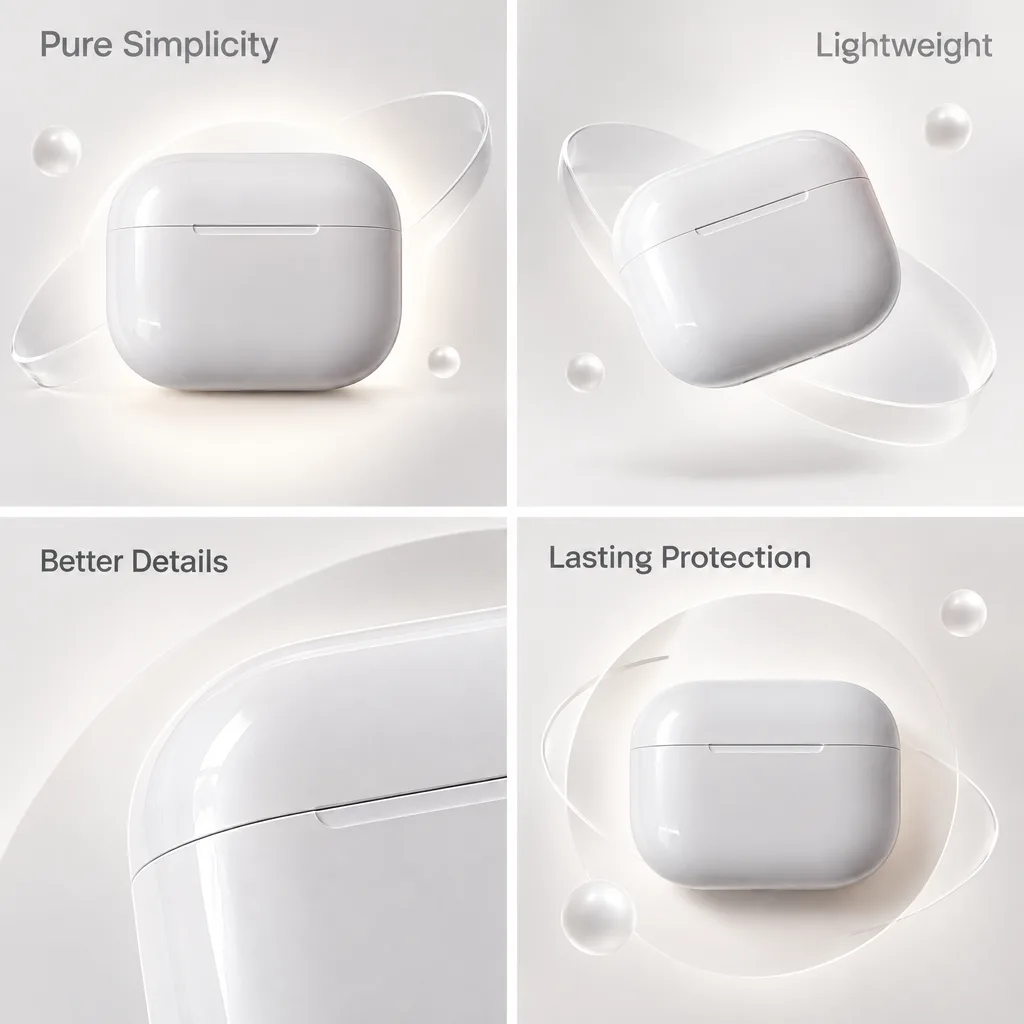 Regenerate
A slogan on each frame, white ground
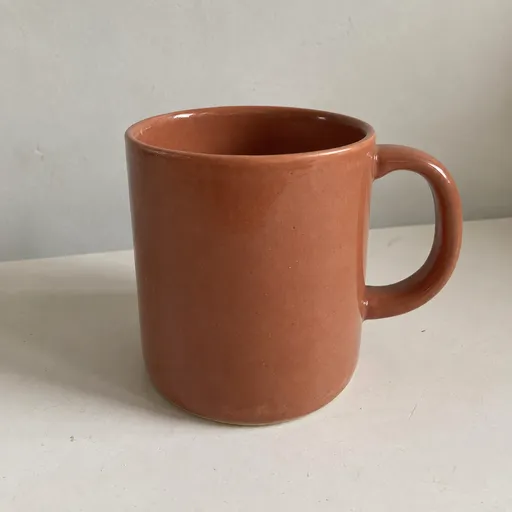
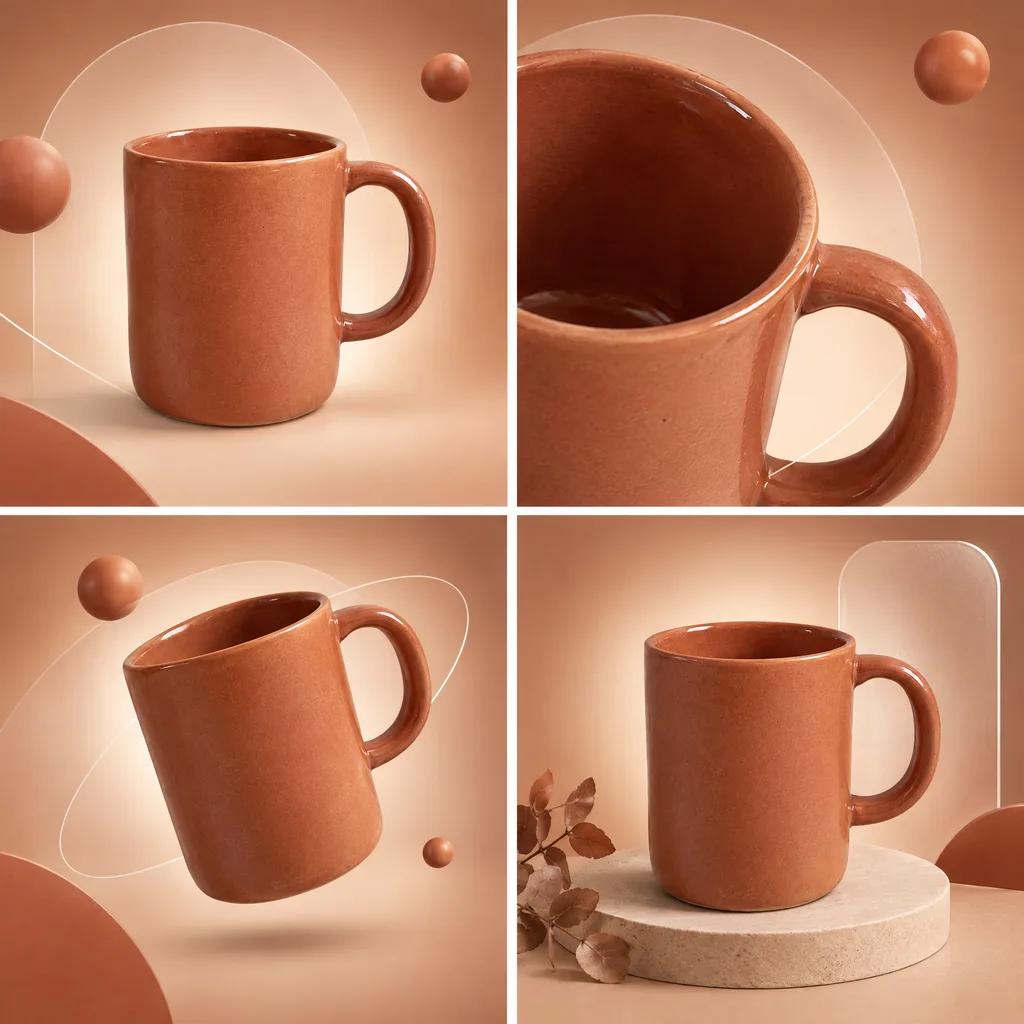 Regenerate
No prompt, one click
RegenerateNo prompt, one click
RegenerateNo prompt, one click
RegenerateOne serif tagline
RegenerateNamed headline, hero frame only
RegenerateA slogan on each frame, white ground
RegenerateNo prompt, one click
A ceramic mug collection
Show this ceramic mug in a calm breakfast setting, with soft morning light and a warm neutral palette. Keep the glaze color consistent.
Upload a mug photo and choose the output format. The brief guides four compositions; inspect handles, glaze and proportions in every view.
Try this exampleYou can choose either. The default is one 2×2 sheet with cutting tools. Selecting four separate images submits four independent generation tasks.
No. Shared references and style directions help, but neither the sheet nor separate-image mode guarantees identical product details in every view.
Product Image Set creates four compositions as a sheet or separate images. Product Detail Posters adds a planning step for a set of 1 to 12 posters.