





 Regenerate
Photo into a watercolor travel print
Tell us what to change in your photo
Review results, manage assets and access generation history in AI Studio.
Use an existing image as the starting point. Ask for a different background, a changed object, a new expression or an illustrated treatment, while describing what should stay.
Upload at least one clear source image and write the edit. Additional references can help explain a desired object or style when the model supports them.
You get an edited image, not a layered design file. Check faces, lettering and areas you wanted unchanged before downloading.
Use the clearest available version so the subject and the area to edit are easy to identify.
Describe one edit and name what must remain: for example, change the wall color but keep the furniture and framing.
Compare it with your source. If an unwanted area changed, make the next instruction narrower and reuse the source image.
Every card below is a real job run here. Tap one and the source photos and prompt load — run it yourself.
RegeneratePhoto into a watercolor travel print
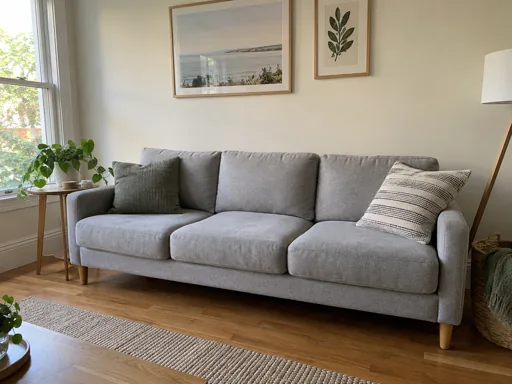

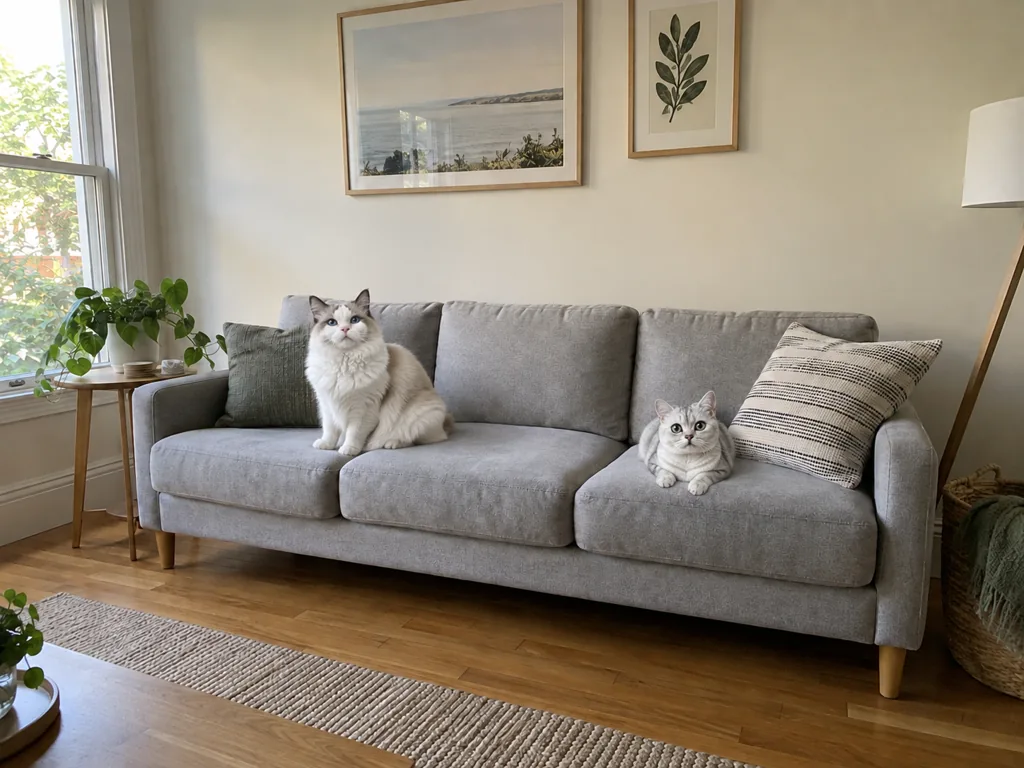 Regenerate
Two cats moved onto the sofa

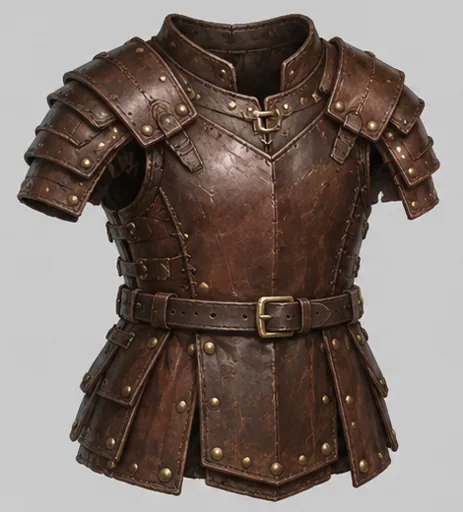


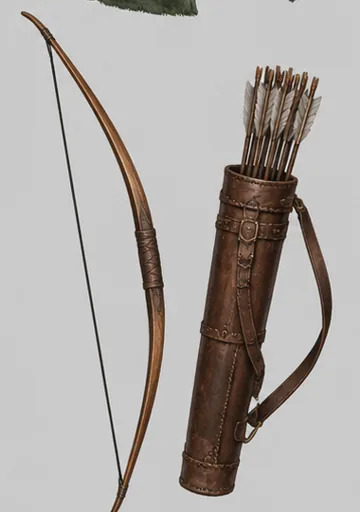
 Regenerate
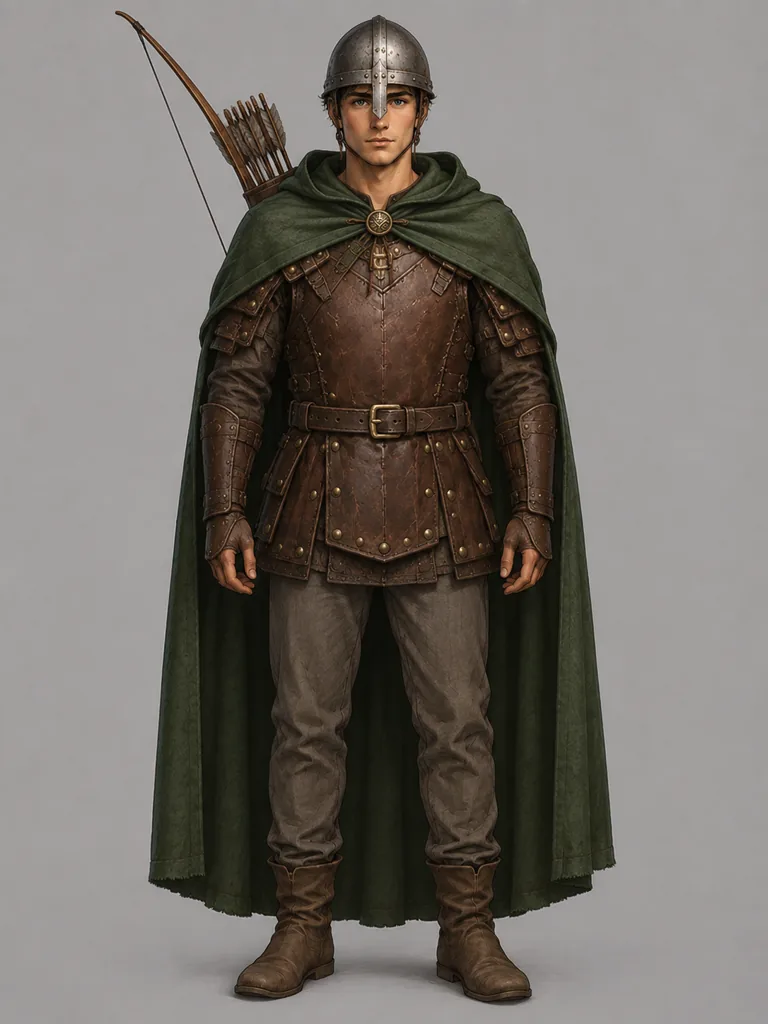
Five refs, one fully geared hero

 Regenerate
New expression, all else intact

 Regenerate
Handwritten text on the table

 Regenerate
Photo turned into watercolor
RegeneratePhoto into a watercolor travel print
RegenerateTwo cats moved onto the sofa
RegenerateFive refs, one fully geared hero
RegenerateNew expression, all else intact
RegenerateHandwritten text on the table
RegeneratePhoto turned into watercolor
Replace a portrait background
Replace the busy background with a plain warm-gray studio backdrop. Keep the person, clothing and camera framing.
Upload a portrait first. This instruction illustrates a background edit; preservation of every detail is not guaranteed.
Try this exampleNot necessarily. Generative editing can also alter nearby details. State what to preserve and compare the output with the original.
You can describe the replacement text, but spelling, layout and legibility can vary. Proofread every word before using the result.
You can request several changes, but they are harder to assess together. Start with the most important edit and refine in separate passes if needed.