 Text / Image to VideoRegenerate
The avatar cat climbs out
Upload one photo to make your own viral video or viral image. No app to download, no filming or editing.
New fit every blade
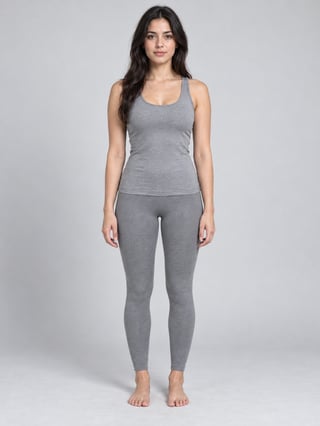
You or your pet lie on a rug, and every sweep of the ceiling-fan blade reveals a new outfit: four looks in one shot.
Four looks in order. Replace any with a photo of your own clothes; a flat-lay or product shot works best.
You can change the room, the clothes, colours, look and who is on which side. Type @ to point at a photo. The first photo goes on the left by default. The fan-sweep outfit change is the template and stays; the number of outfits follows the length: 2 at 5s, 3 at 10s, 4 at 15s.
ImgAI (Image AI, imgai.ai) is an AI video and photo maker for social creators: recreate viral trends from a template in one tap, or create freely in the studio with top models like Seedance, Wan and GPT Image.
Real examples made on ImgAI. Pick one, add your photo, and get the same look in your own video or image.
 Virtual Try-OnMake the same
 Sticker pack · GIFMake the same
Product teasers, ad spots, title sequences and space walk-throughs. Start with text or an image, then choose a landscape or vertical format.
Every clip below is a real job run here. Tap one and the prompt and stills load — run it yourself.
Text / Image to VideoRegenerateThe avatar cat climbs out
 Reference to VideoRegenerate
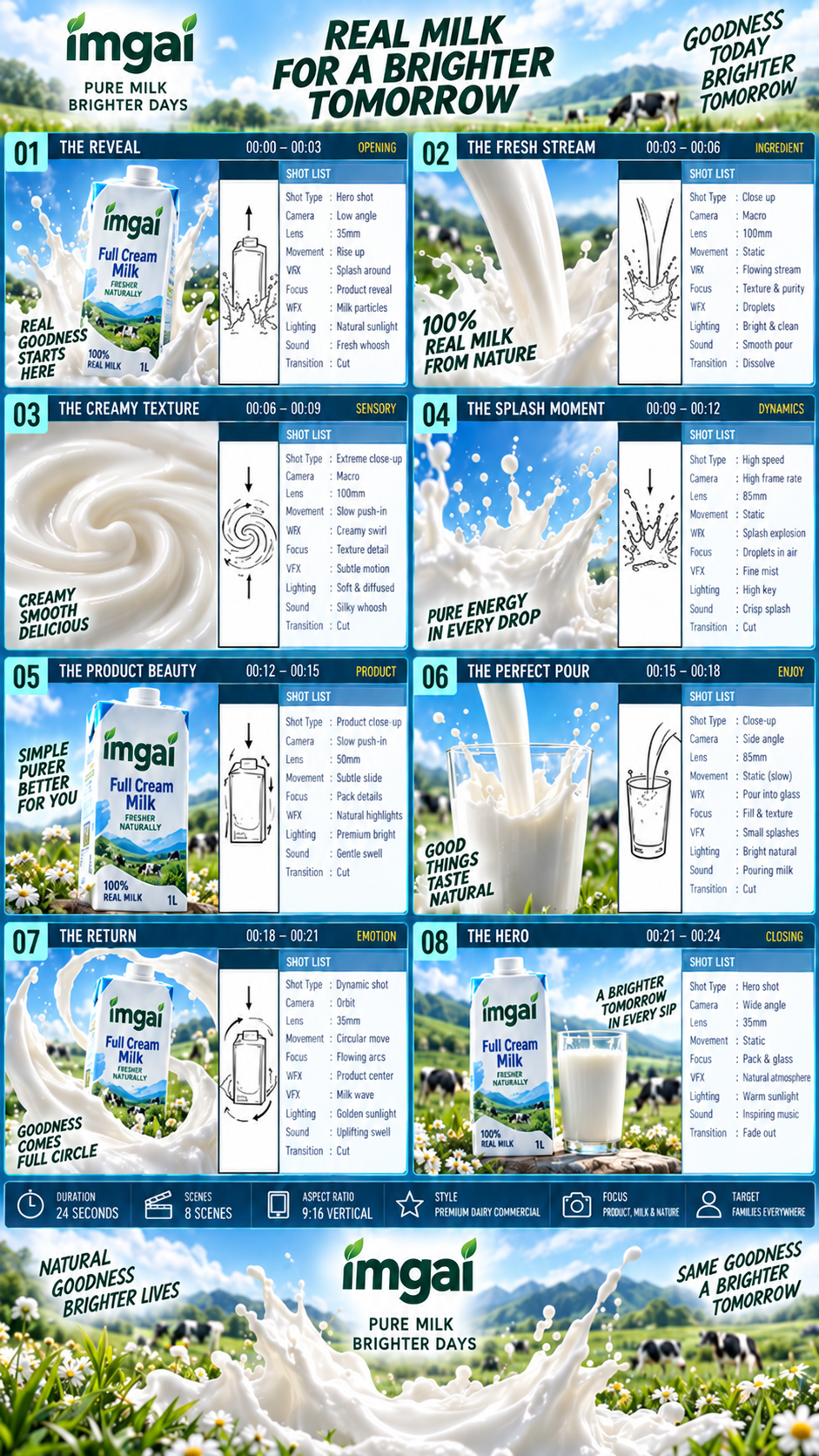
One poster becomes a milk commercial
 Reference to VideoRegenerate
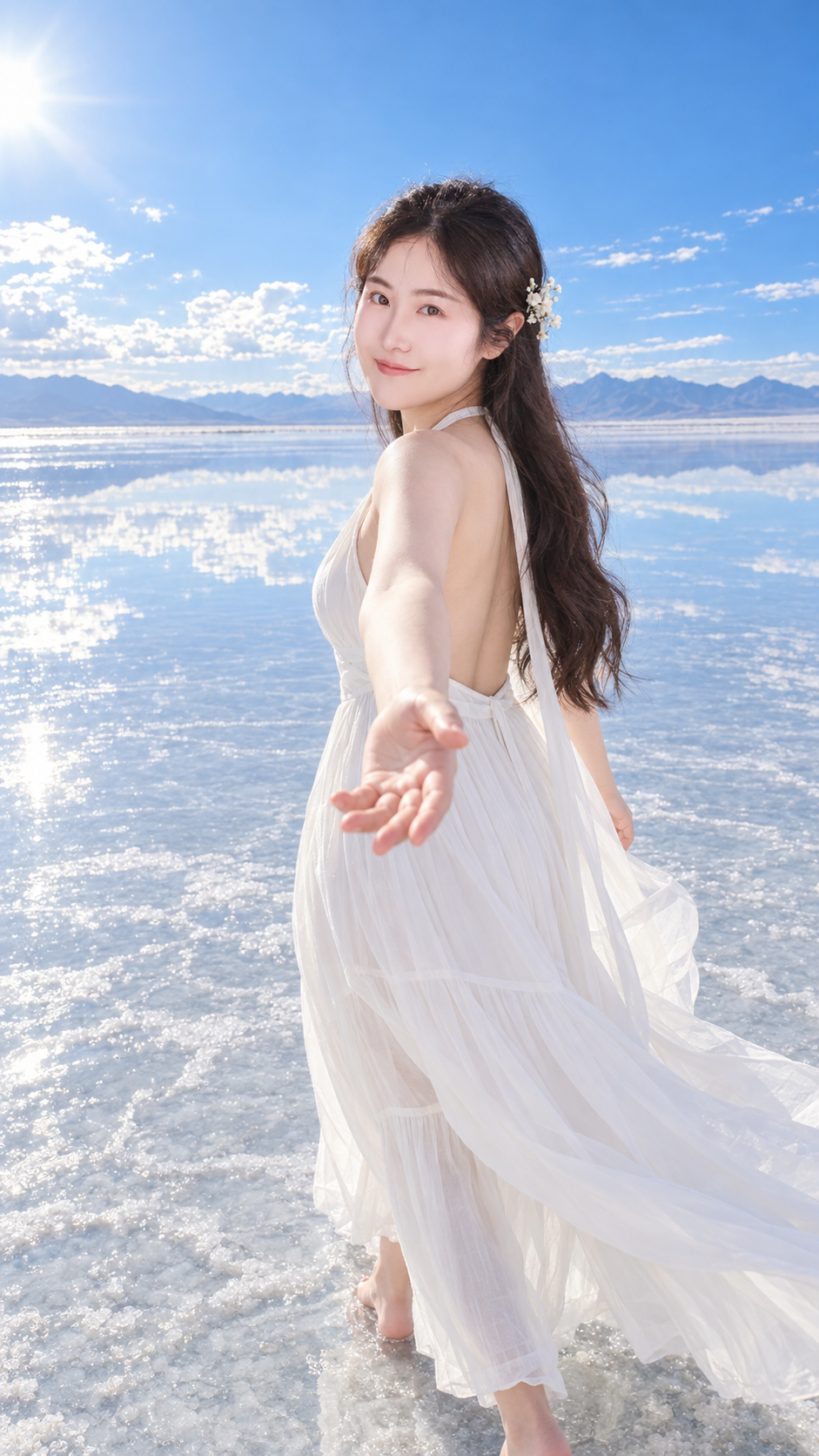
Take her hand, spin into five destinations
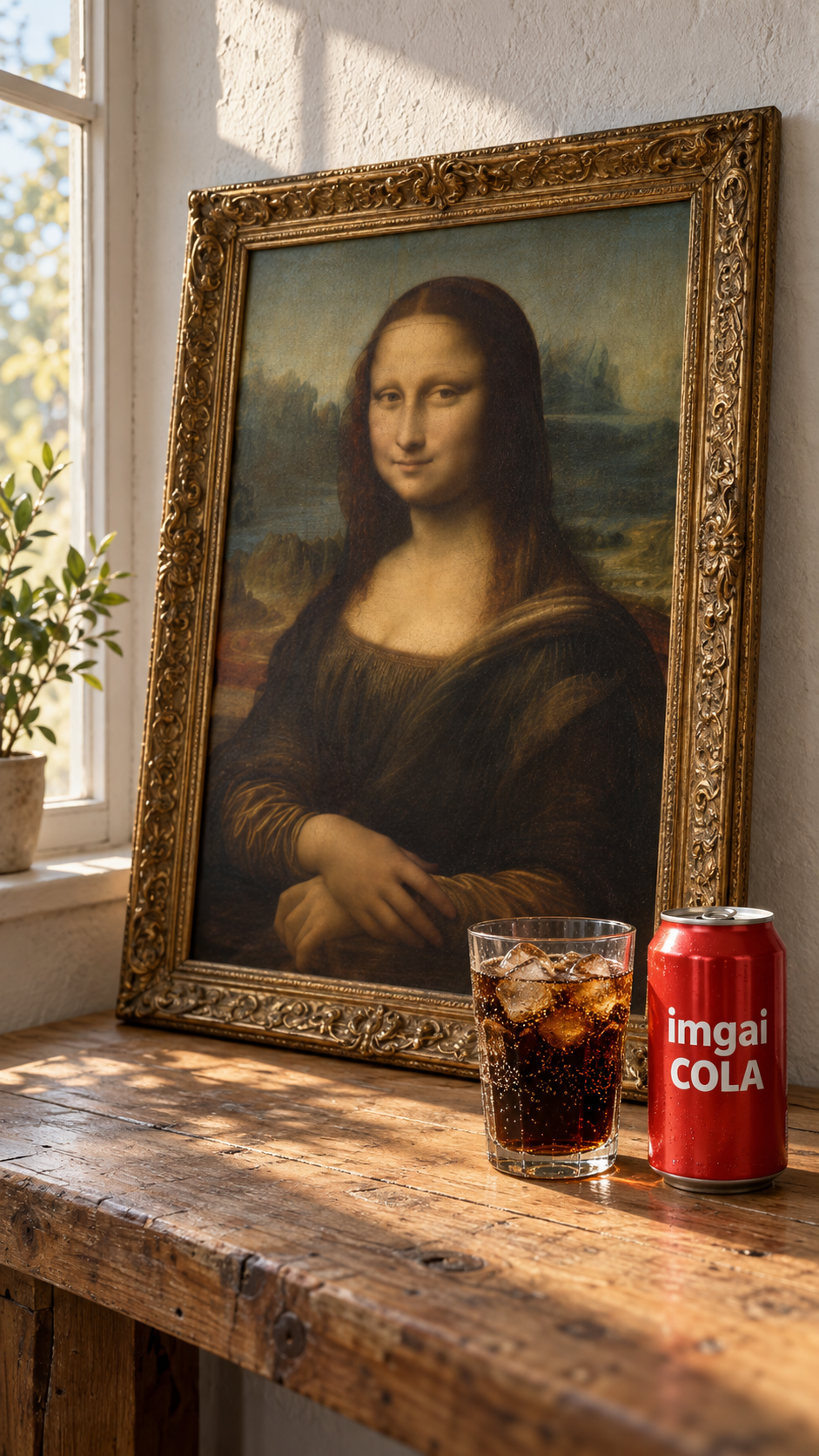 Text / Image to VideoRegenerate
Mona Lisa sneaks a sip
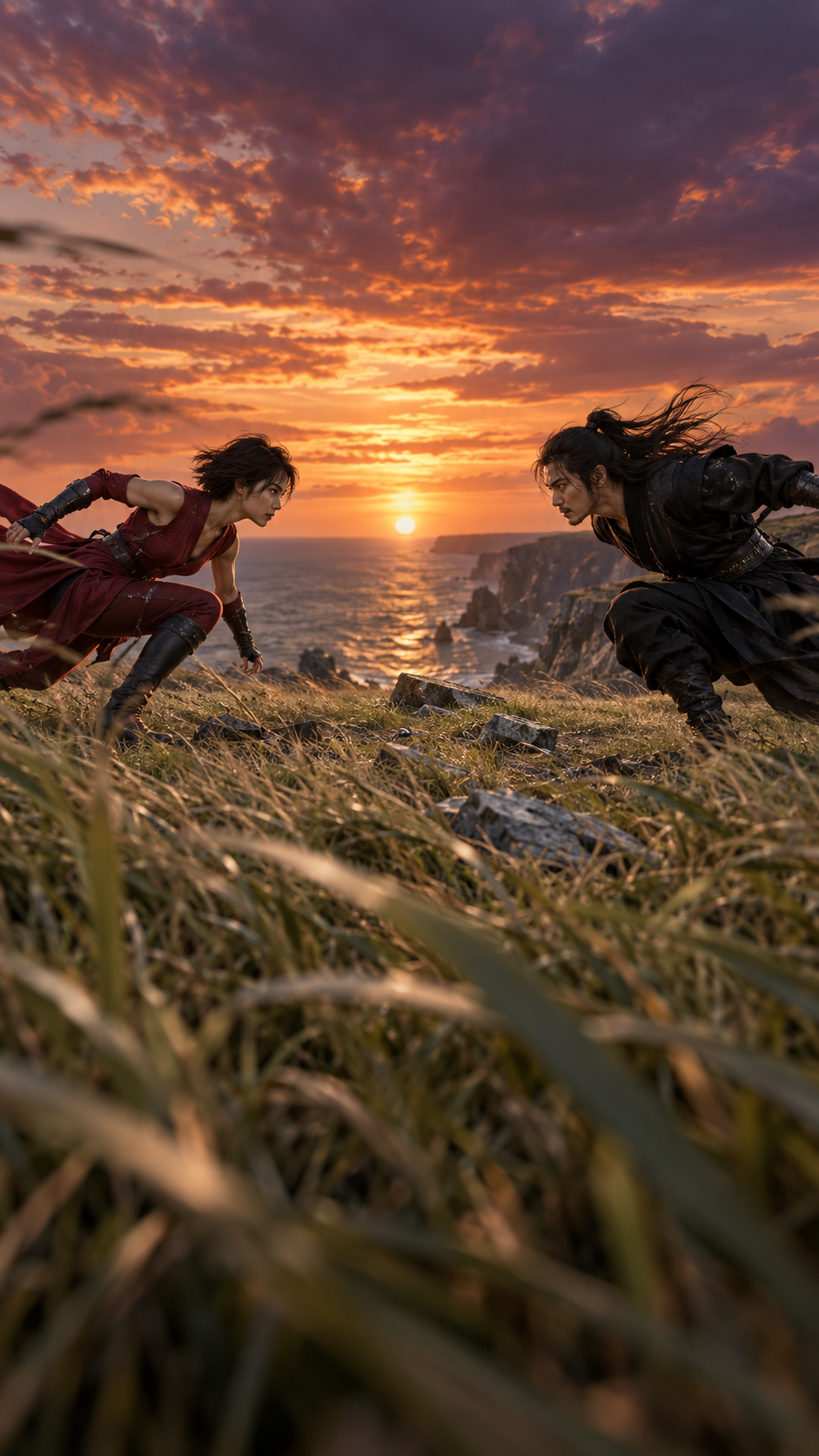 Text / Image to VideoRegenerate
A ten-second duel on the cliff
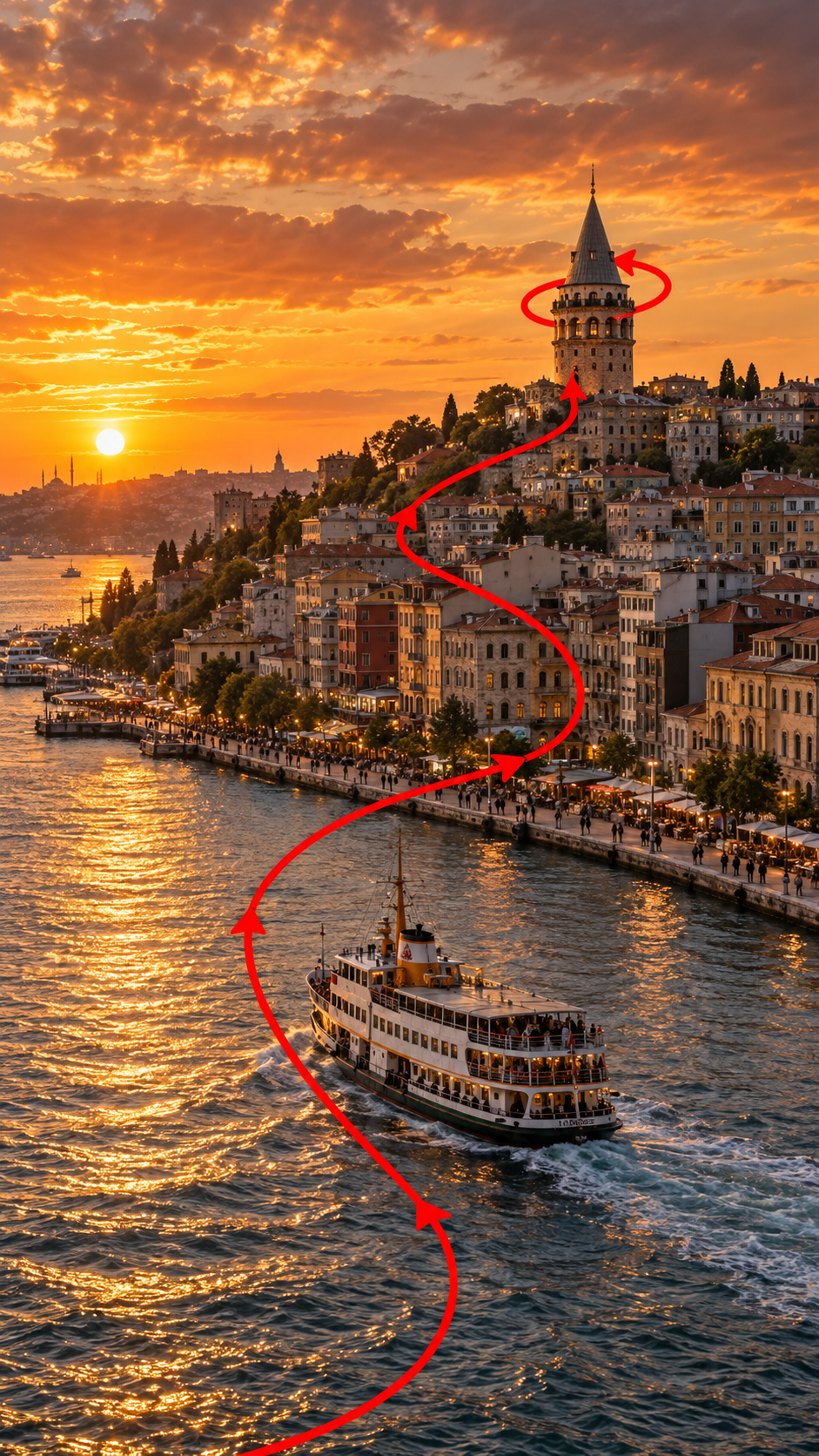 Reference to VideoRegenerate
Following the red line into the old town
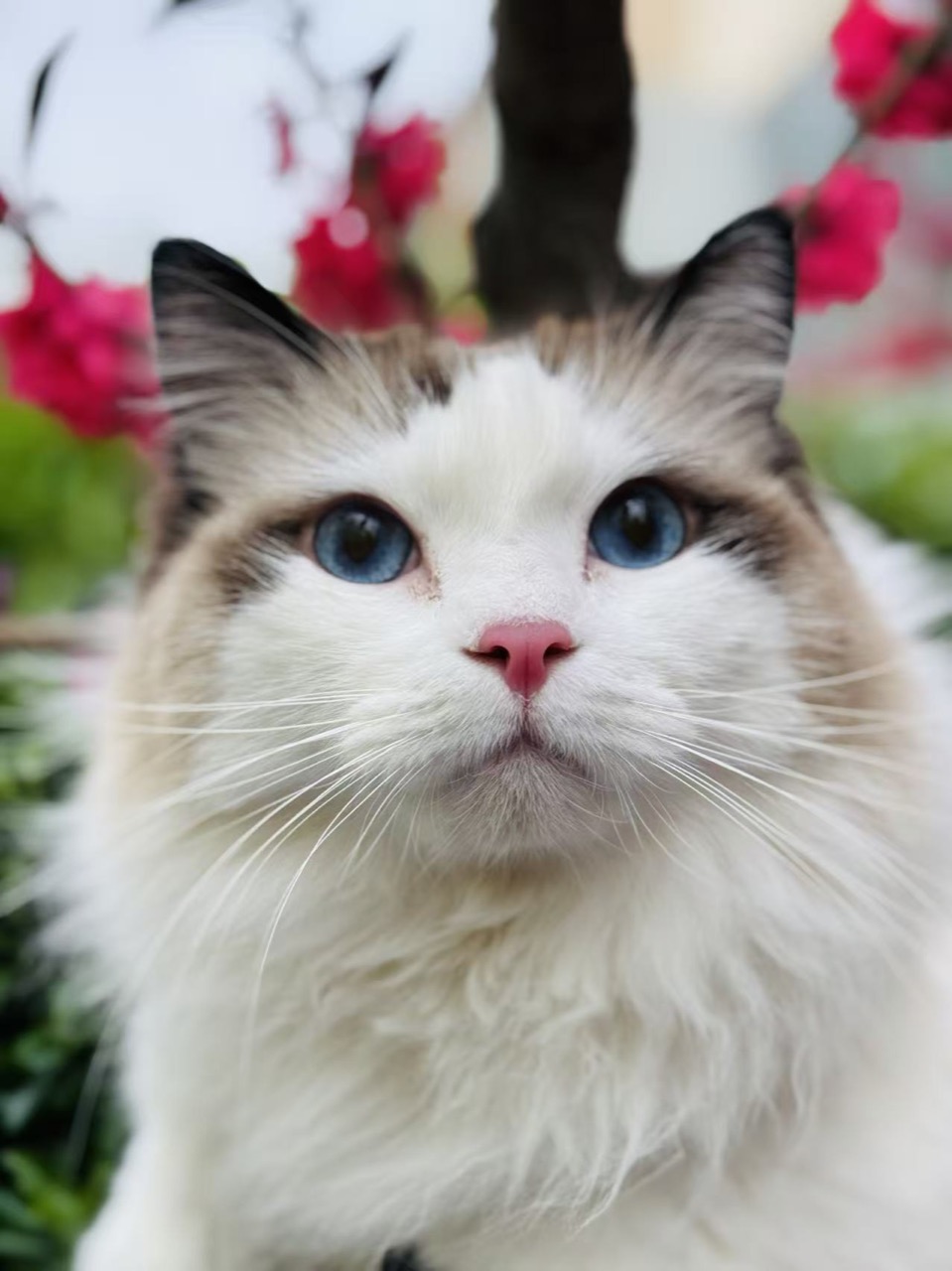
 Hotel Lobby AIRegenerate
Hotel Lobby AI, cat duet
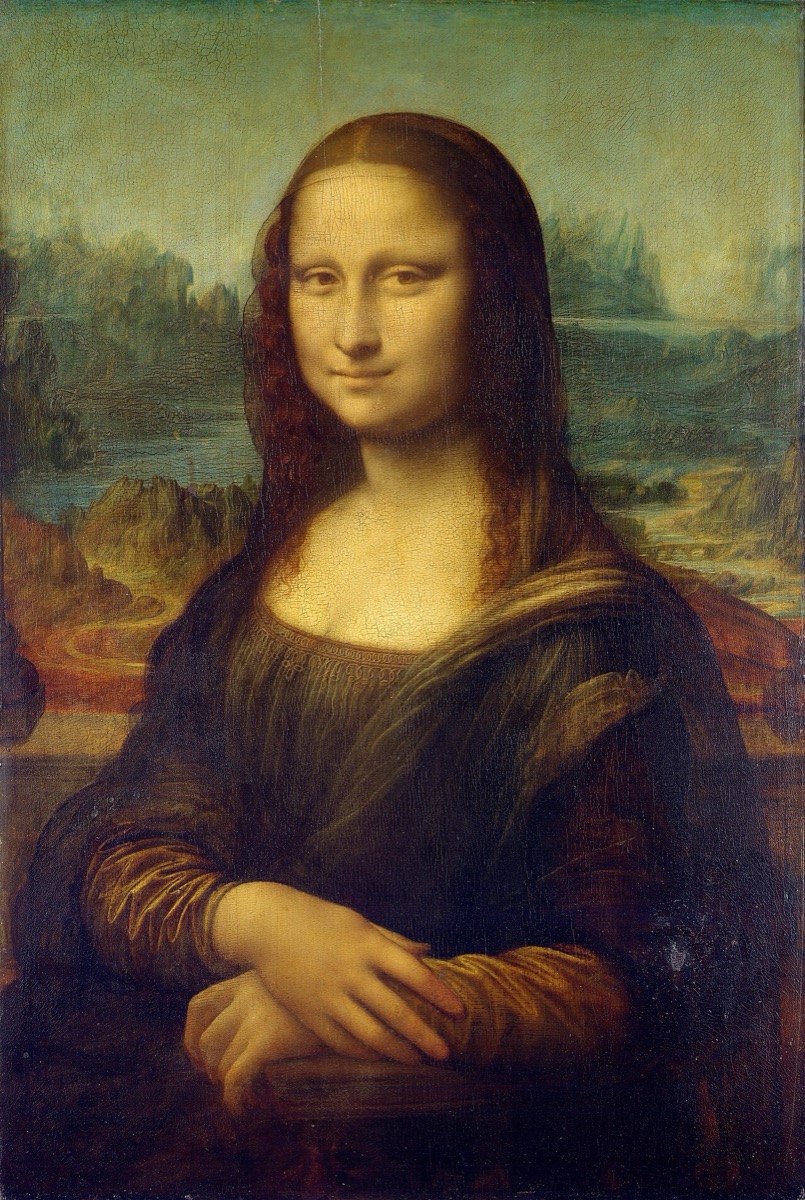
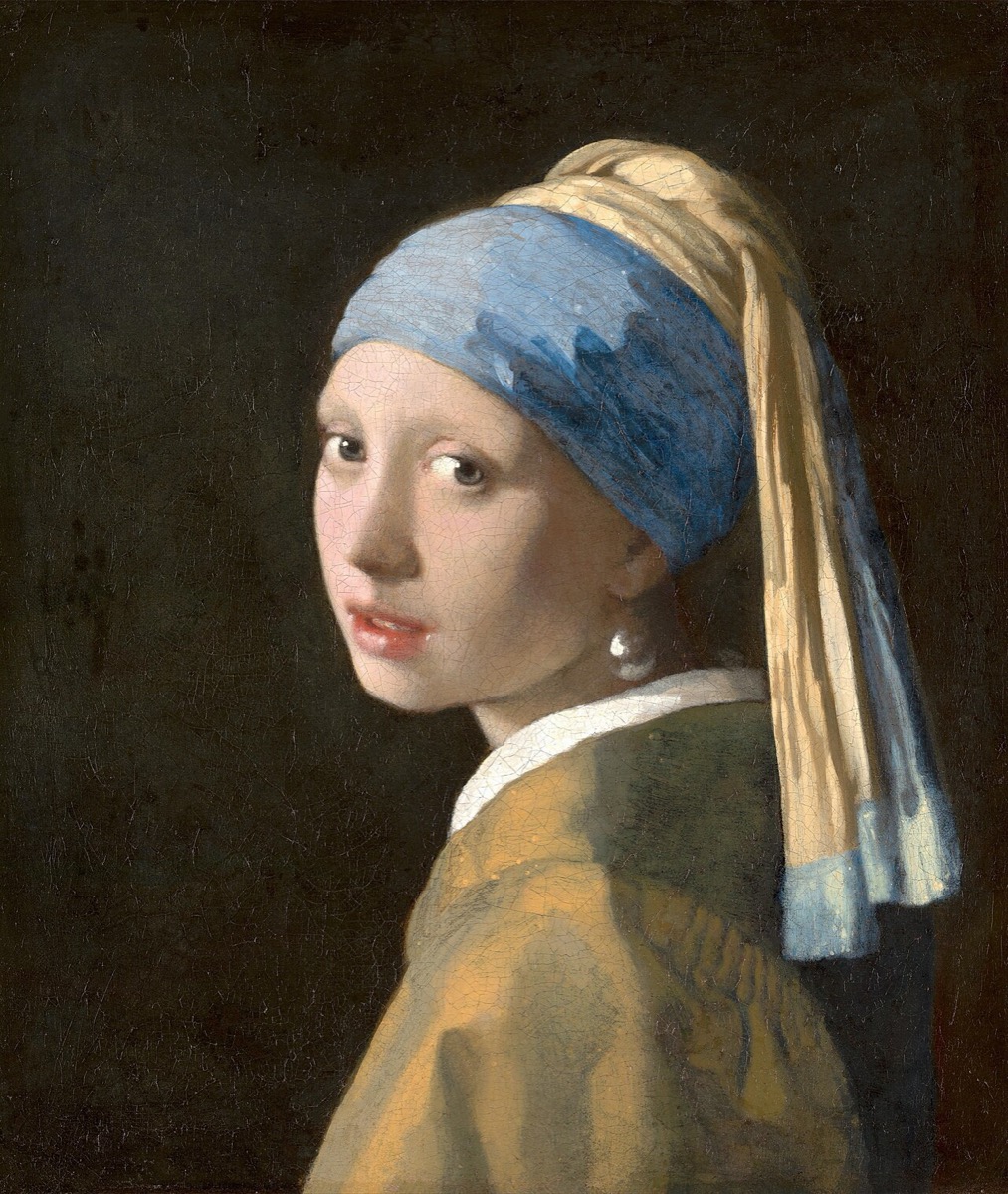 Hotel Lobby AIRegenerate
Hotel Lobby AI, Mona Lisa vs Pearl Earring
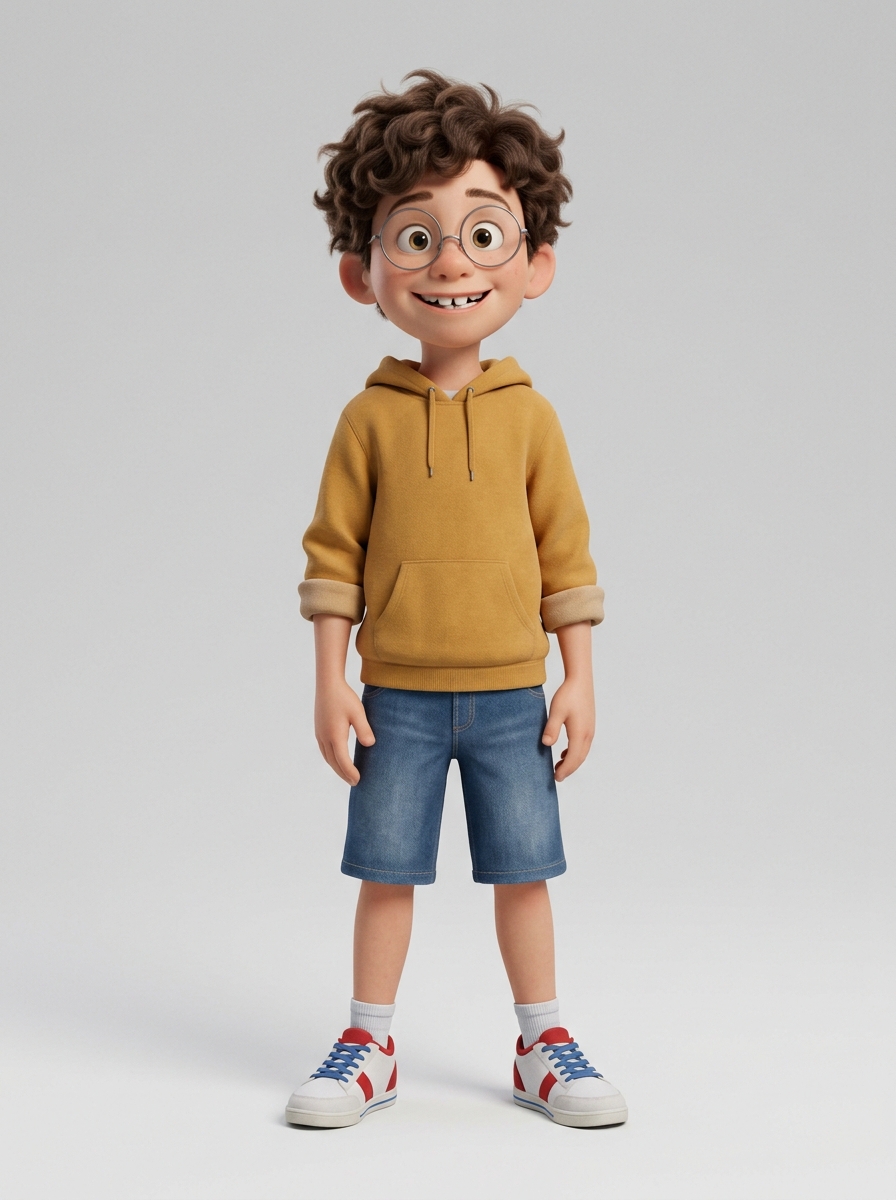
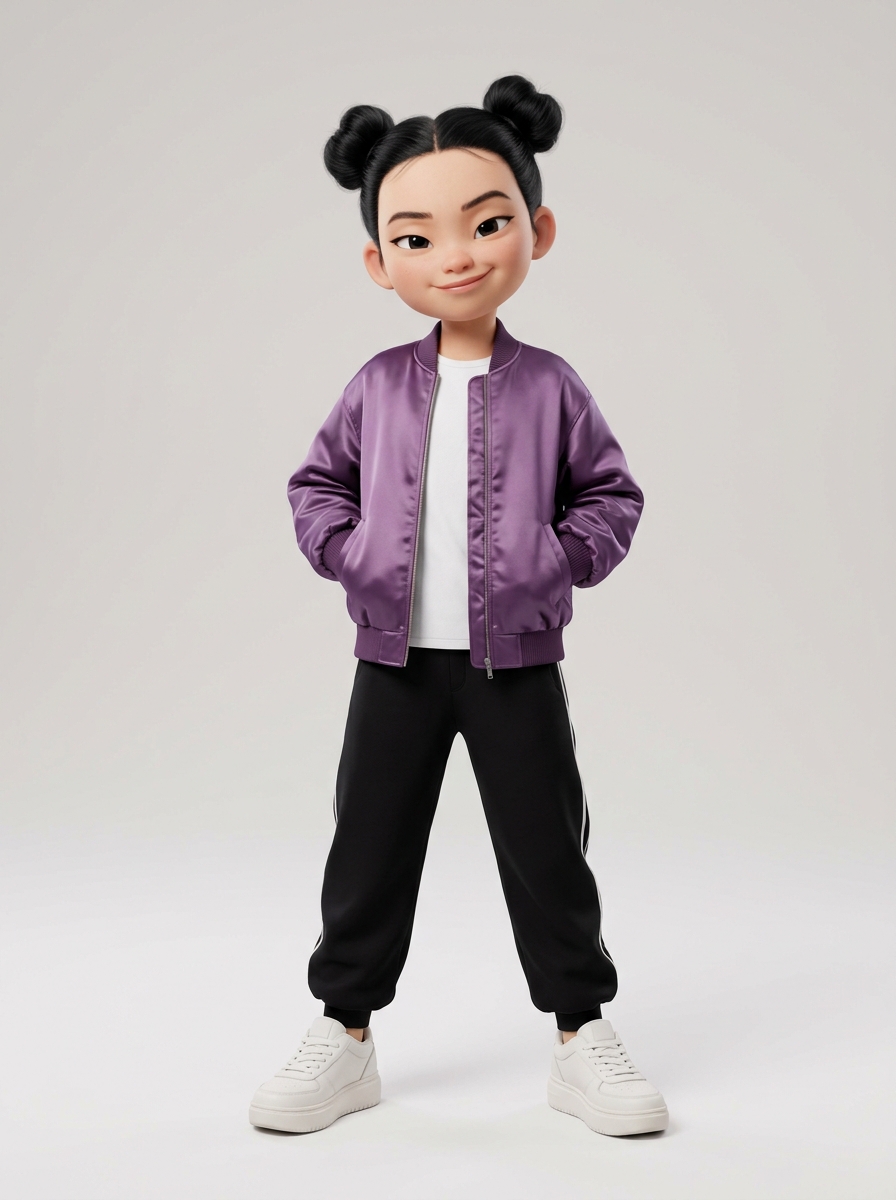 Hotel Lobby AIRegenerate
Hotel Lobby AI, cartoon kids
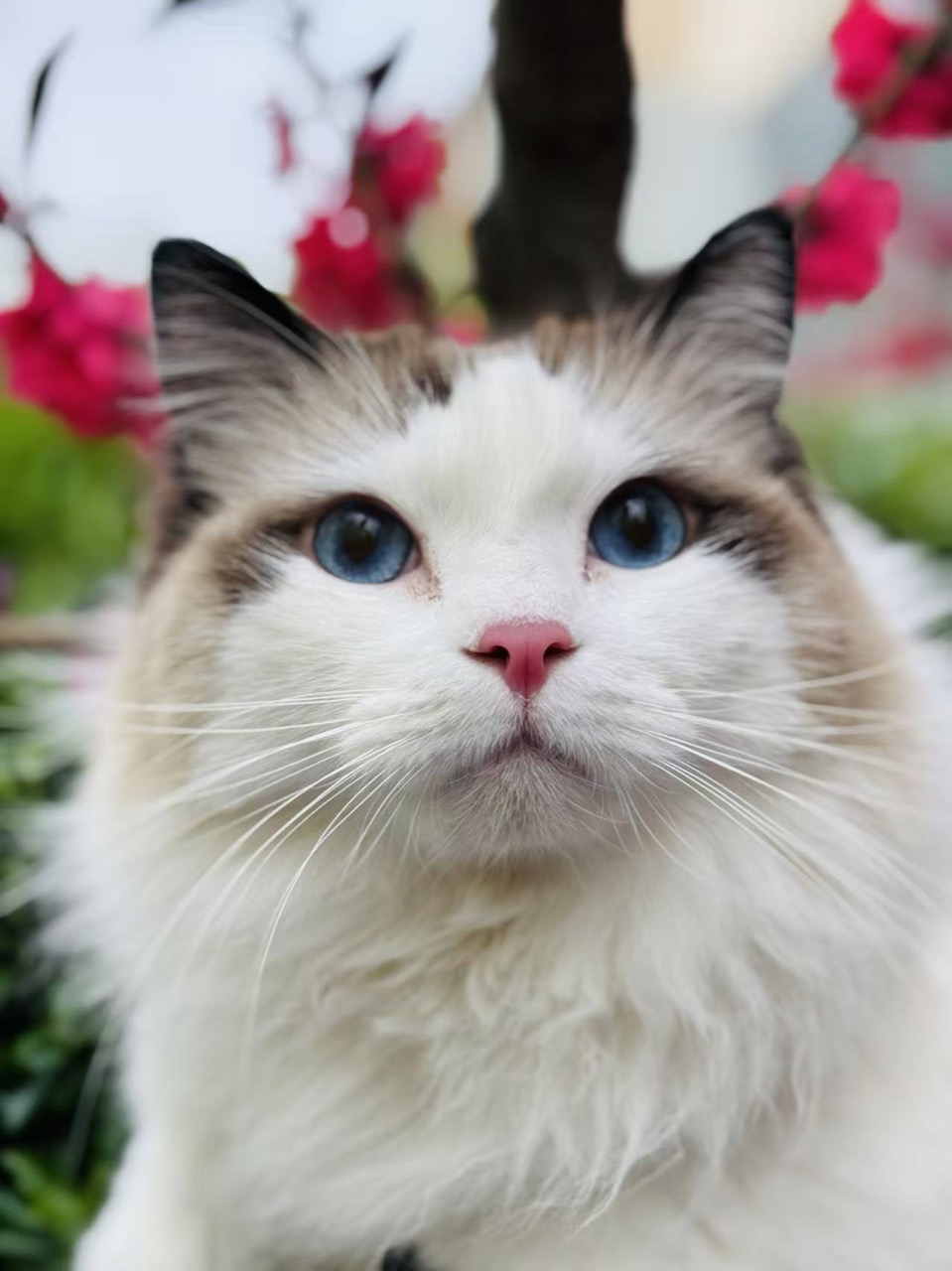 Bulin 47 street freestyleRegenerate
Cat street freestyle
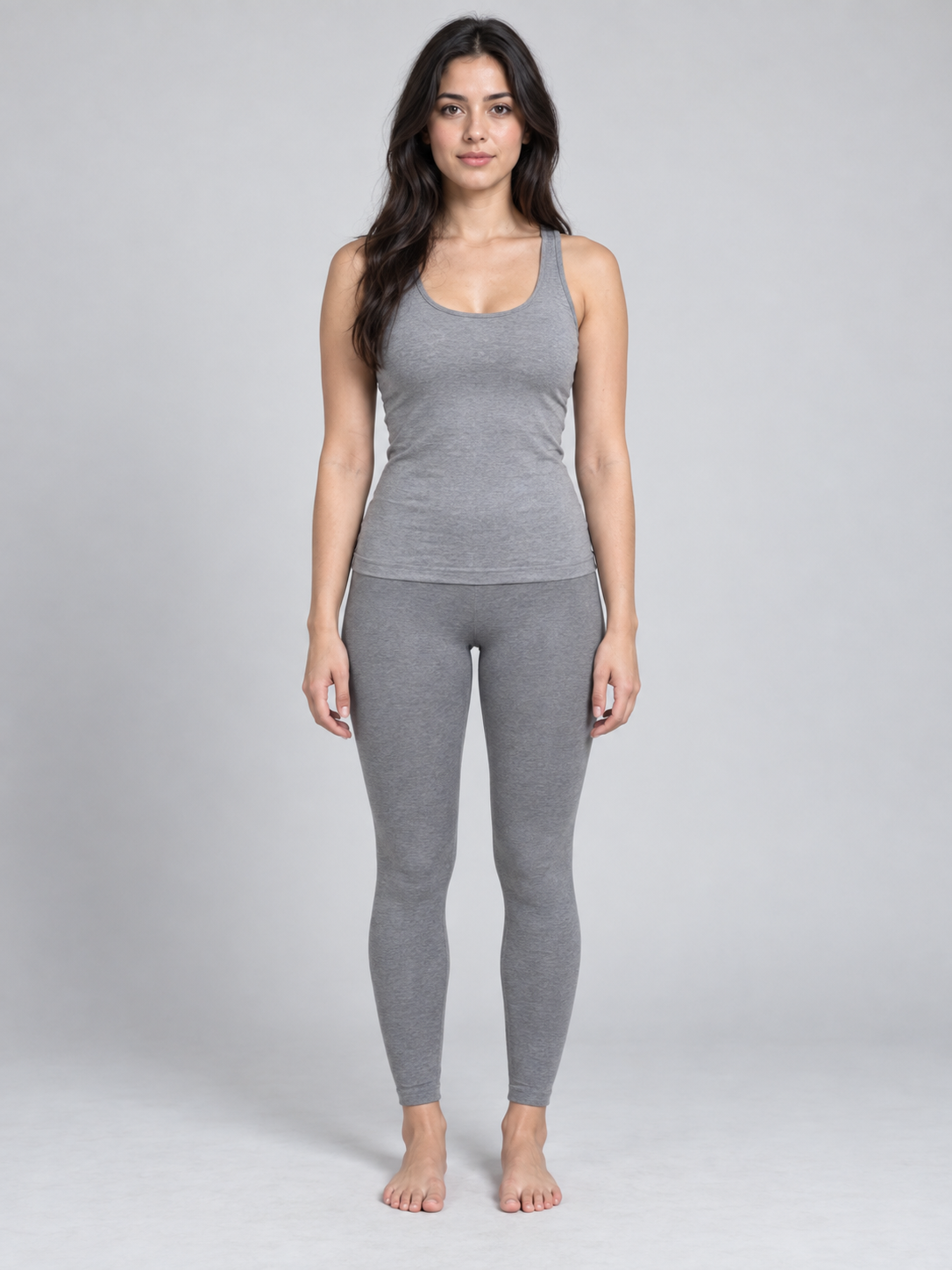 Bulin 47 street freestyleRegenerate
Human street freestyle
 Bulin 47 street freestyleRegenerate
Robot street freestyle
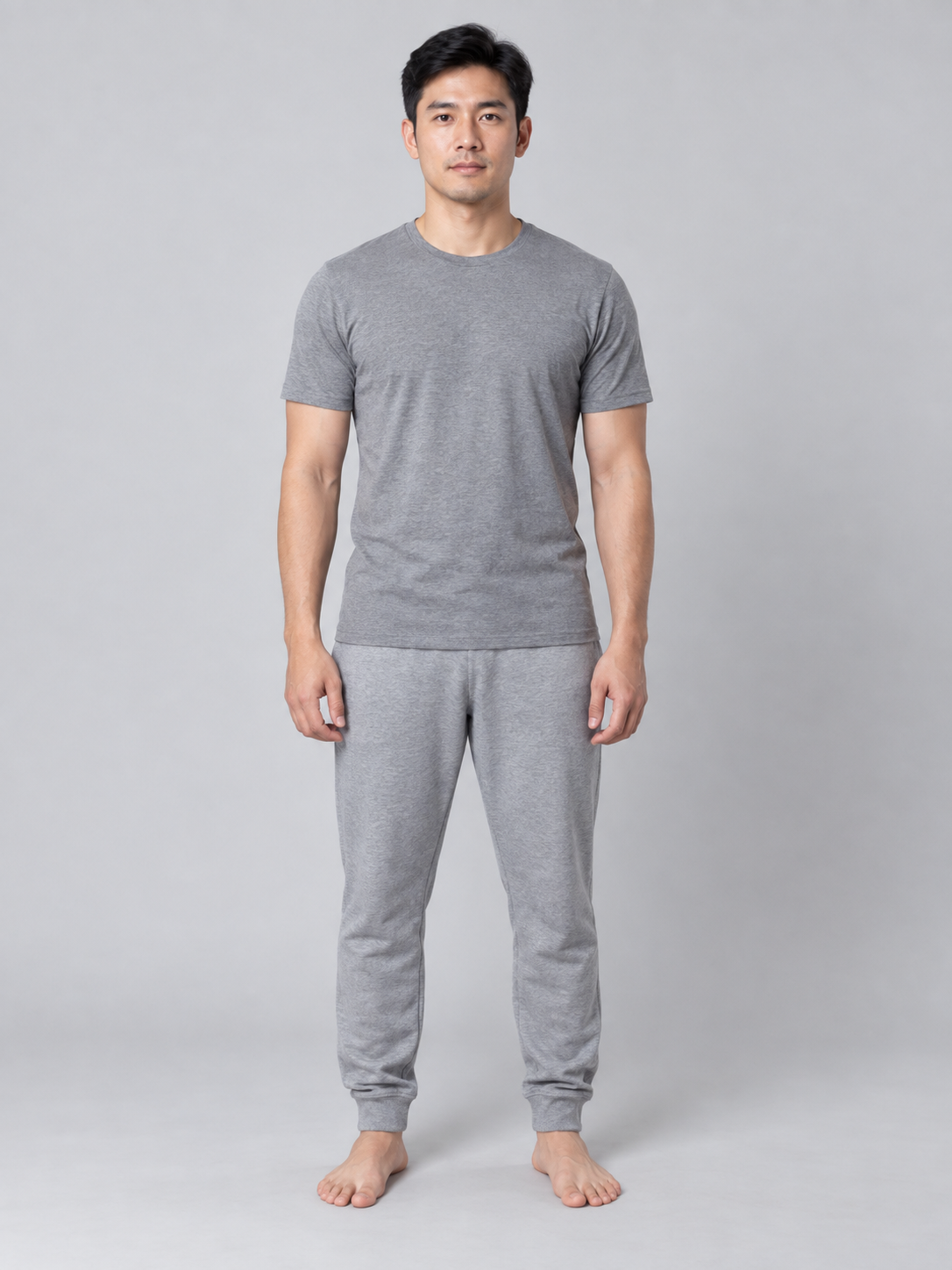 Reference to VideoRegenerate
A continuous solo zombie transformation
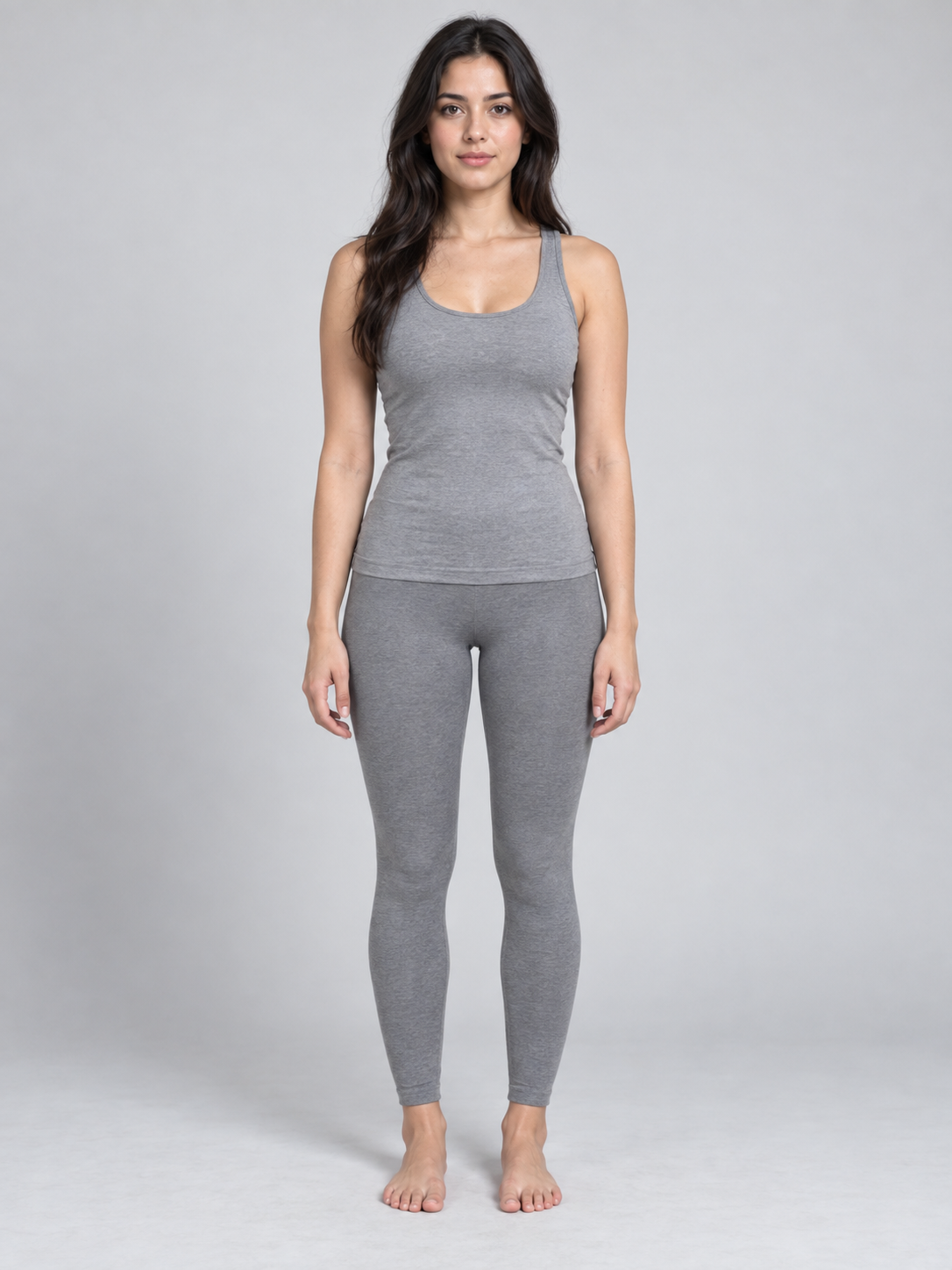 Zombie AI Video GeneratorRegenerate
A couple transforms and reunites in the rain
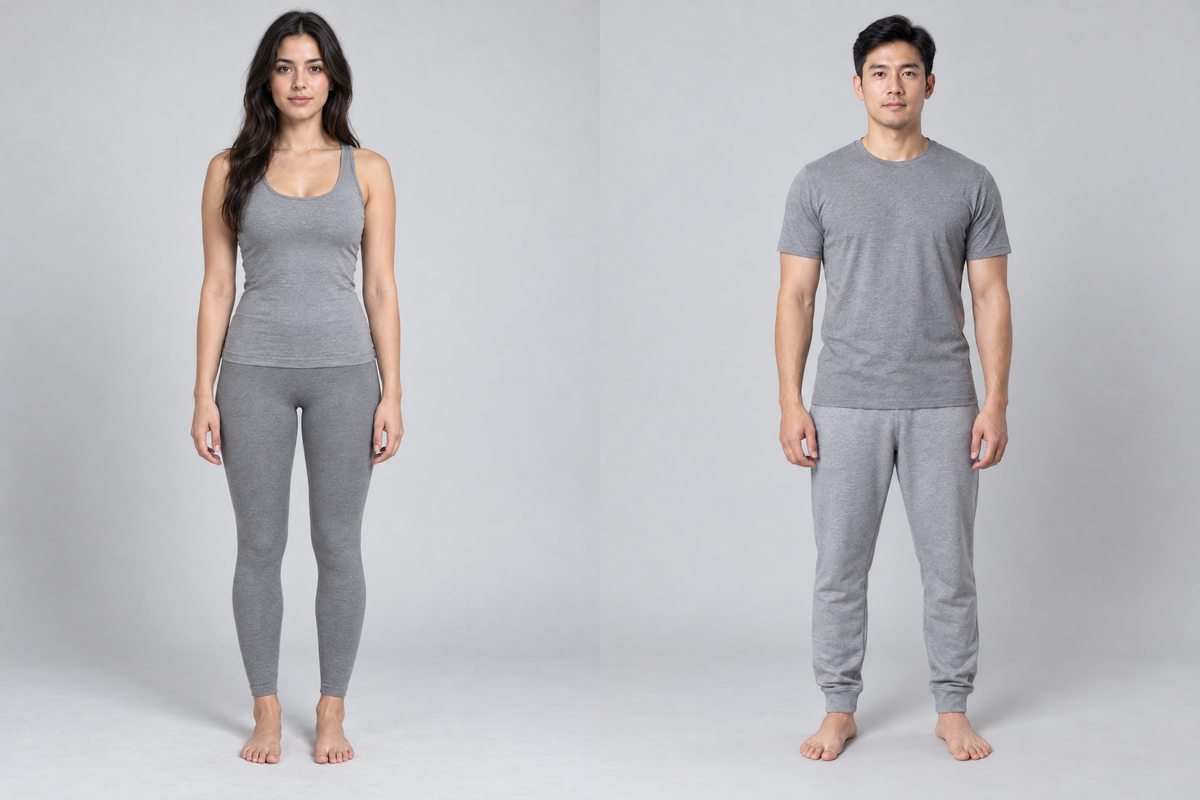 Zombie AI Video GeneratorRegenerate
Friends transform and reunite at a snowy cabin
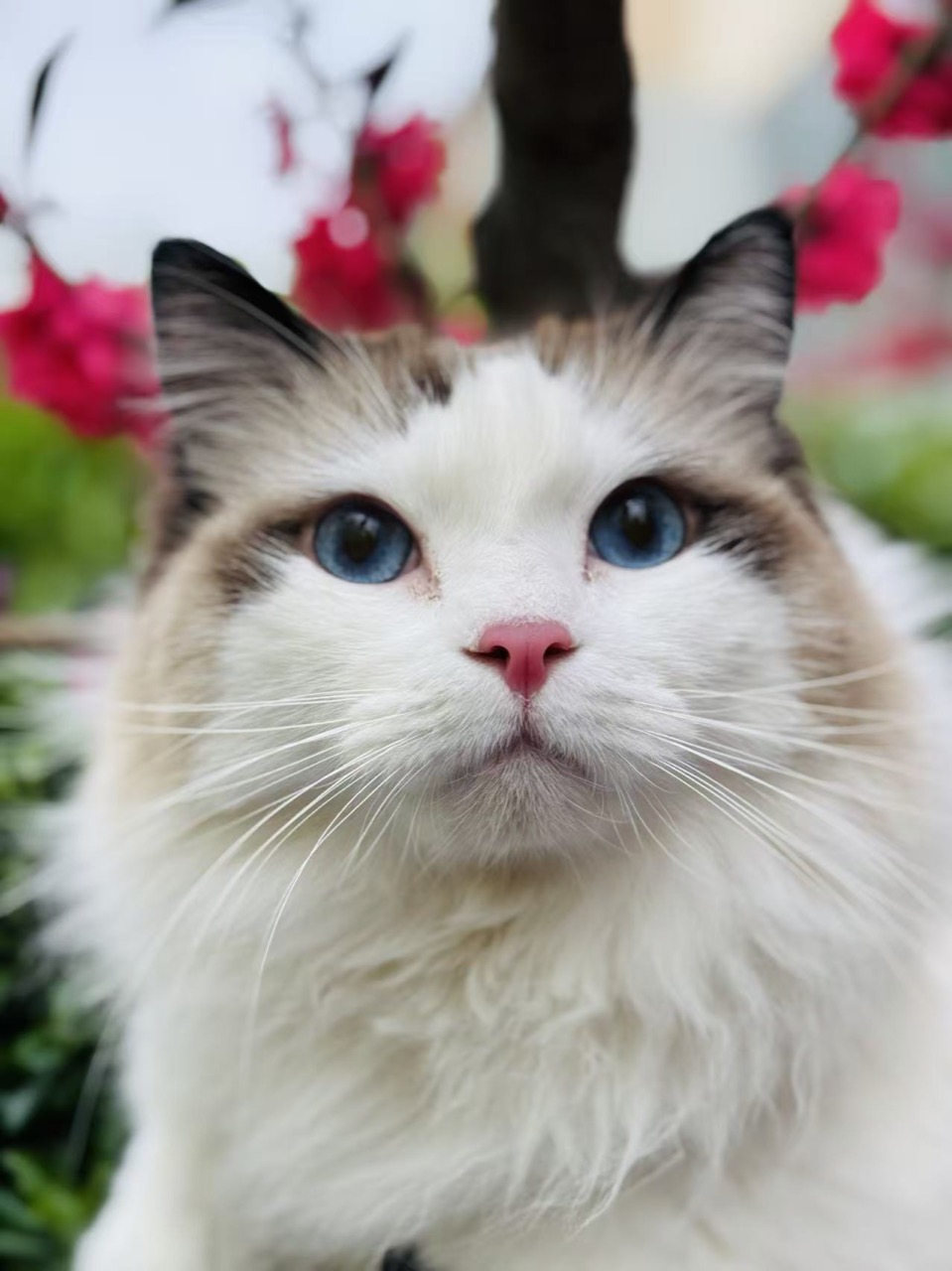 Zombie AI Video GeneratorRegenerate
A pet’s costume transformation and reunion
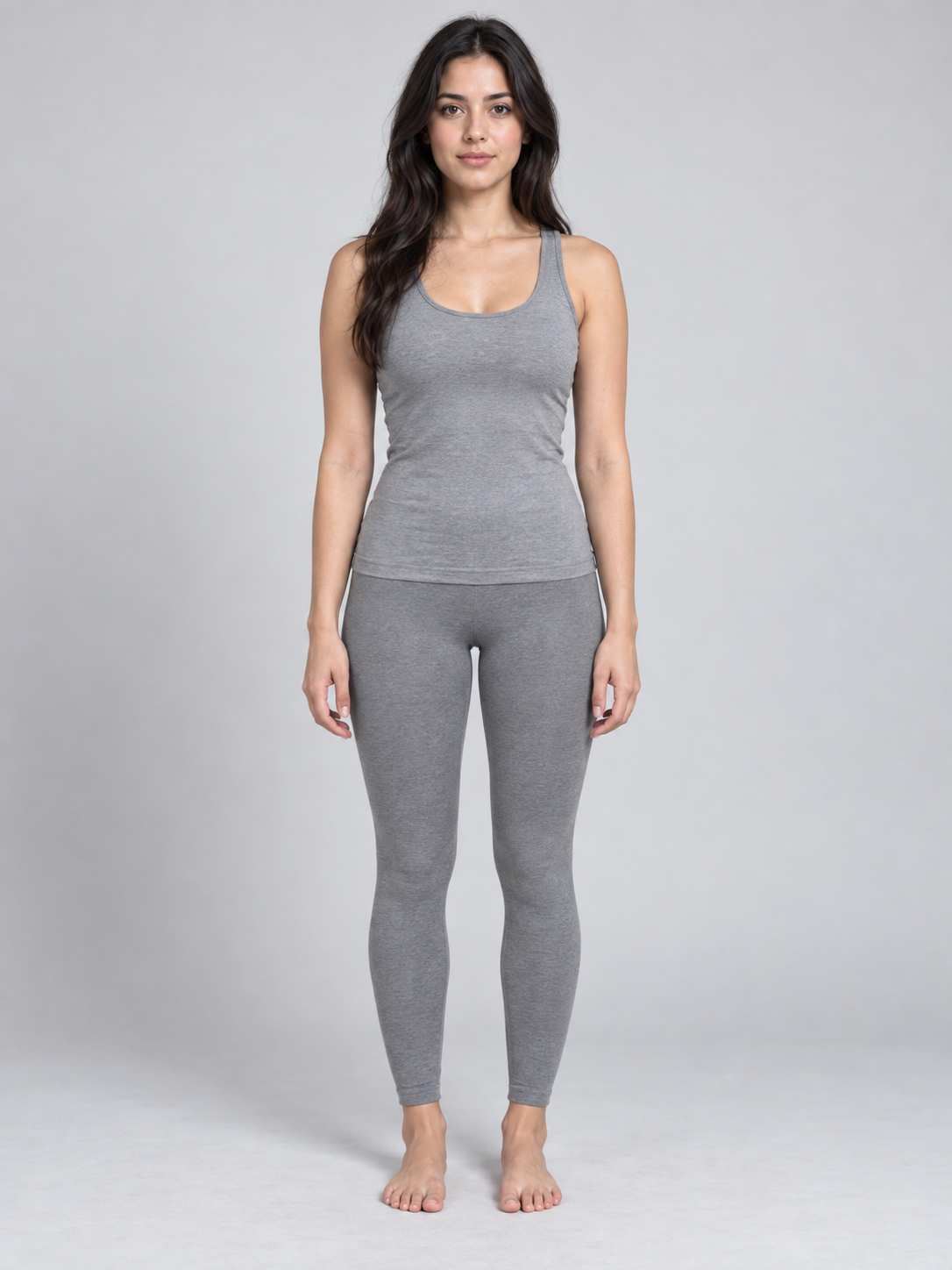 Tesla Roadster flying carRegenerate
Ramp jump and a mid-air roll
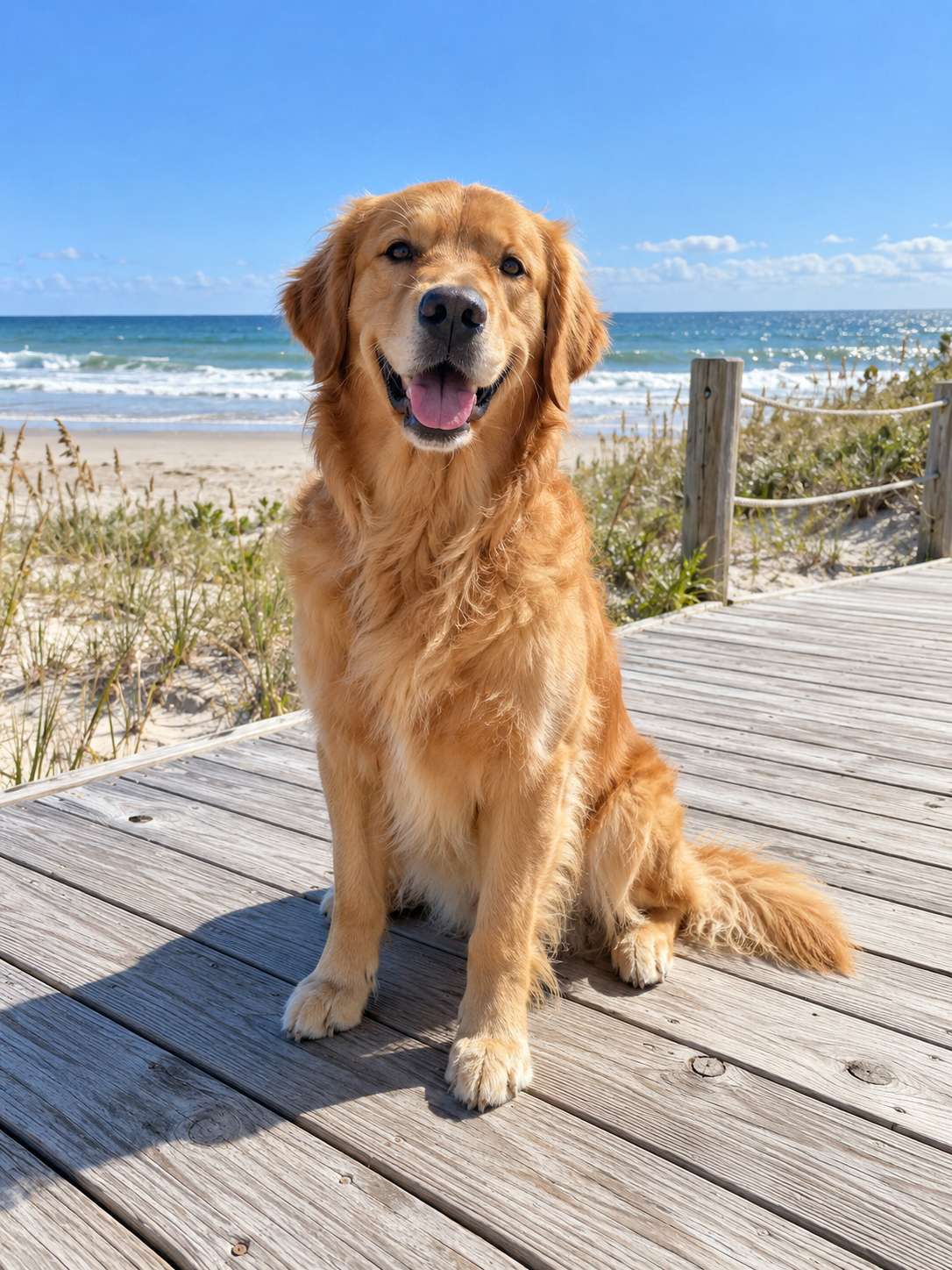 Tesla Roadster flying carRegenerate
A dog takes the dune jump
 Tesla Roadster flying carRegenerate
Two friends clear a broken bridge
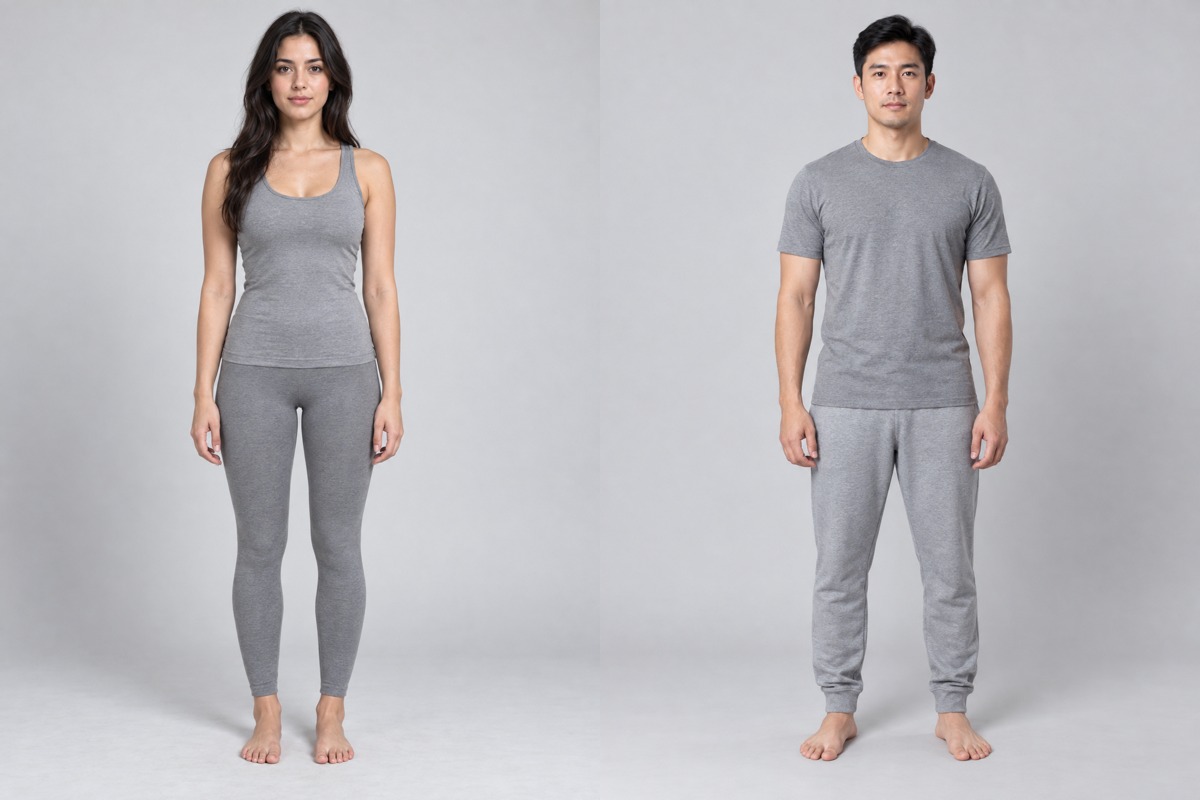
 Ceiling Fan TransitionRegenerate
Halloween set
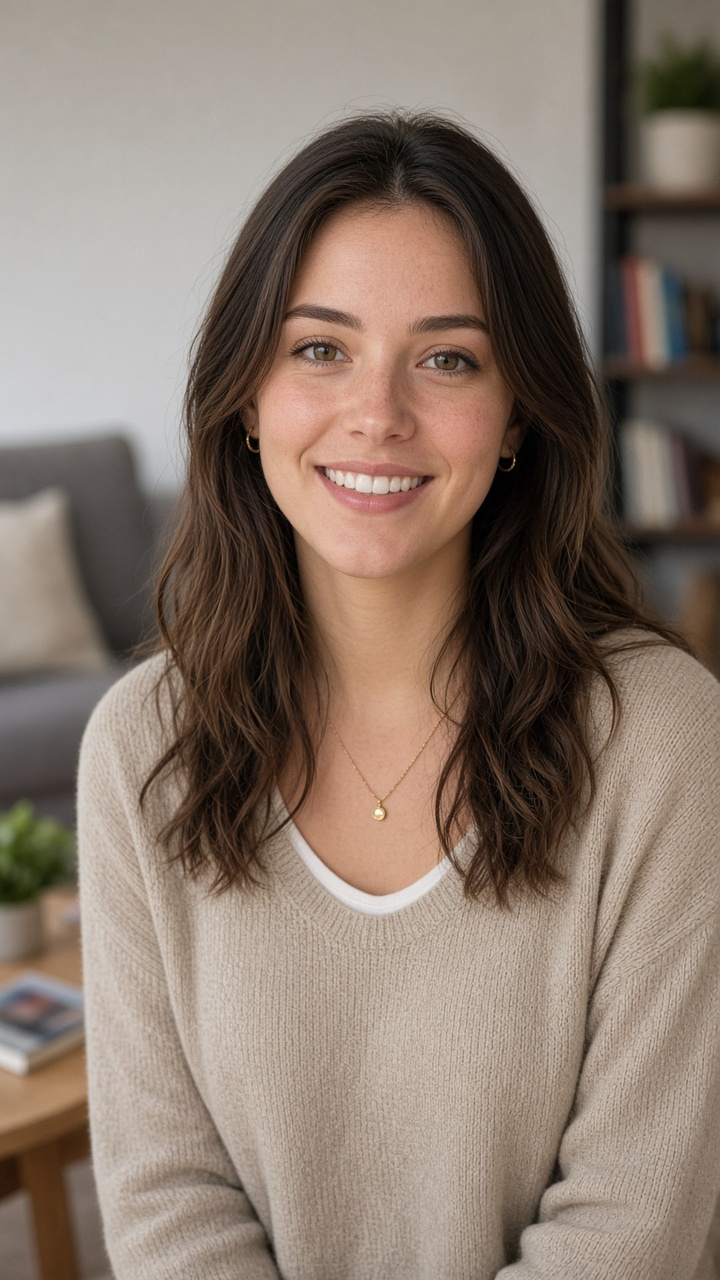
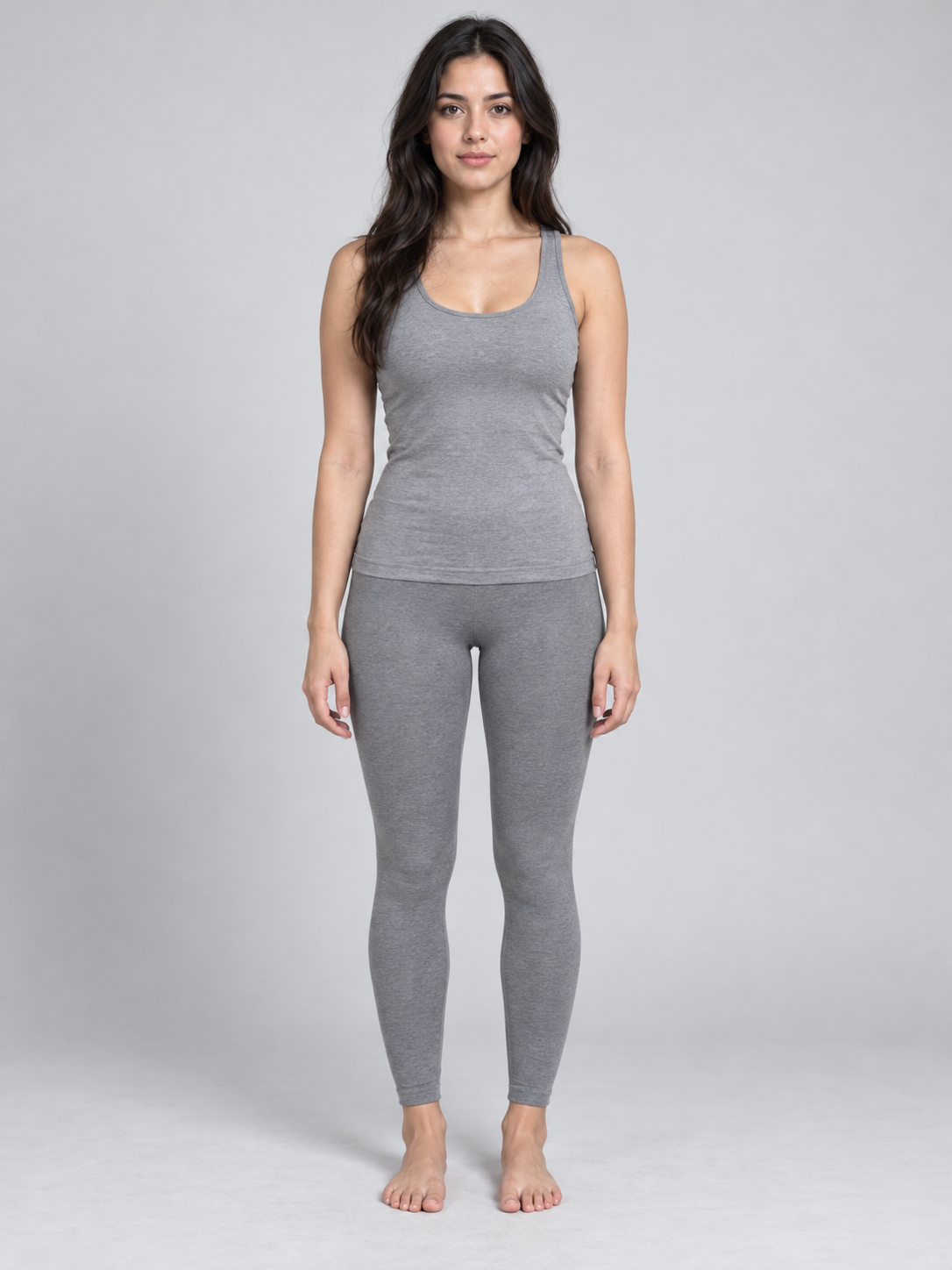
 Ceiling Fan TransitionRegenerate
You and your cat
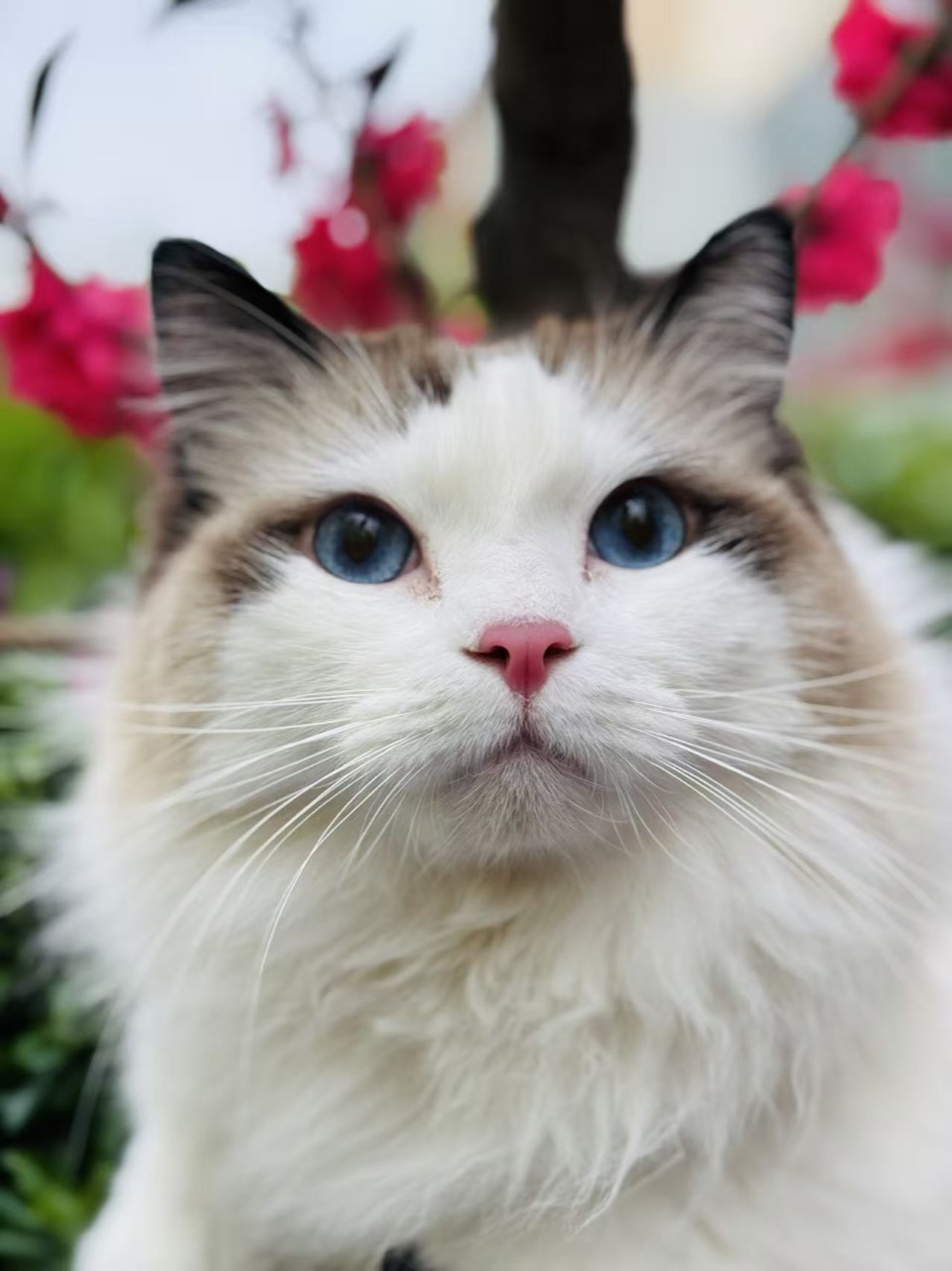
 Ceiling Fan TransitionRegenerate
Cat transition
Text / Image to VideoRegenerateThe avatar cat climbs out
Reference to VideoRegenerateOne poster becomes a milk commercial
Reference to VideoRegenerateTake her hand, spin into five destinations
Text / Image to VideoRegenerateMona Lisa sneaks a sip
Text / Image to VideoRegenerateA ten-second duel on the cliff
Reference to VideoRegenerateFollowing the red line into the old town
Hotel Lobby AIRegenerateHotel Lobby AI, cat duet
Hotel Lobby AIRegenerateHotel Lobby AI, Mona Lisa vs Pearl Earring
Hotel Lobby AIRegenerateHotel Lobby AI, cartoon kids
Bulin 47 street freestyleRegenerateCat street freestyle
Bulin 47 street freestyleRegenerateHuman street freestyle
Bulin 47 street freestyleRegenerateRobot street freestyle
Reference to VideoRegenerateA continuous solo zombie transformation
Zombie AI Video GeneratorRegenerateA couple transforms and reunites in the rain
Zombie AI Video GeneratorRegenerateFriends transform and reunite at a snowy cabin
Zombie AI Video GeneratorRegenerateA pet’s costume transformation and reunion
Tesla Roadster flying carRegenerateRamp jump and a mid-air roll
Tesla Roadster flying carRegenerateA dog takes the dune jump
Tesla Roadster flying carRegenerateTwo friends clear a broken bridge
Ceiling Fan TransitionRegenerateHalloween set
Ceiling Fan TransitionRegenerateYou and your cat
Ceiling Fan TransitionRegenerateCat transition
Product photos, detail images, ad creatives and virtual try-on. Start with a reference, choose an aspect ratio for your channel and refine the details.
Every card below is a real job run here. Tap one and the source photos and prompt load — run it yourself.
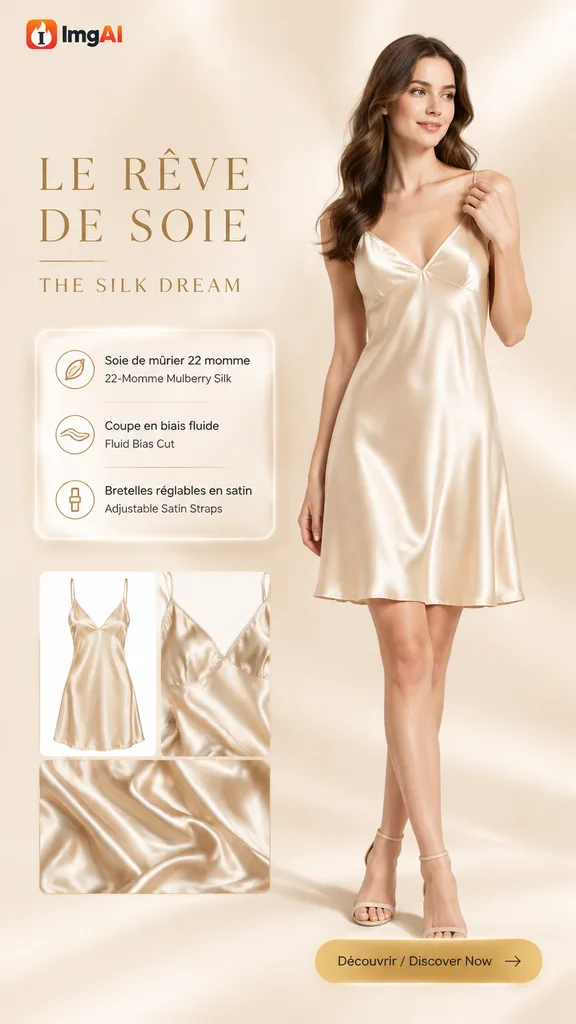 10 postersRegenerate
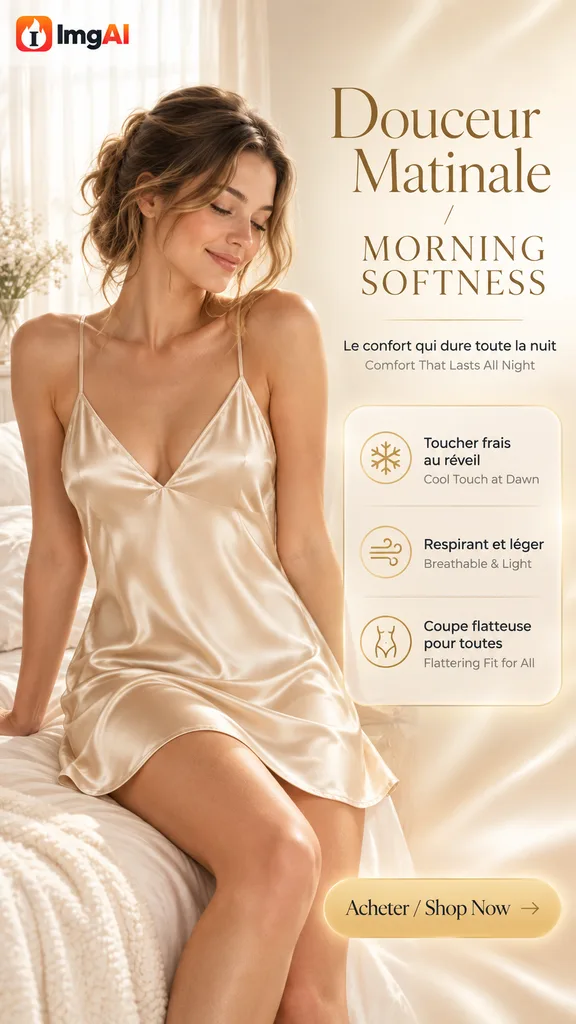
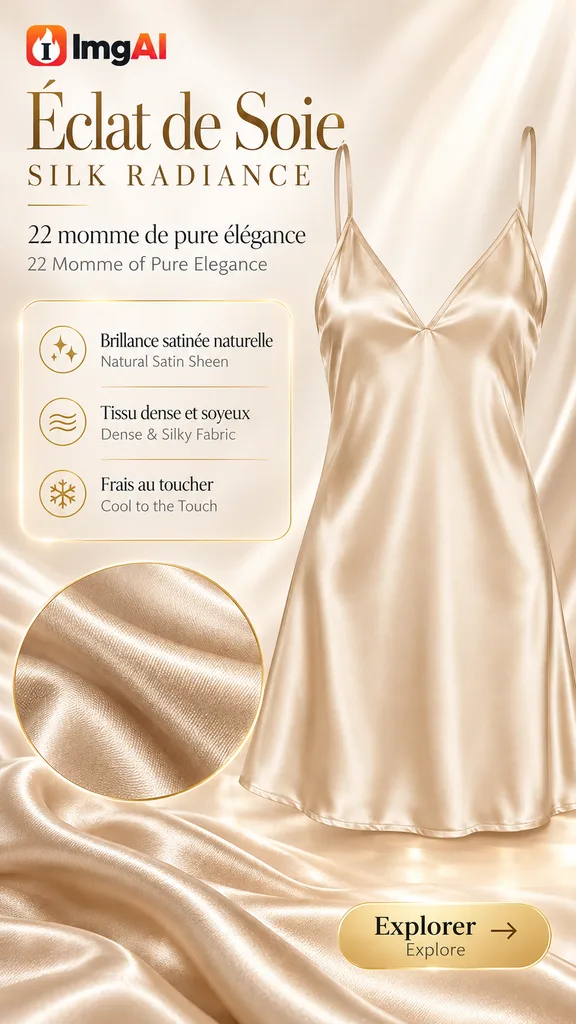
10-poster listing, French + English
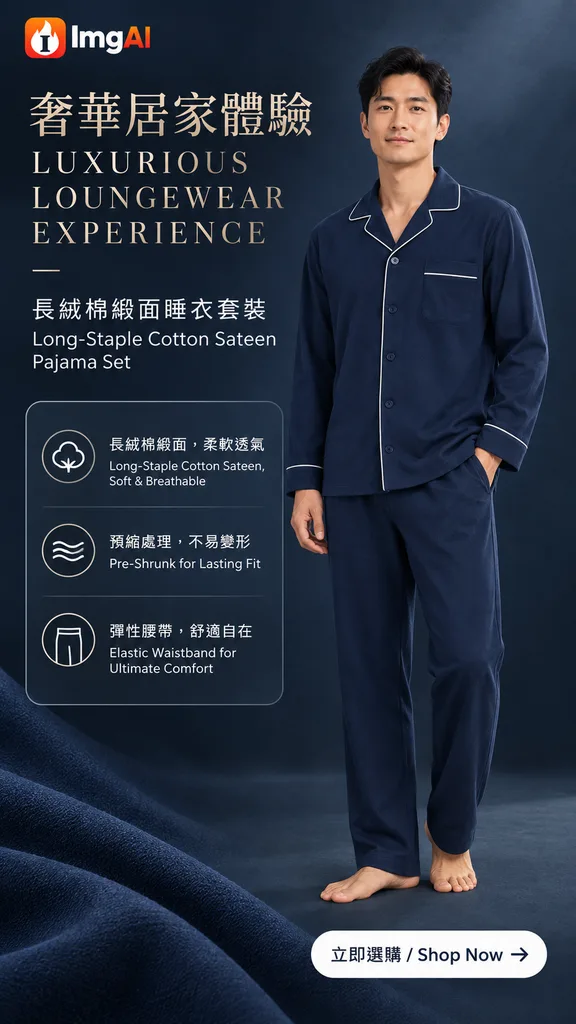 8 postersRegenerate
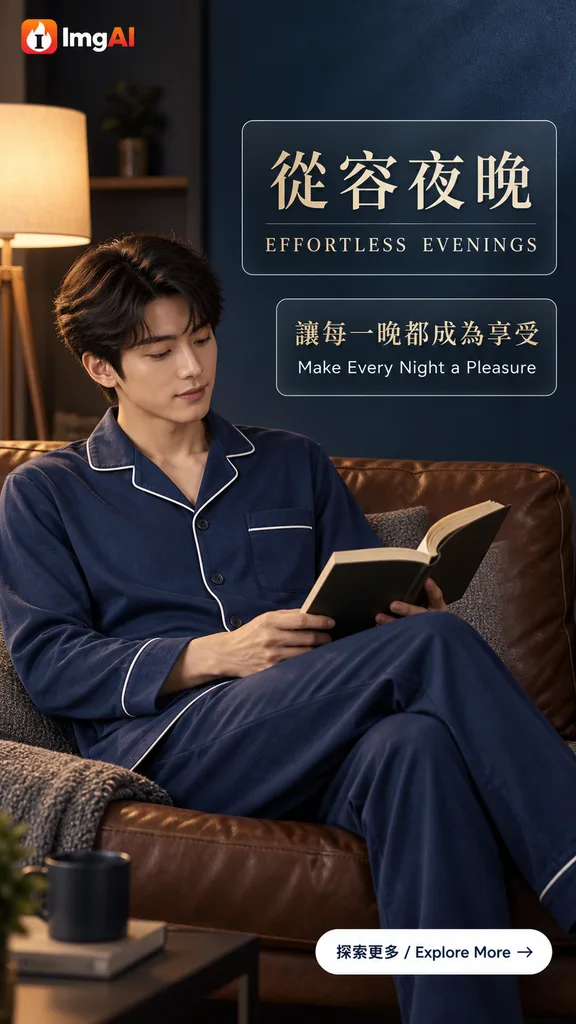
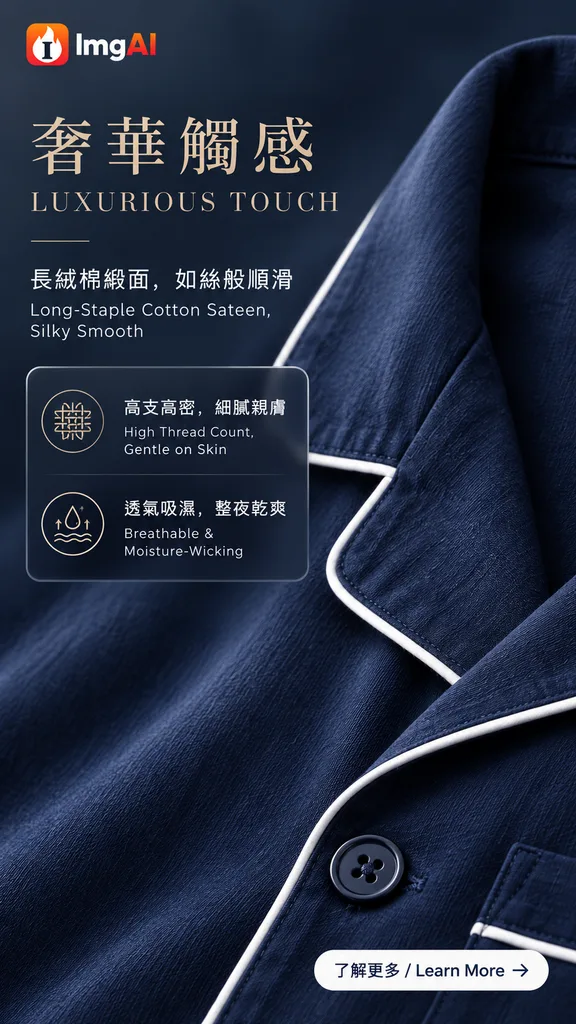
8-poster listing, Traditional Chinese + English
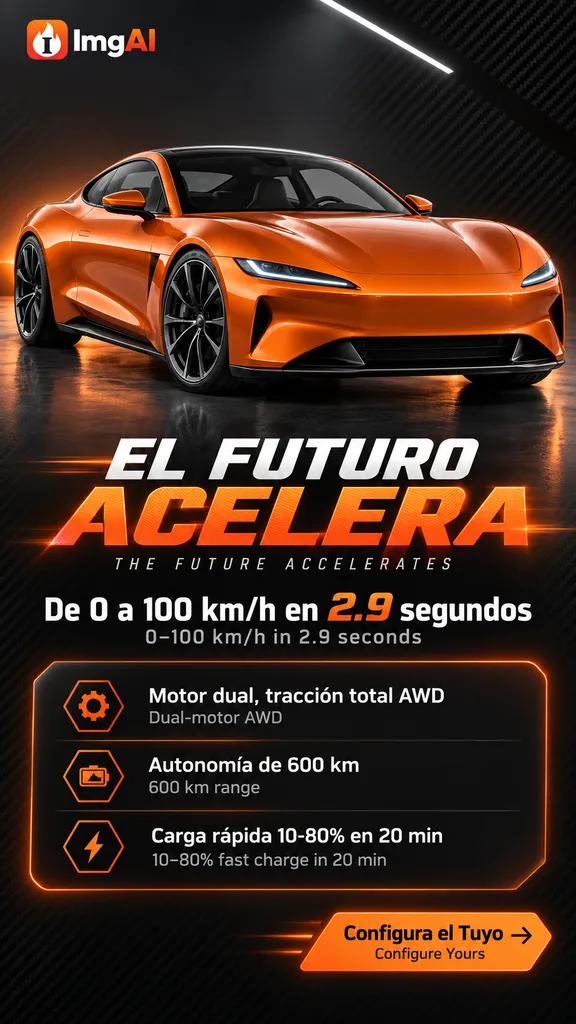 8 postersRegenerate
8-poster listing, Spanish + English
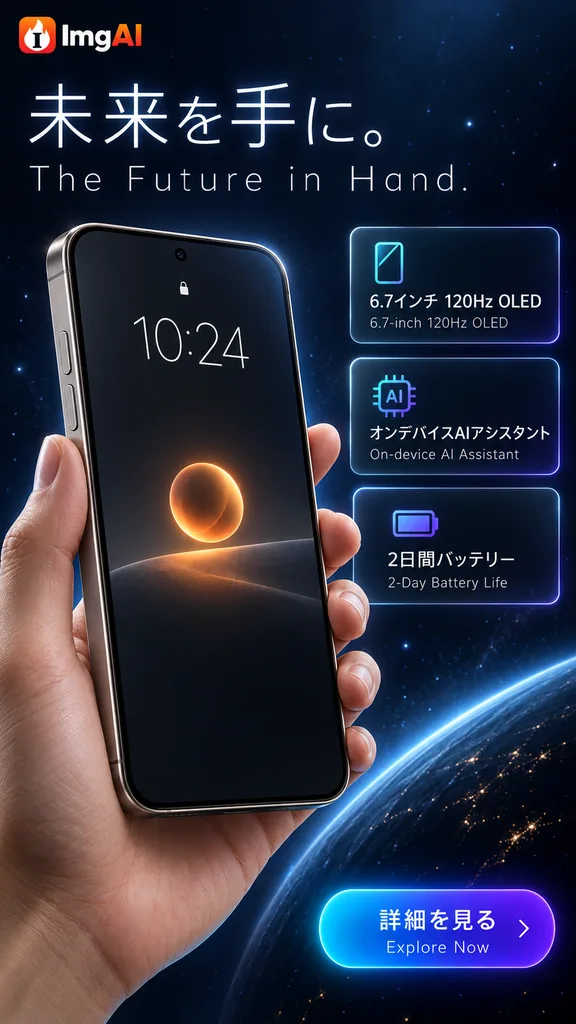 6 postersRegenerate
6-poster listing, Japanese + English
 6 postersRegenerate
6-poster listing, German + English
 4 postersRegenerate
4-poster listing, Korean + English
10 postersRegenerate10-poster listing, French + English
8 postersRegenerate8-poster listing, Traditional Chinese + English
8 postersRegenerate8-poster listing, Spanish + English
6 postersRegenerate6-poster listing, Japanese + English
6 postersRegenerate6-poster listing, German + English
4 postersRegenerate4-poster listing, Korean + English
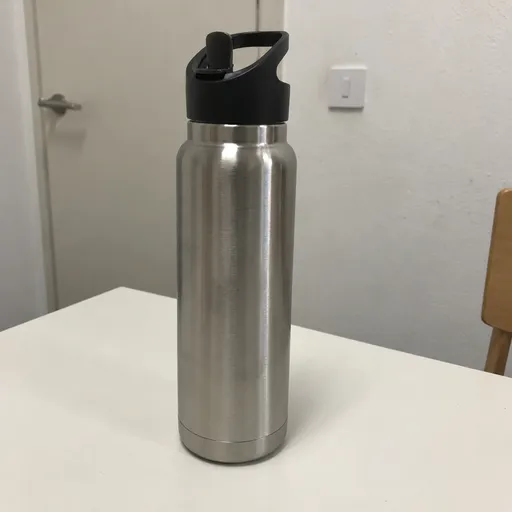
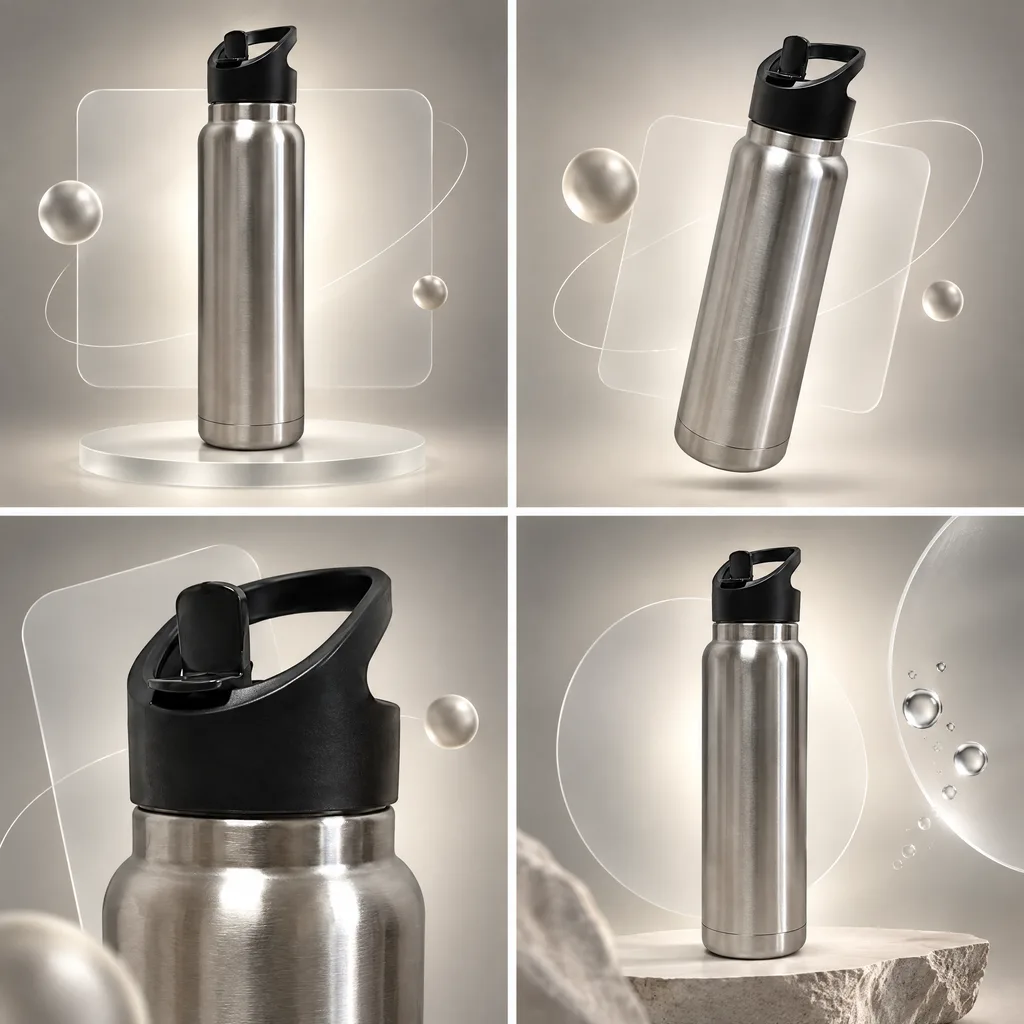 Regenerate
No prompt, one click
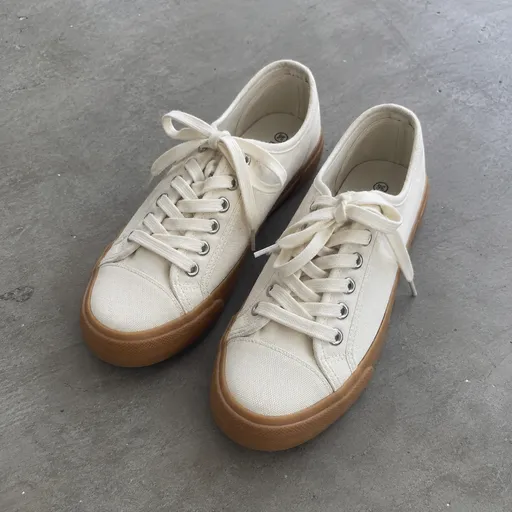
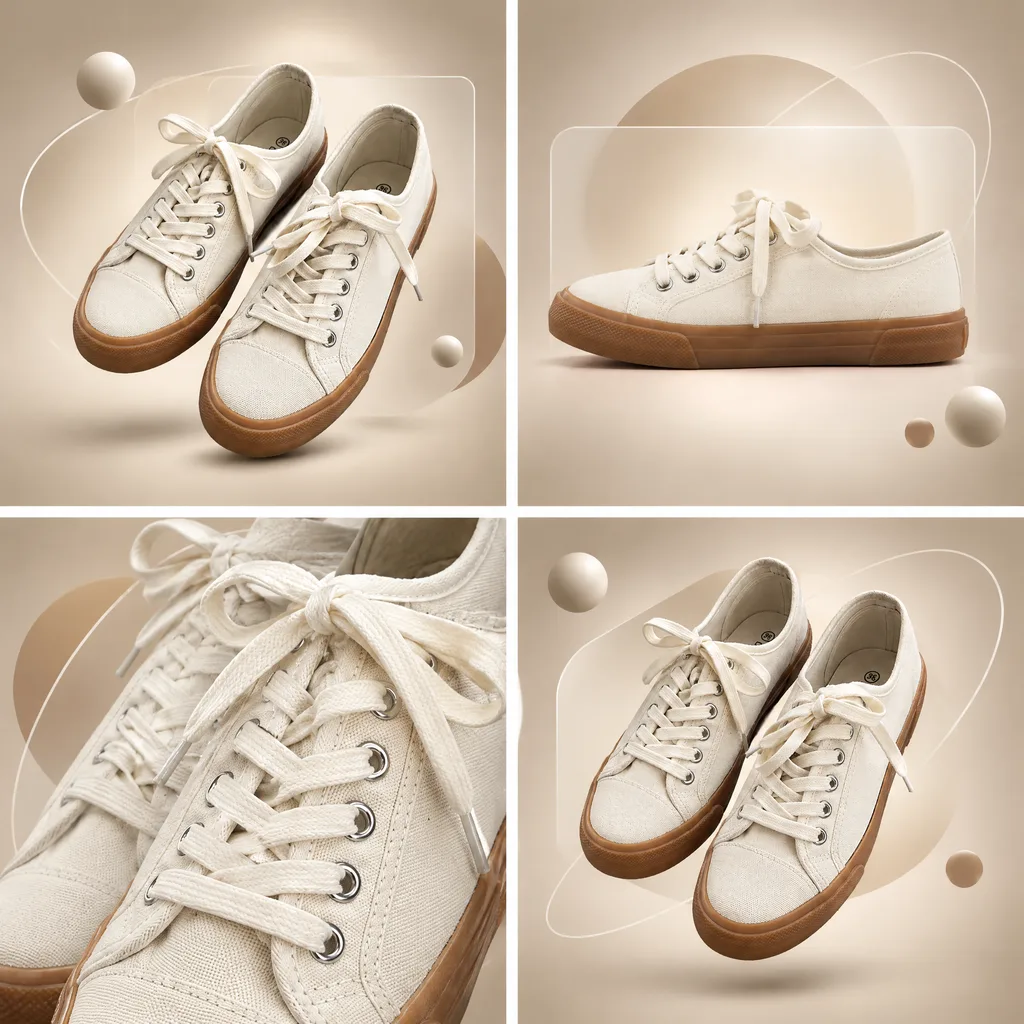 Regenerate
No prompt, one click
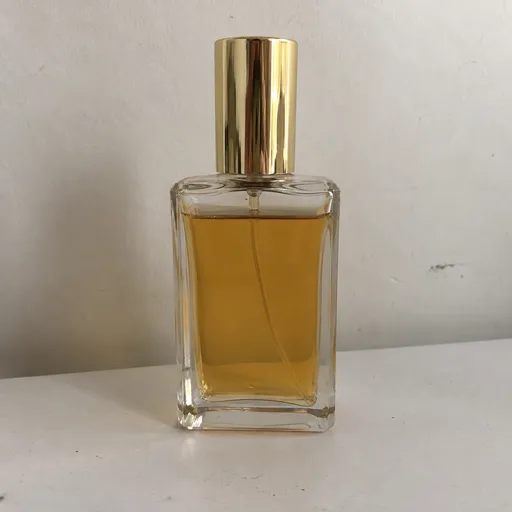
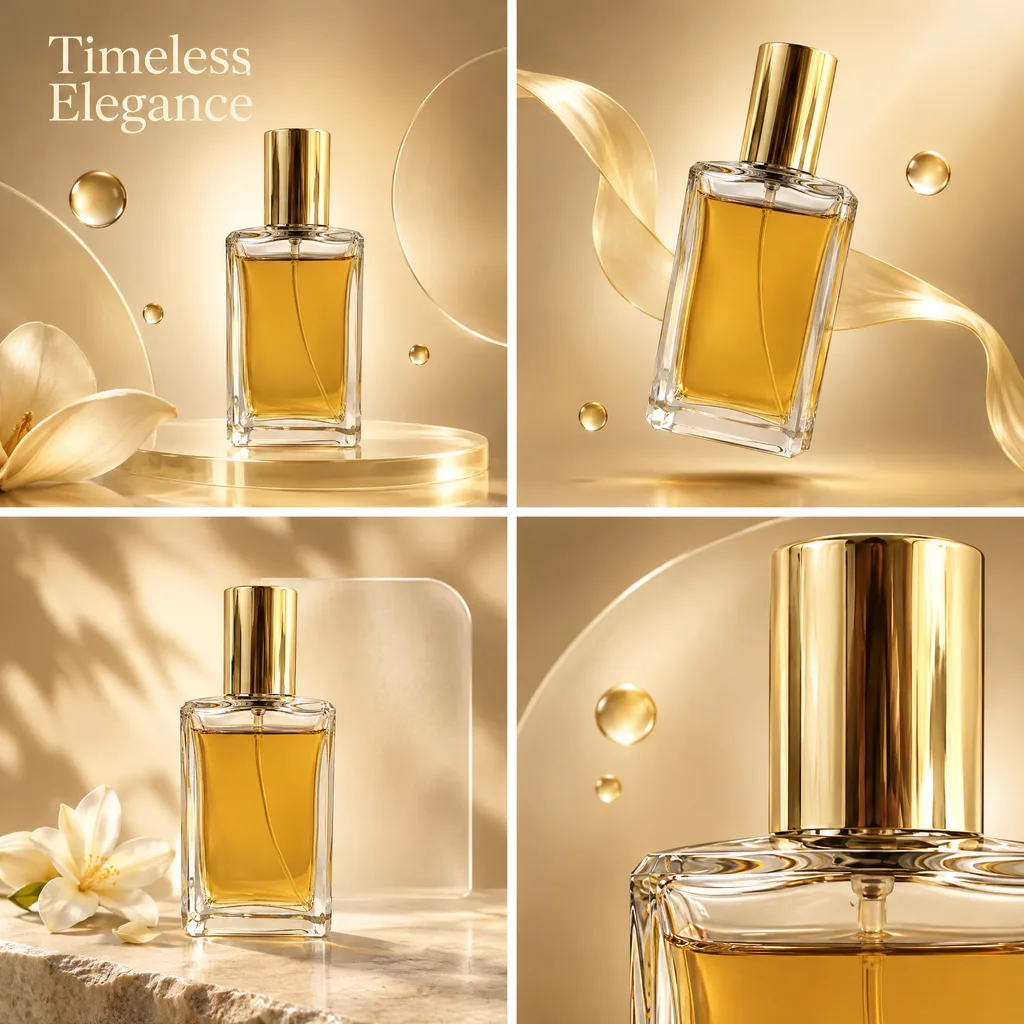 Regenerate
One serif tagline
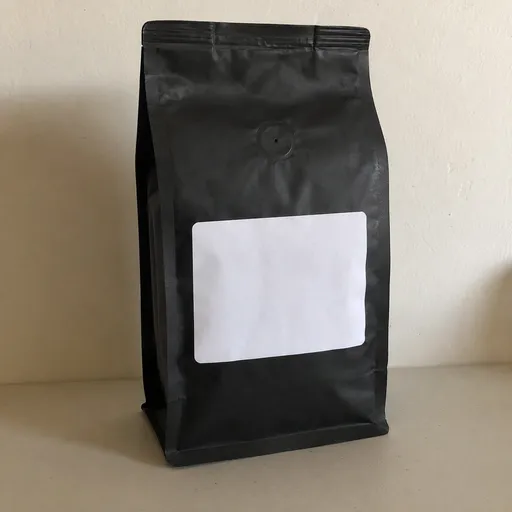
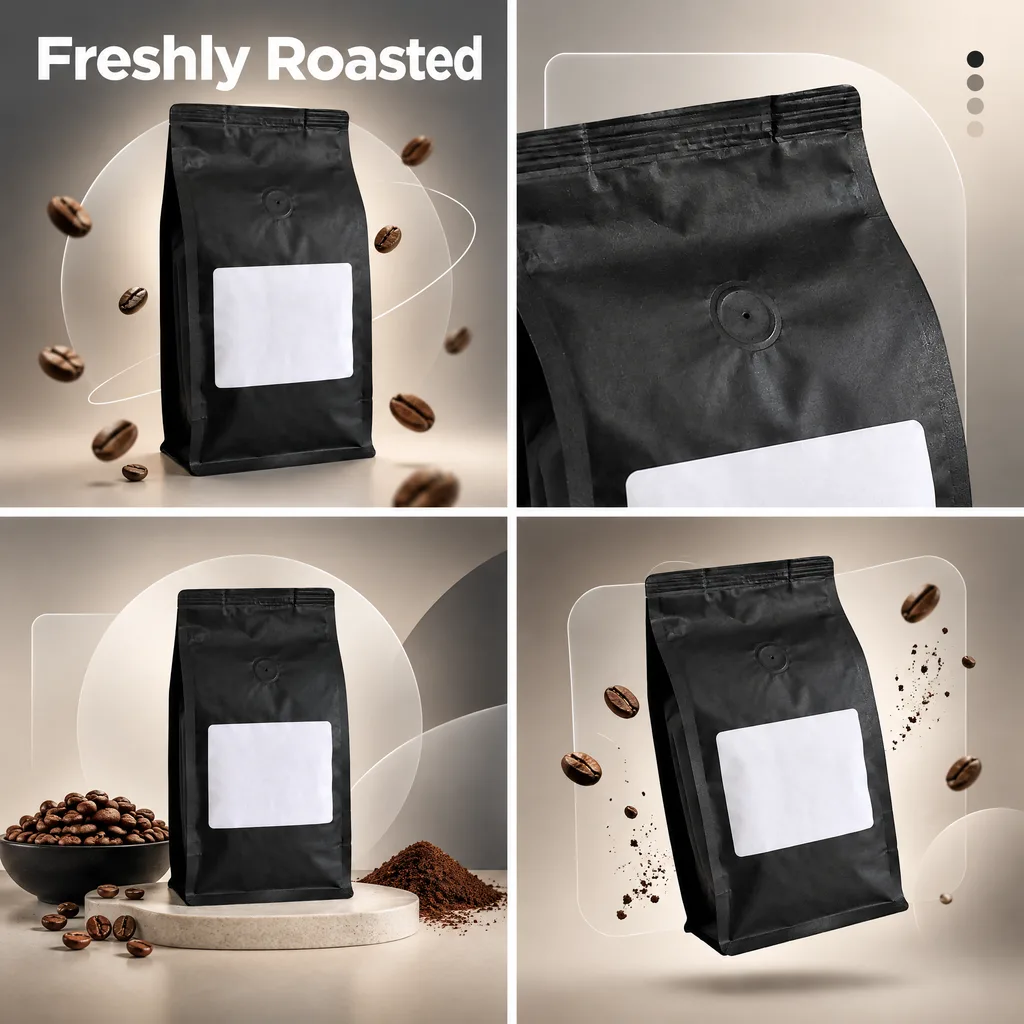 Regenerate
Named headline, hero frame only
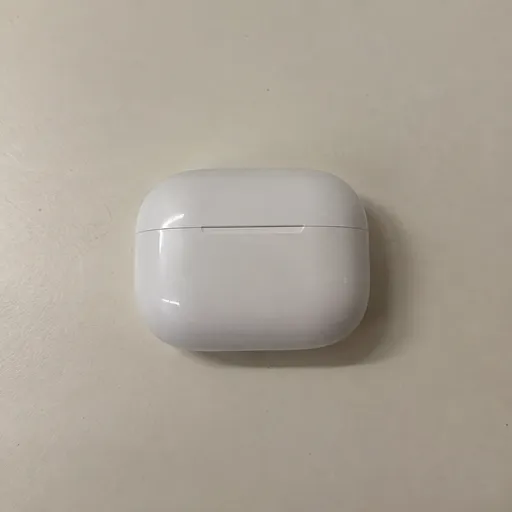
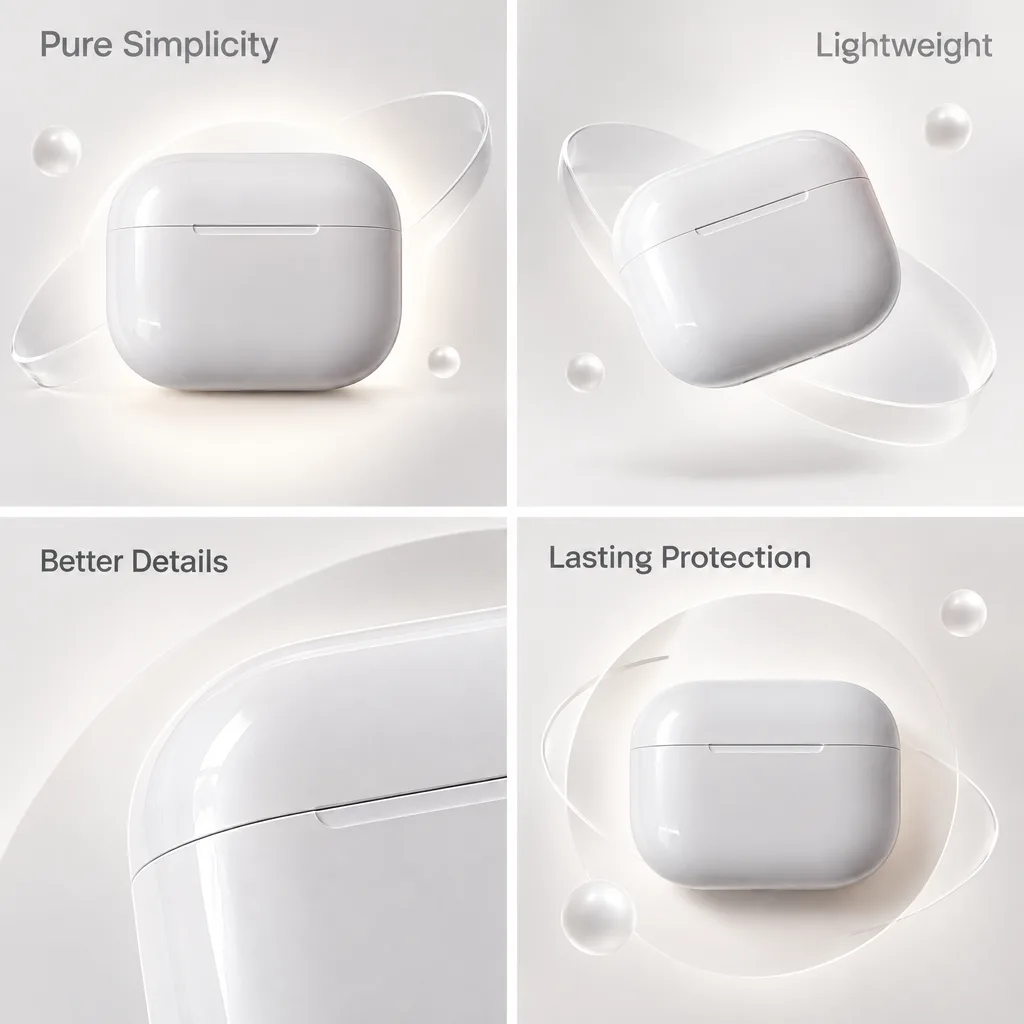 Regenerate
A slogan on each frame, white ground
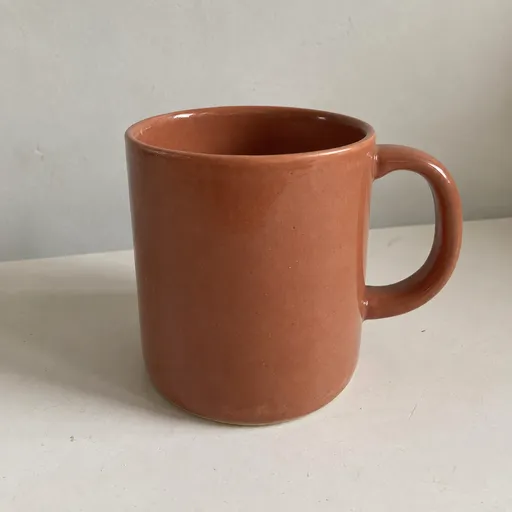
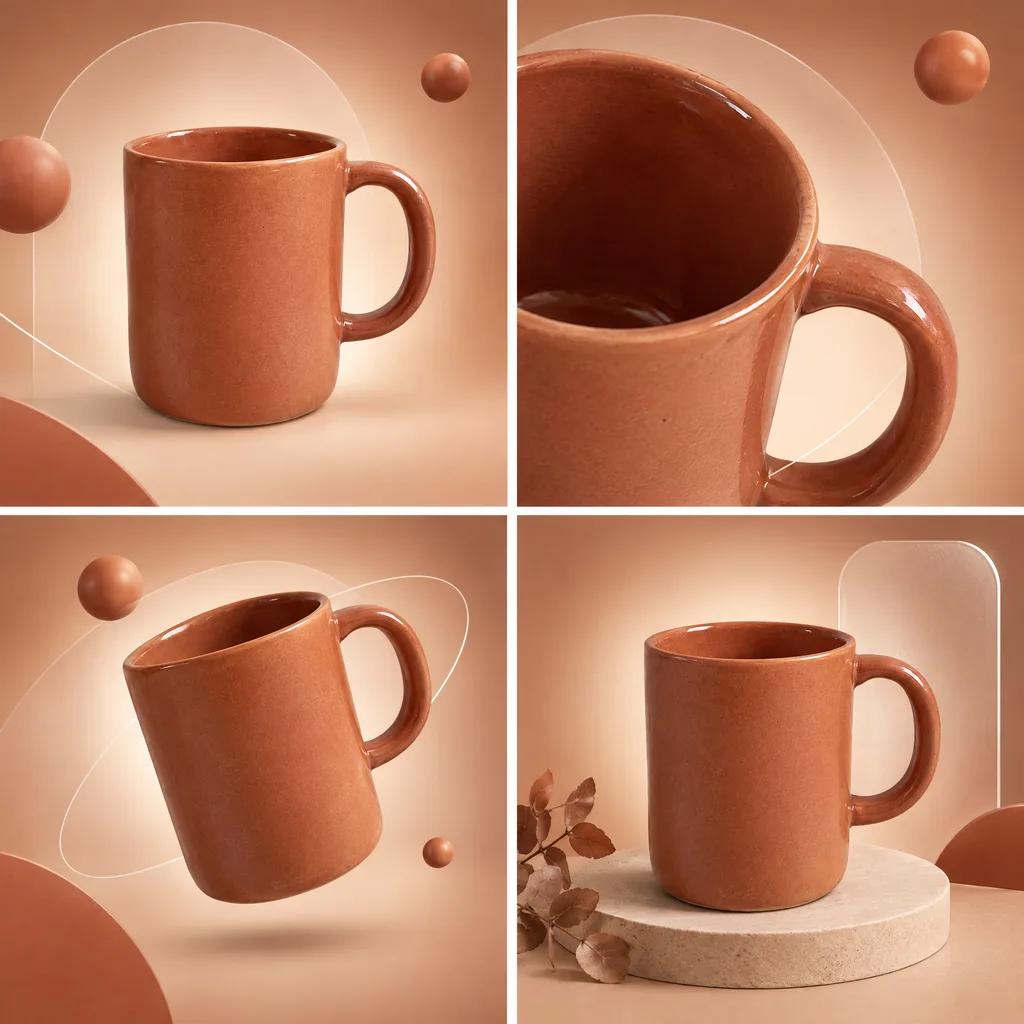 Regenerate
No prompt, one click
RegenerateNo prompt, one click
RegenerateNo prompt, one click
RegenerateOne serif tagline
RegenerateNamed headline, hero frame only
RegenerateA slogan on each frame, white ground
RegenerateNo prompt, one click
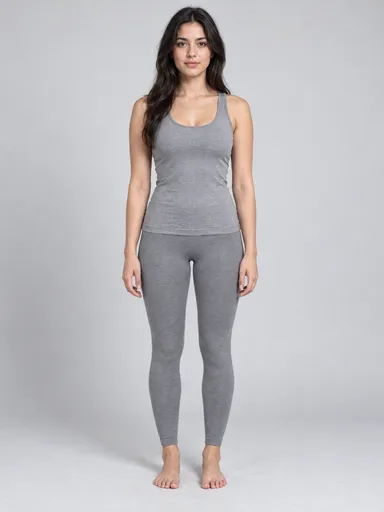
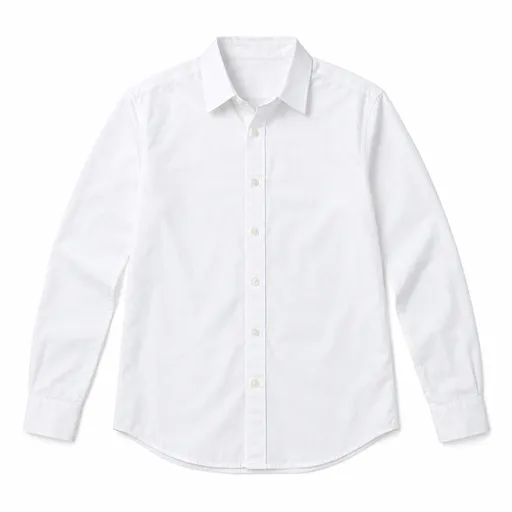
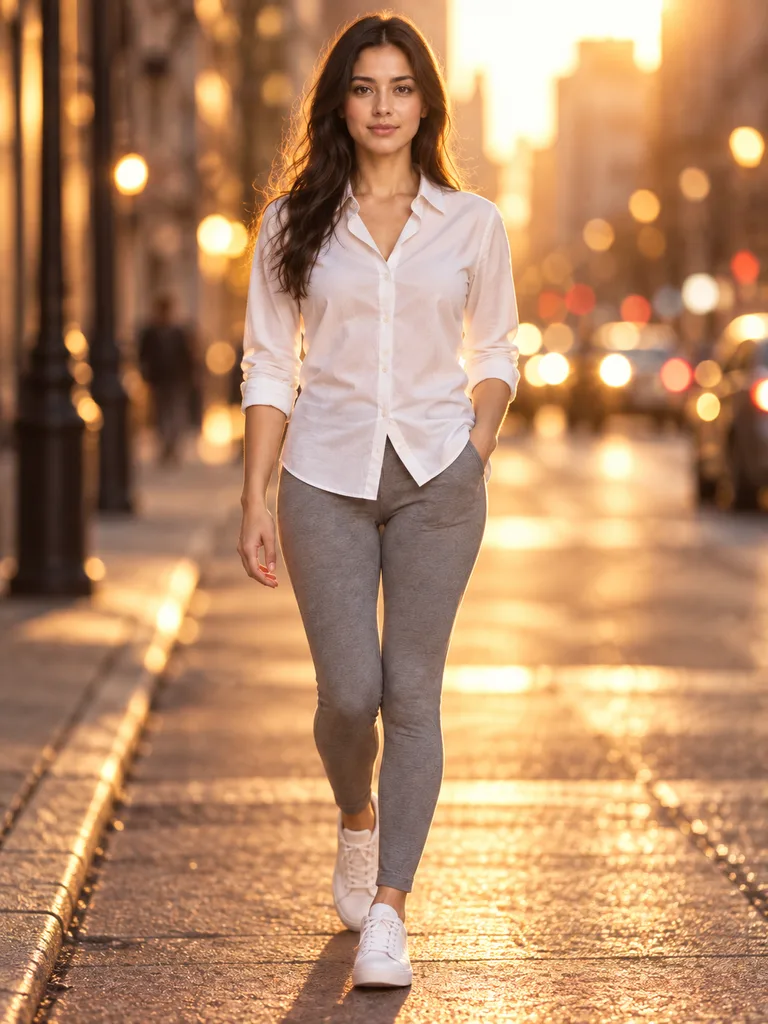 Regenerate
White shirt, backlit city street at dusk
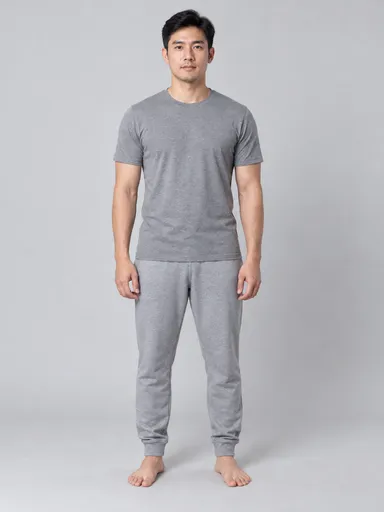
 Regenerate
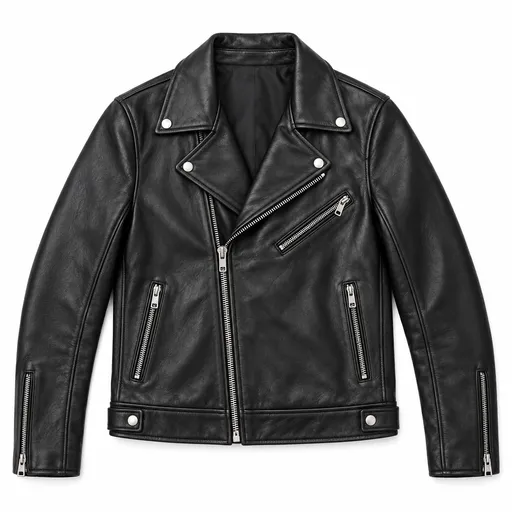
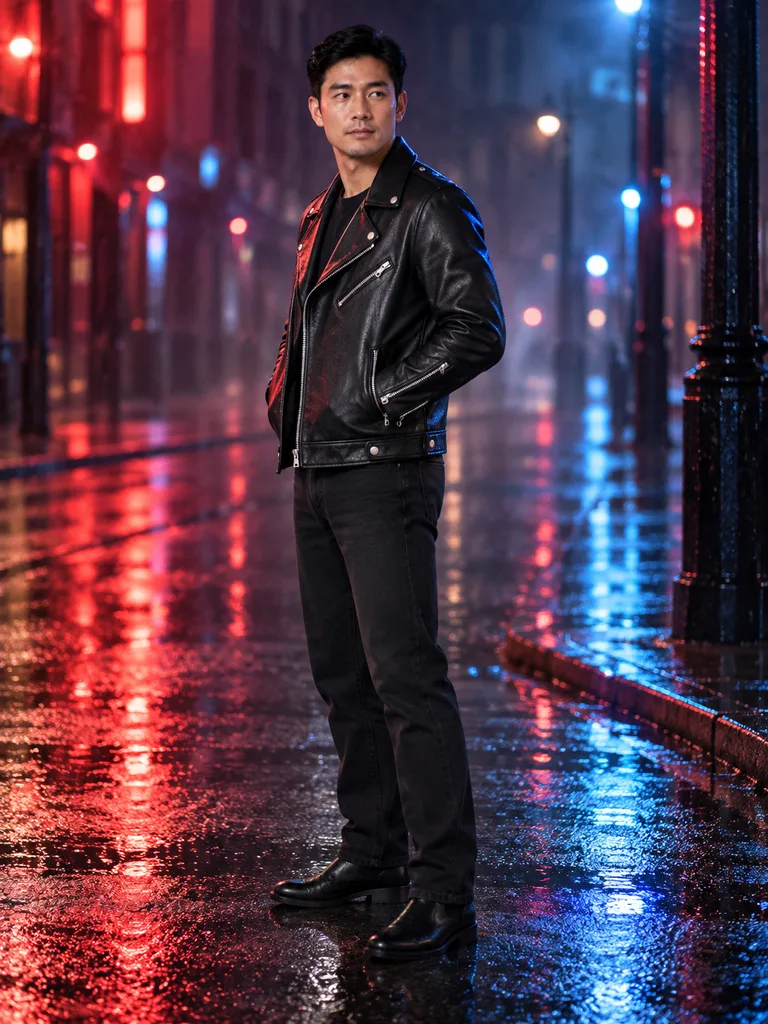
Leather jacket, neon reflections after rain
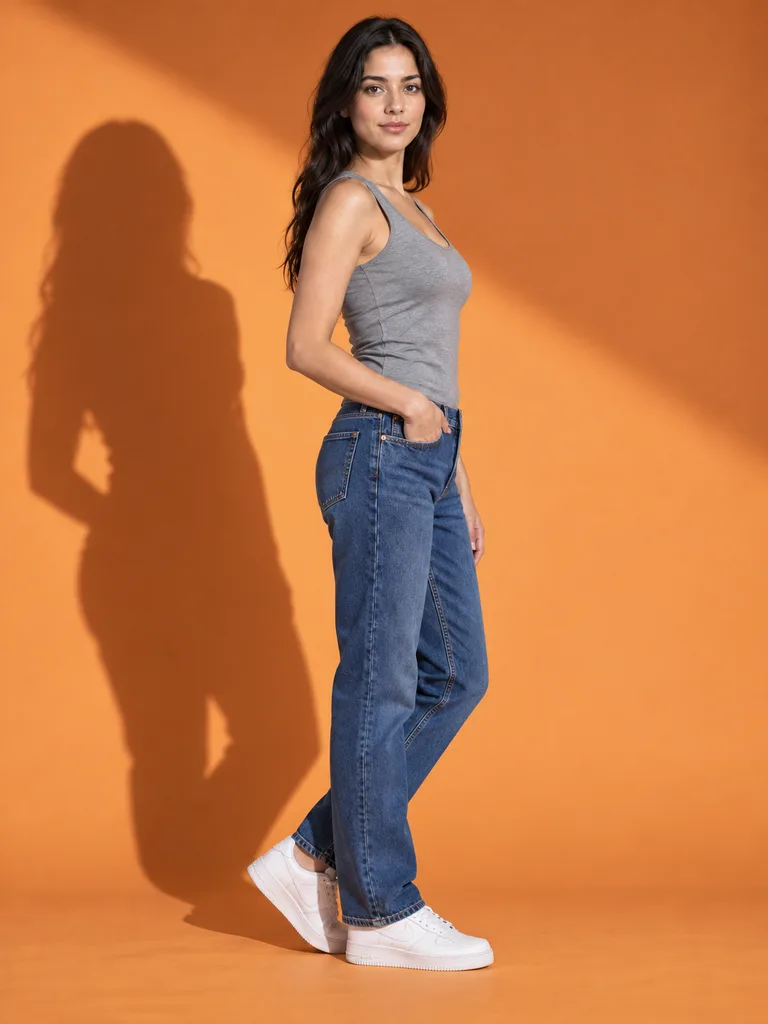 Regenerate
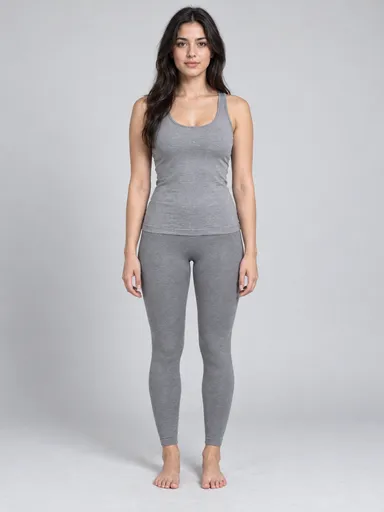
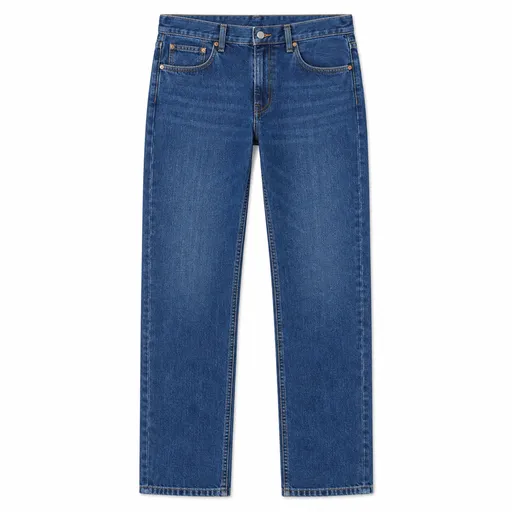
Denim under hard studio light, cast shadow
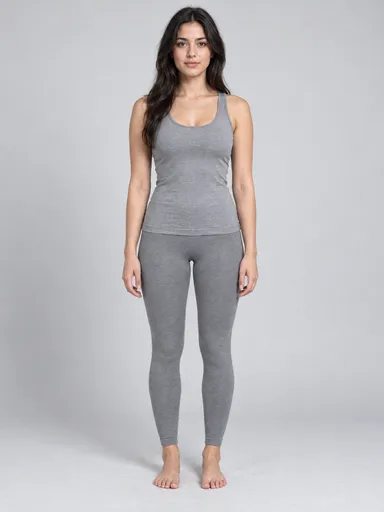
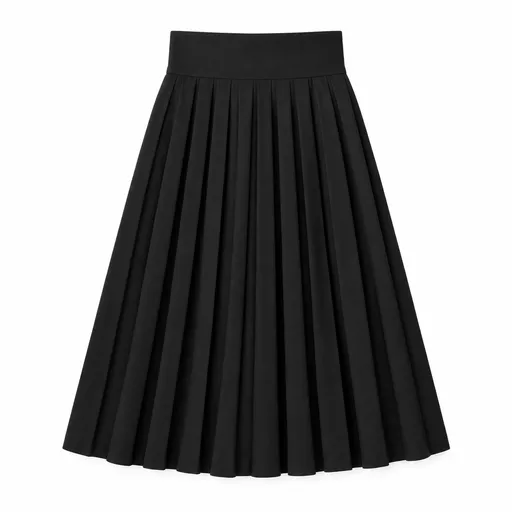
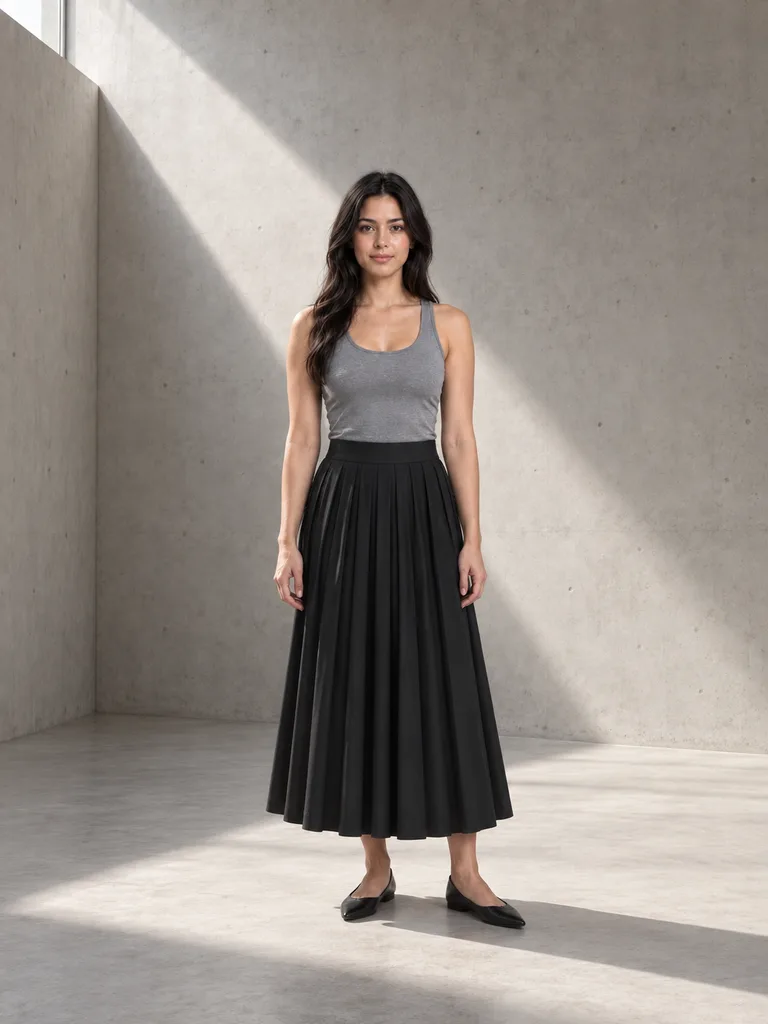 Regenerate
Pleated skirt in a shaft of window light
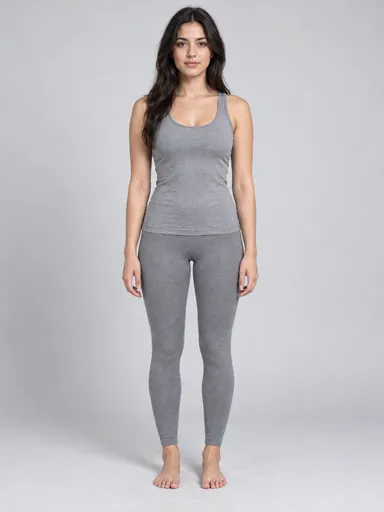
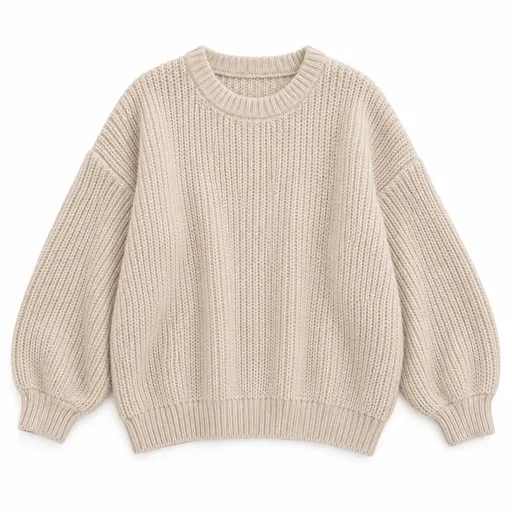
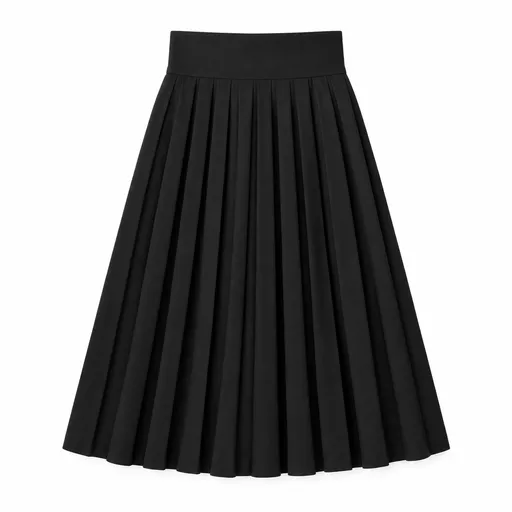
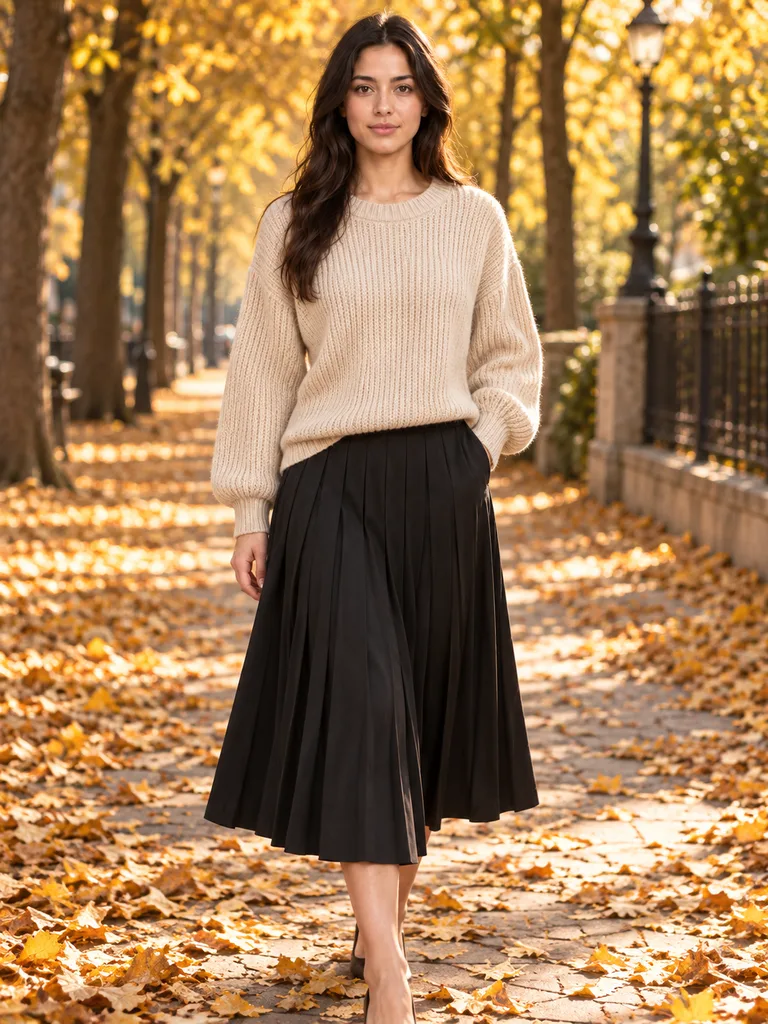 Regenerate
Knit and skirt on a leaf-strewn avenue
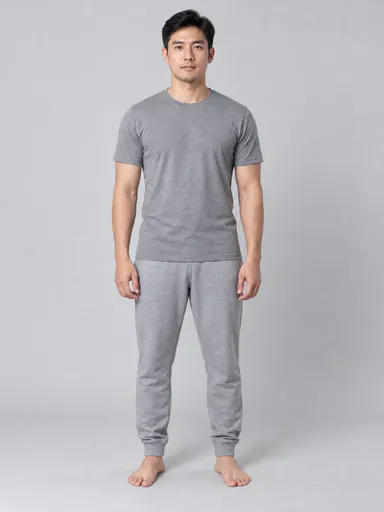
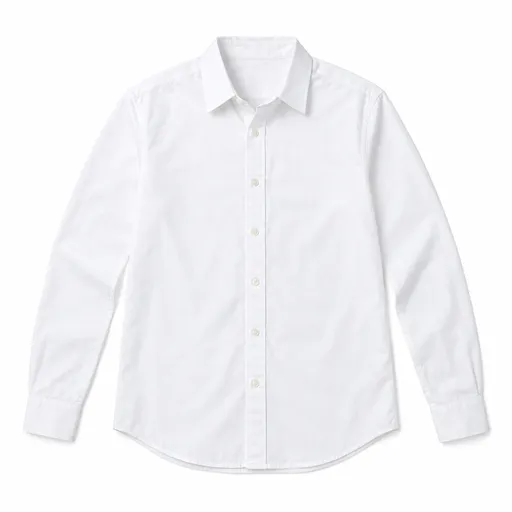
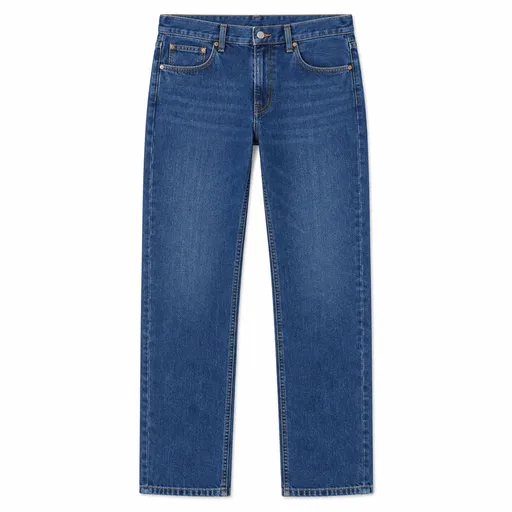
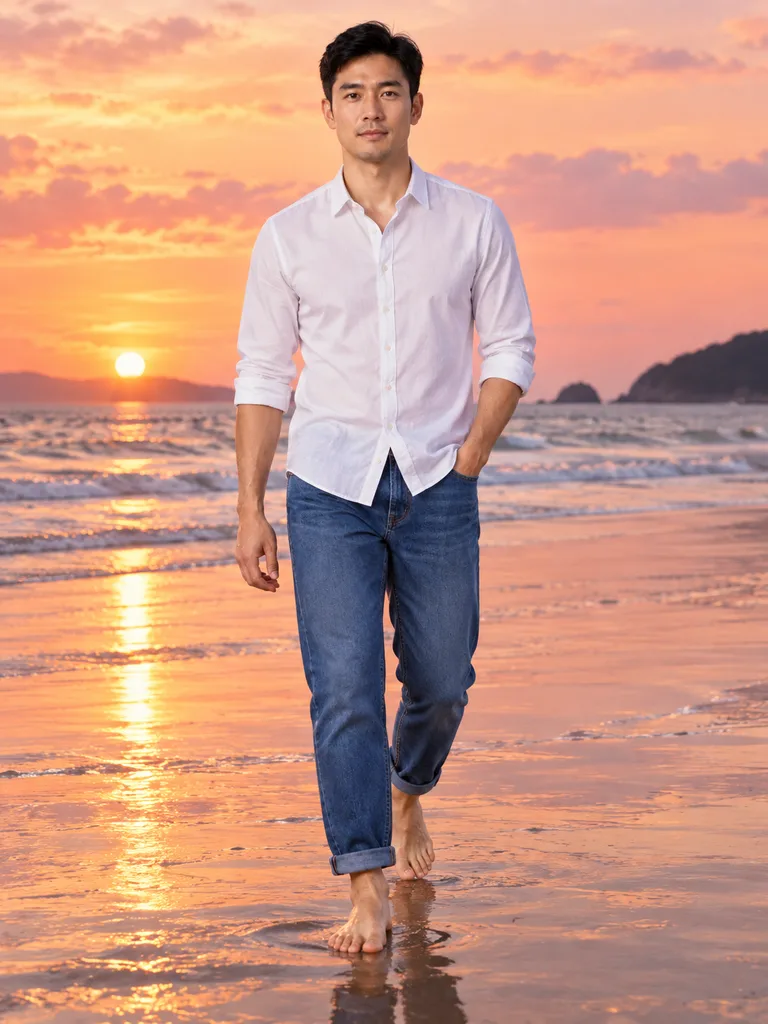 Regenerate
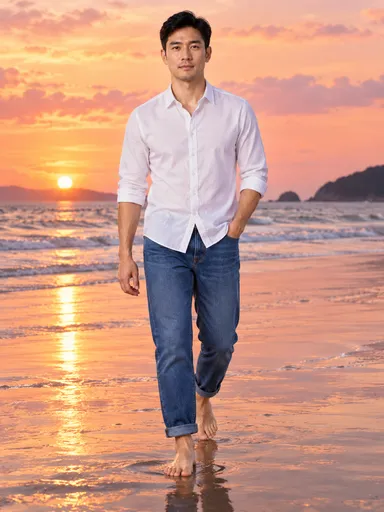
Shirt and jeans by the sea at sunset
RegenerateWhite shirt, backlit city street at dusk
RegenerateLeather jacket, neon reflections after rain
RegenerateDenim under hard studio light, cast shadow
RegeneratePleated skirt in a shaft of window light
RegenerateKnit and skirt on a leaf-strewn avenue
RegenerateShirt and jeans by the sea at sunset
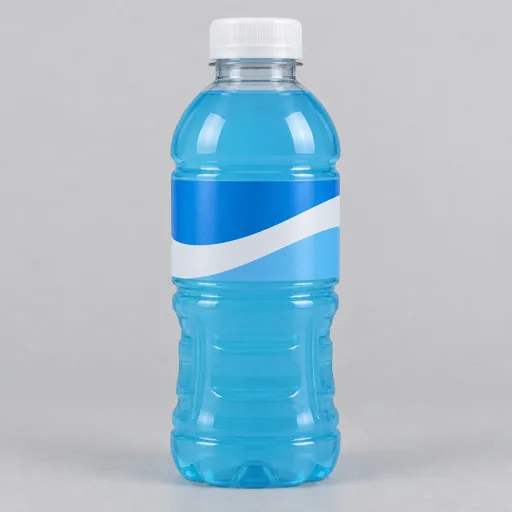
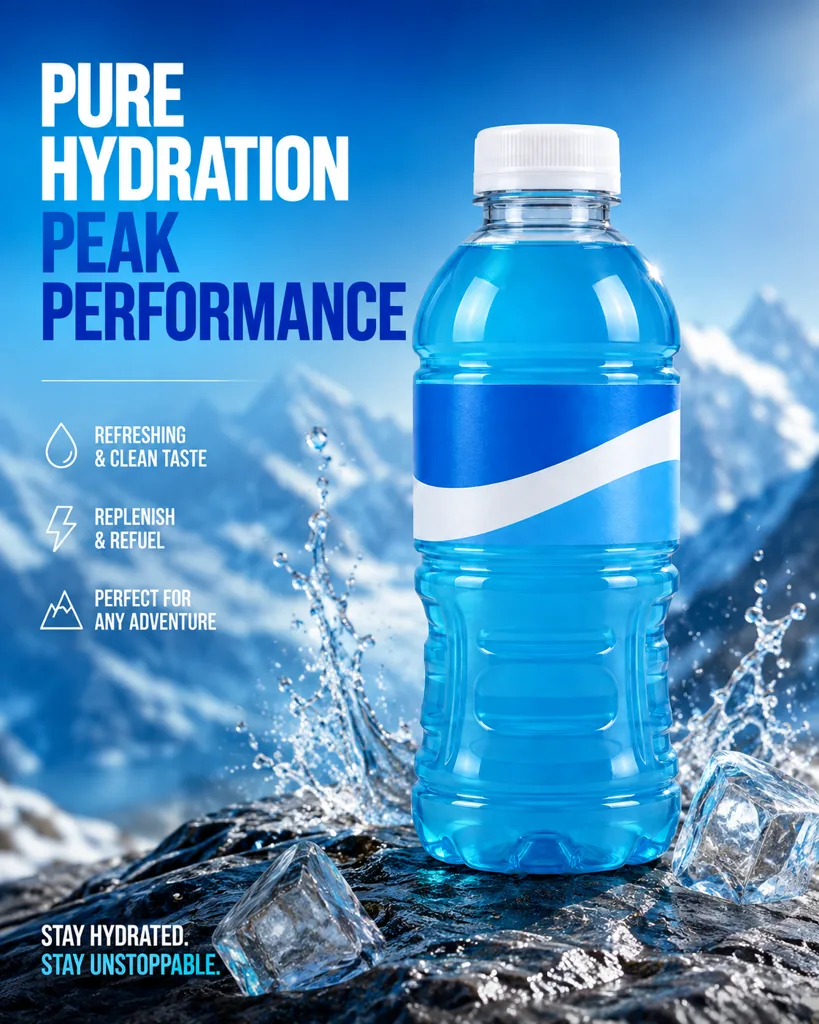 Regenerate
No prompt, one click
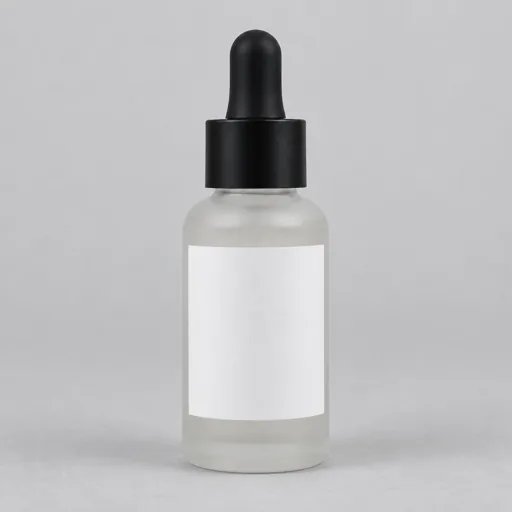
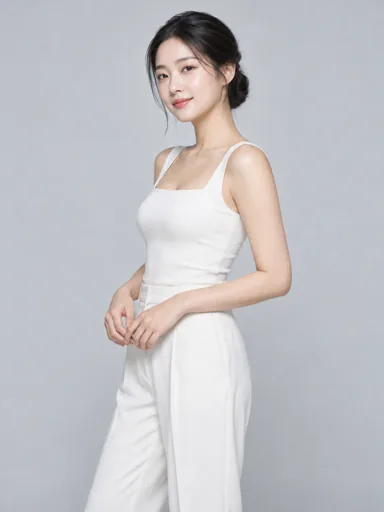
 Regenerate
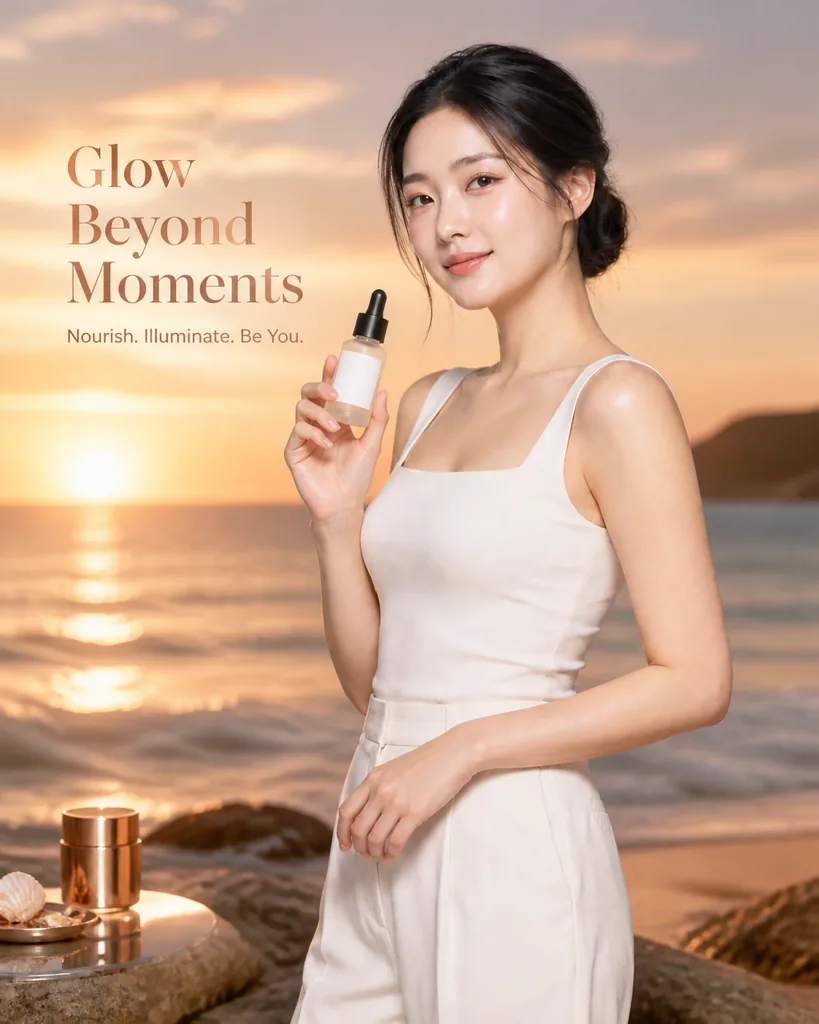
Held by a model, sunset ad
 Regenerate
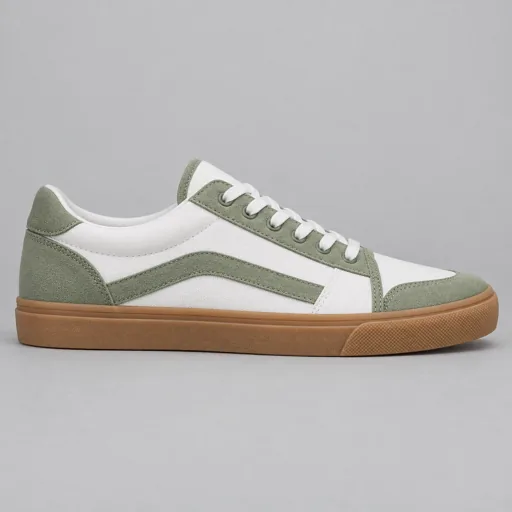
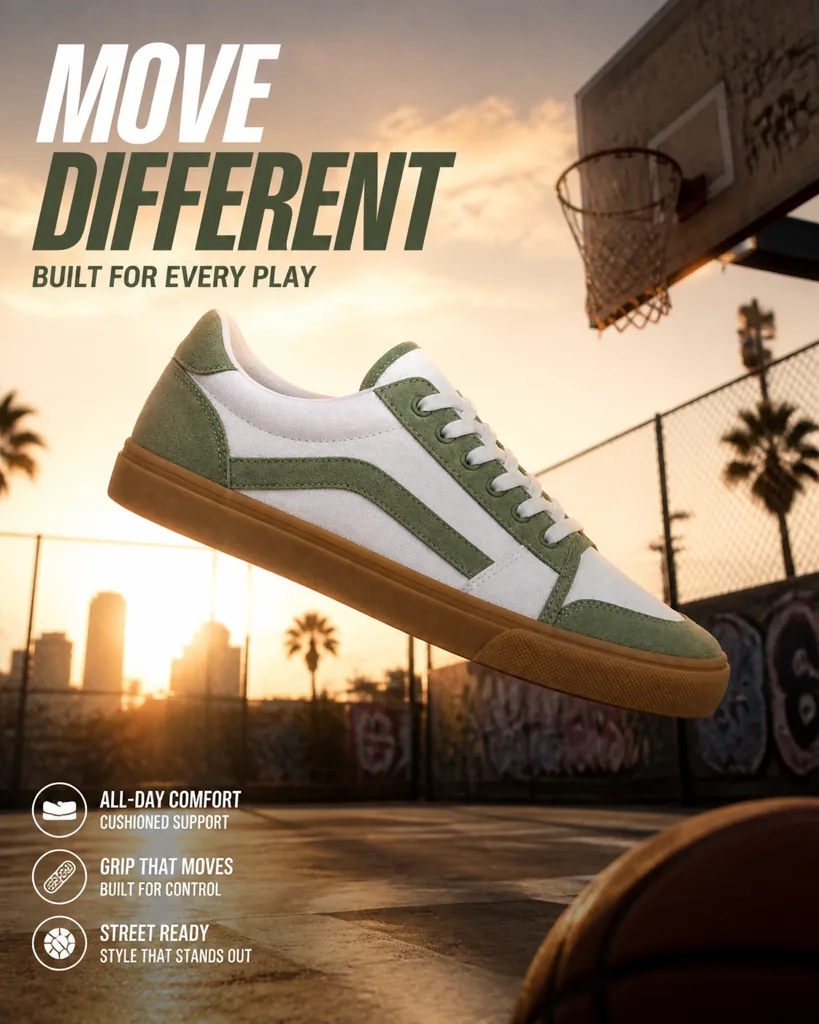
Backlit court, shoe mid-air
 Regenerate
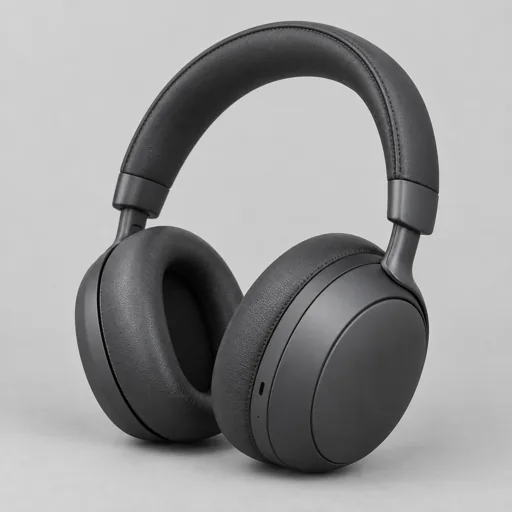
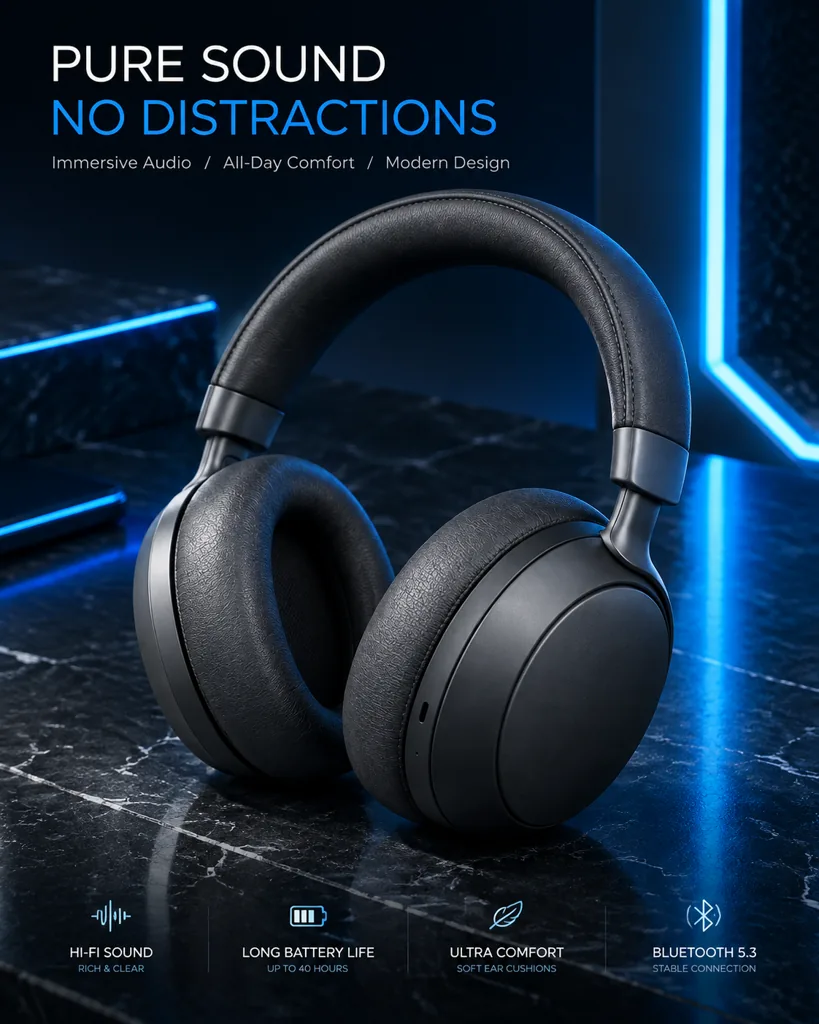
Neon rim light, tech mood
 Regenerate
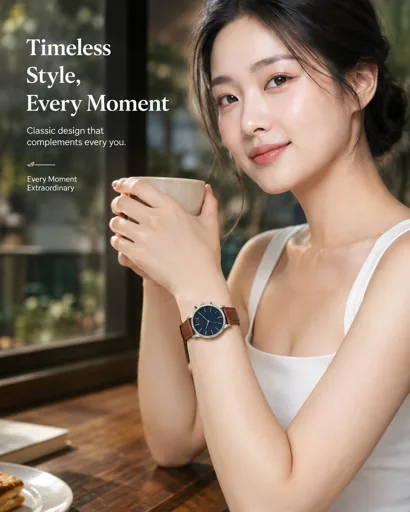
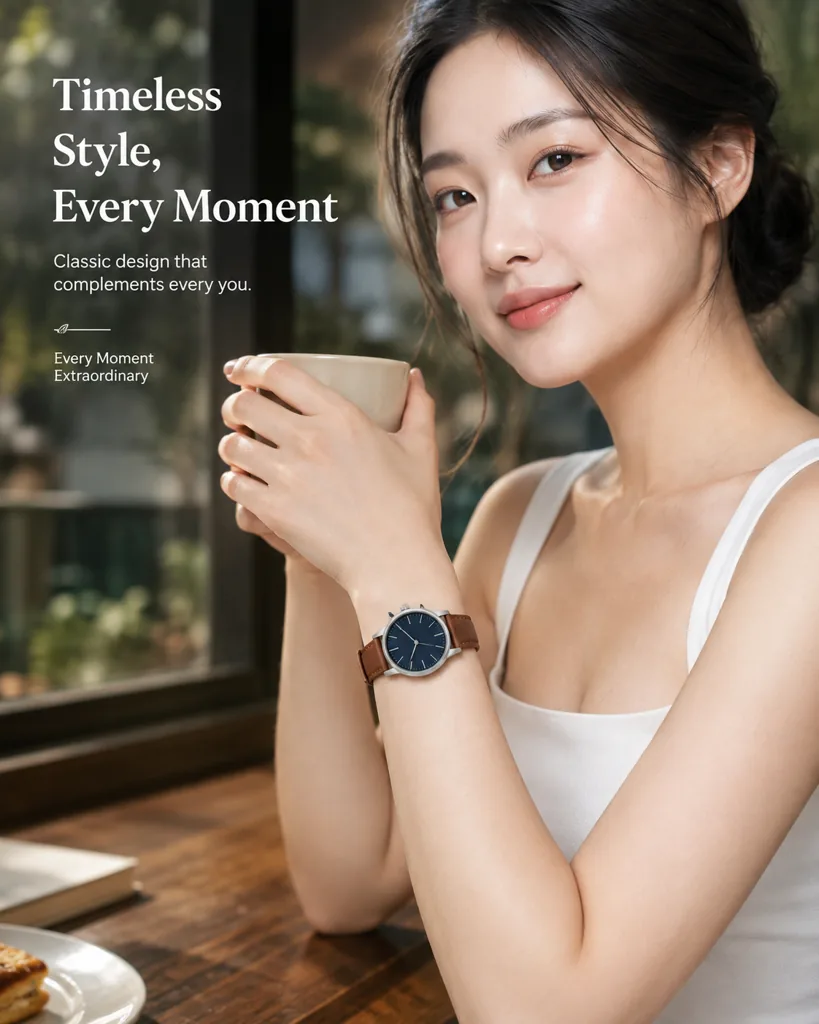
On the wrist, cafe close-up
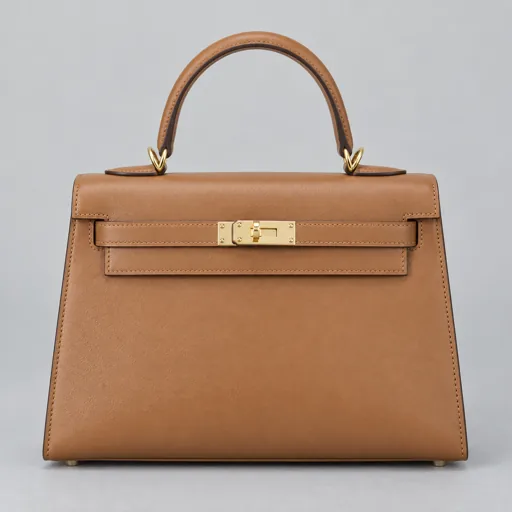
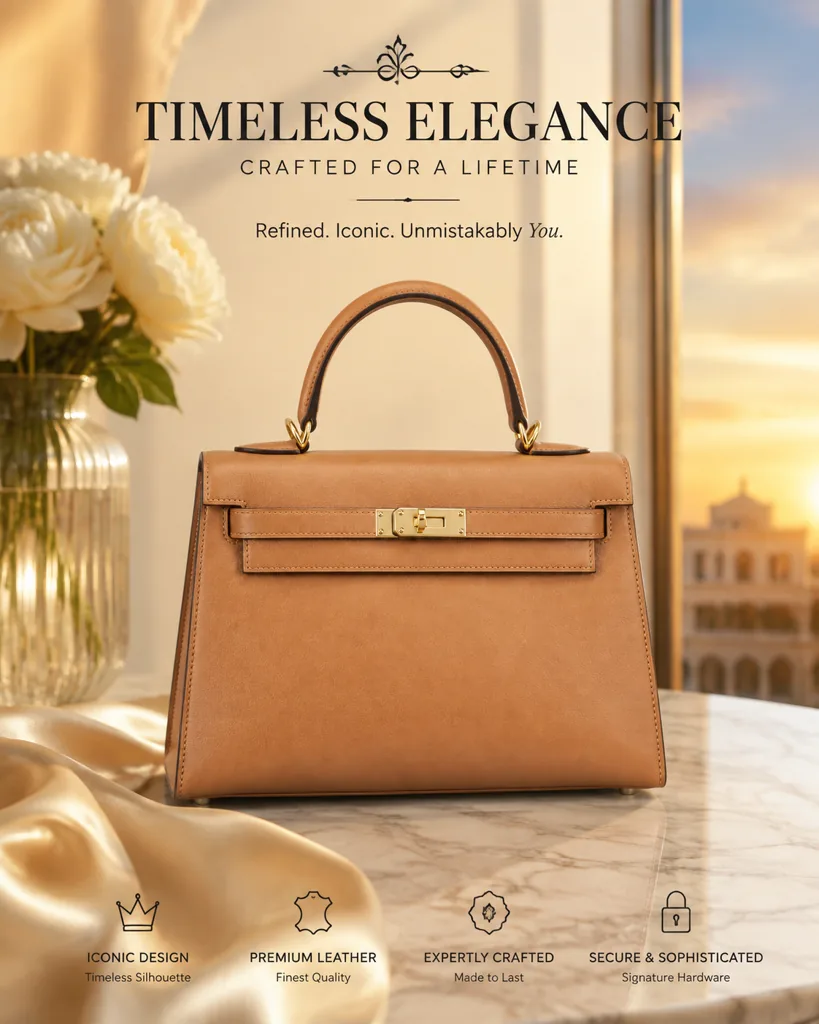 Regenerate
Marble, silk and morning light
RegenerateNo prompt, one click
RegenerateHeld by a model, sunset ad
RegenerateBacklit court, shoe mid-air
RegenerateNeon rim light, tech mood
RegenerateOn the wrist, cafe close-up
RegenerateMarble, silk and morning light
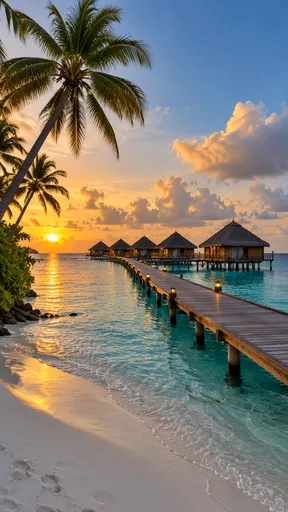
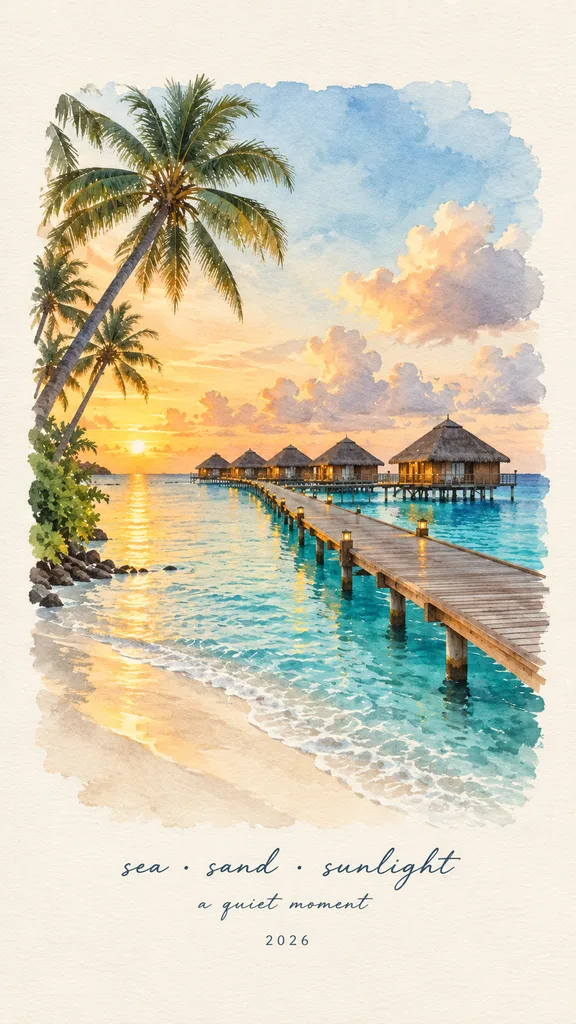 Regenerate
Photo into a watercolor travel print
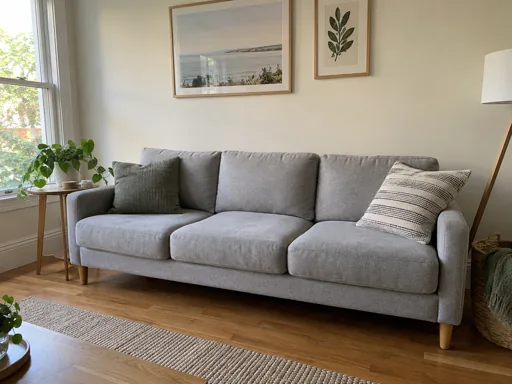
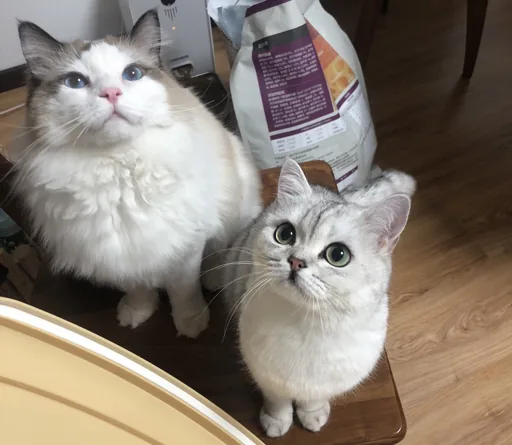
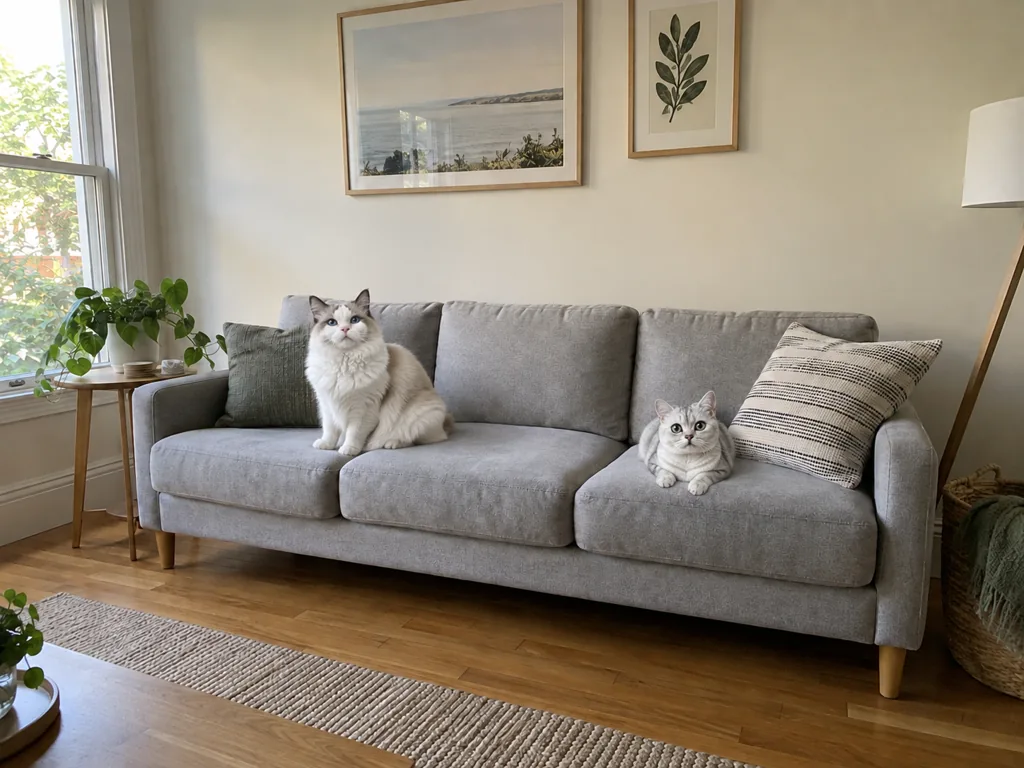 Regenerate
Two cats moved onto the sofa
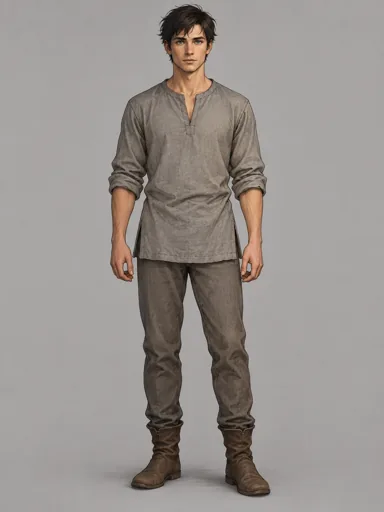
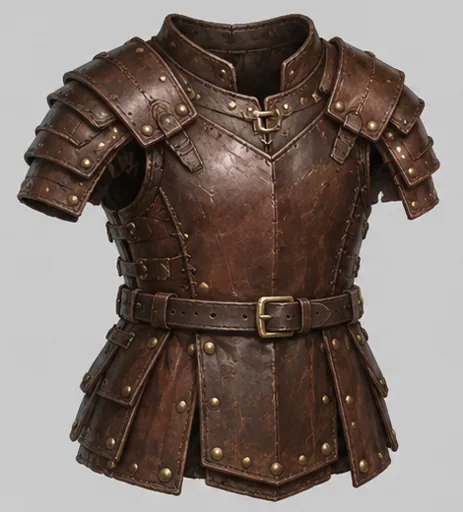
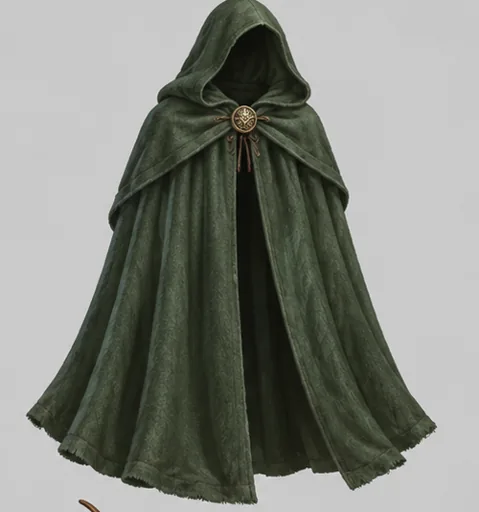
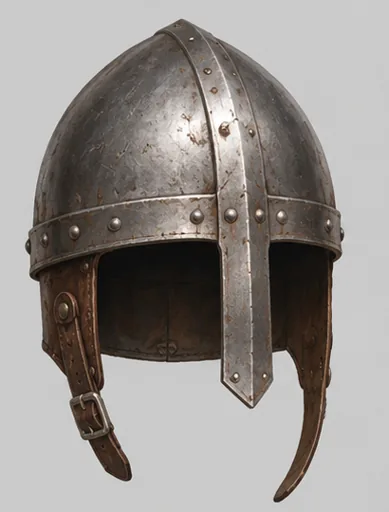
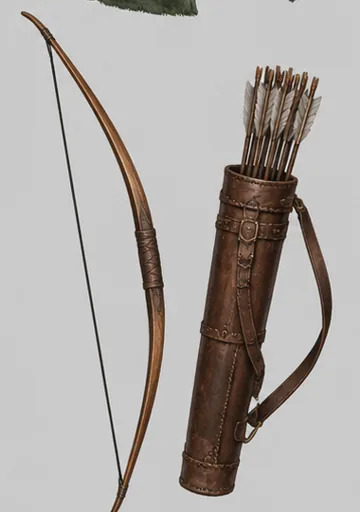
 Regenerate
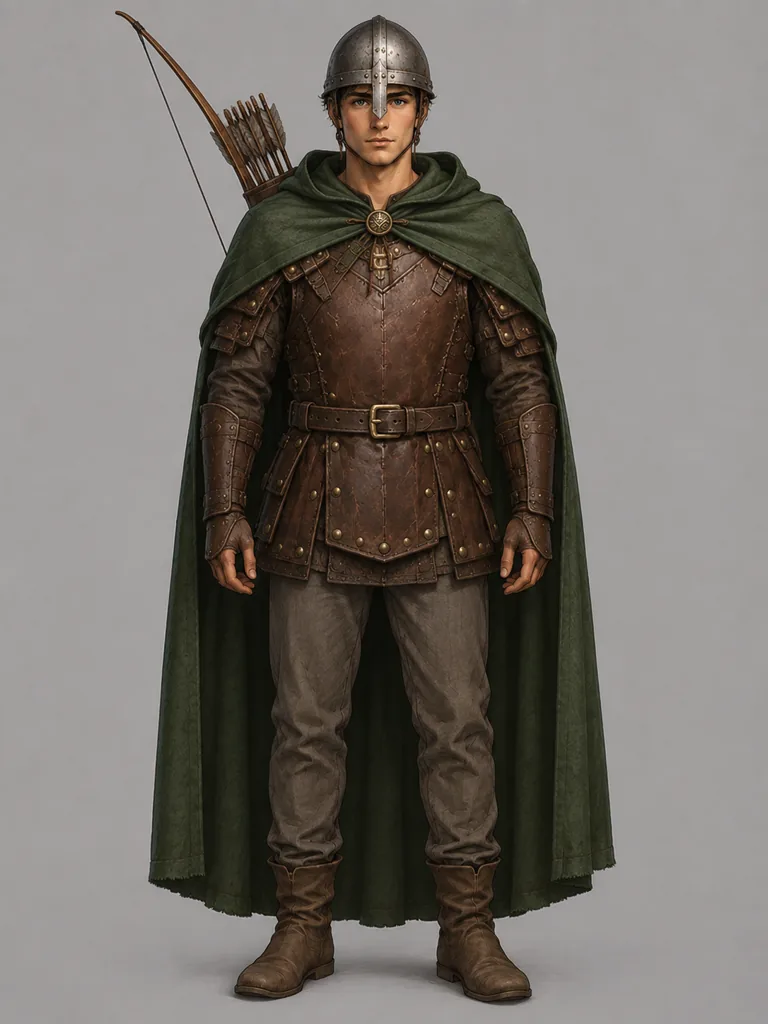
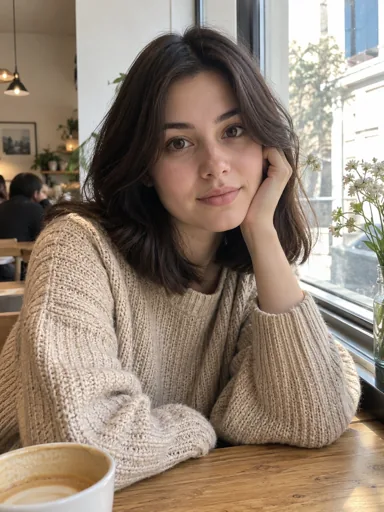
Five refs, one fully geared hero
 Regenerate
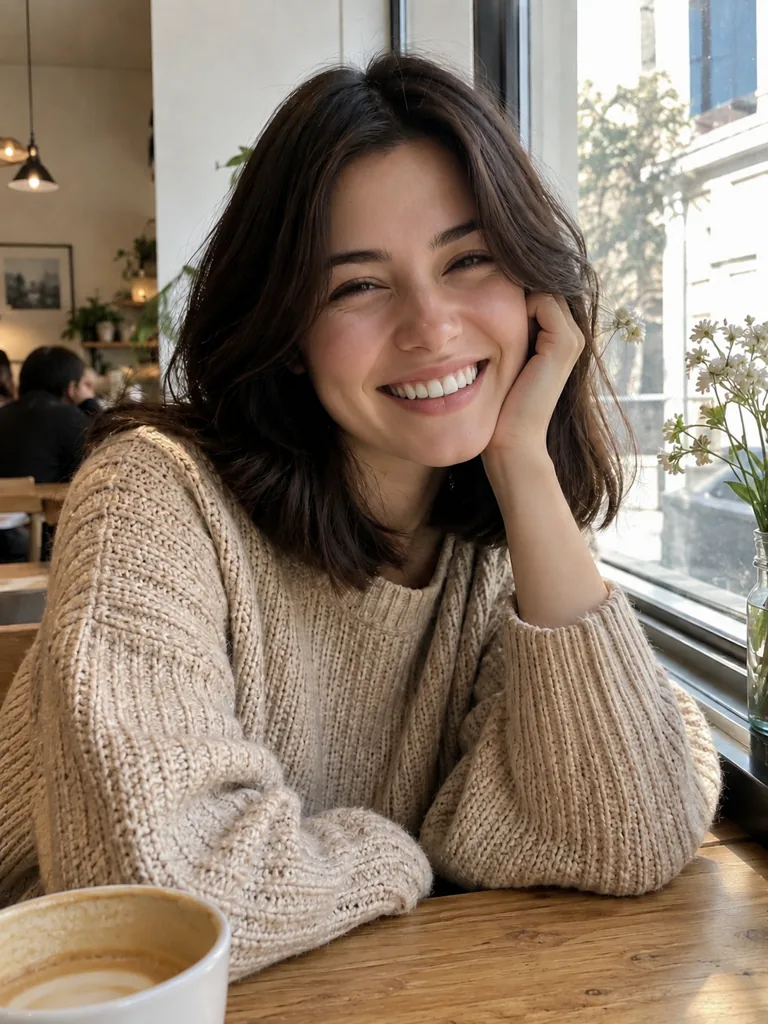
New expression, all else intact
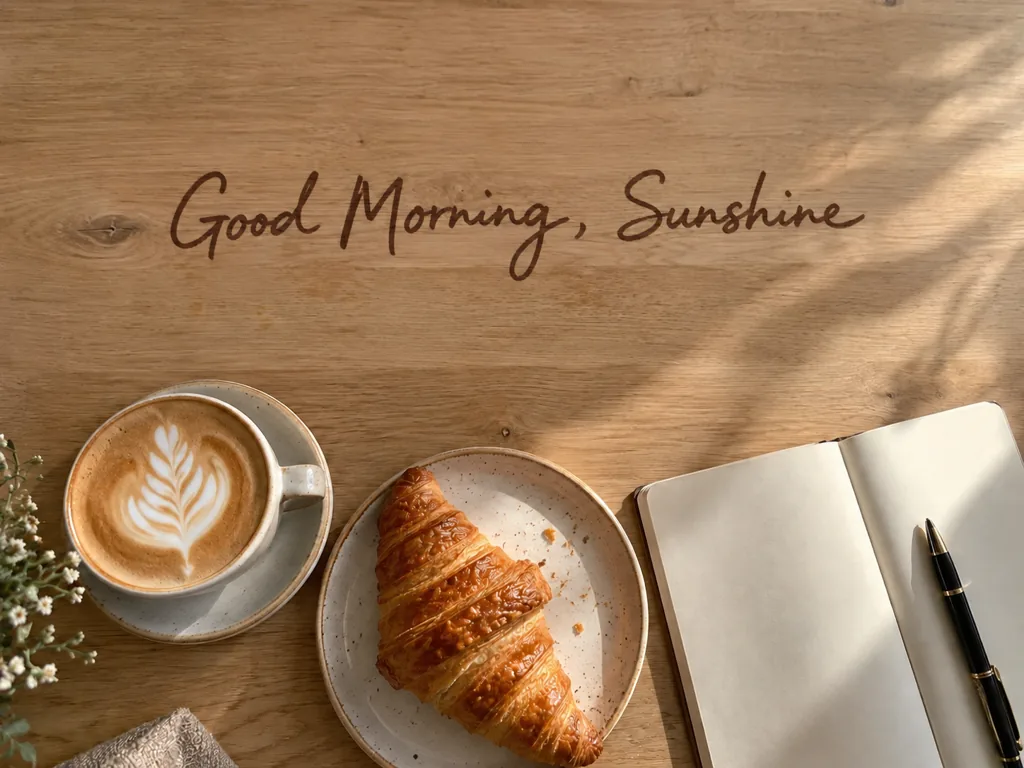 Regenerate
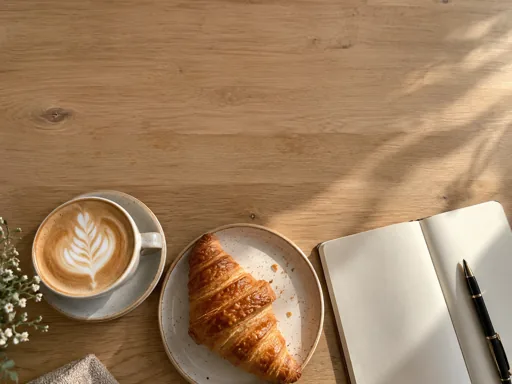
Handwritten text on the table
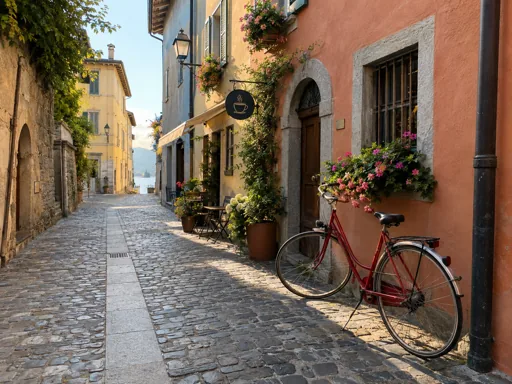
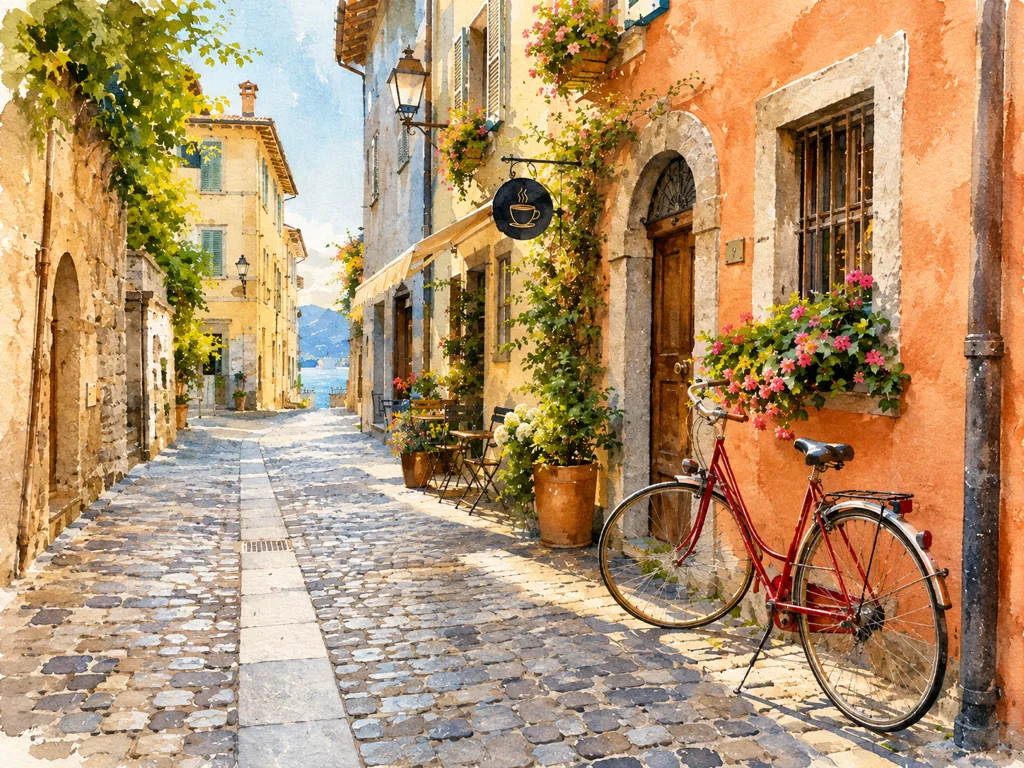 Regenerate
Photo turned into watercolor
RegeneratePhoto into a watercolor travel print
RegenerateTwo cats moved onto the sofa
RegenerateFive refs, one fully geared hero
RegenerateNew expression, all else intact
RegenerateHandwritten text on the table
RegeneratePhoto turned into watercolor
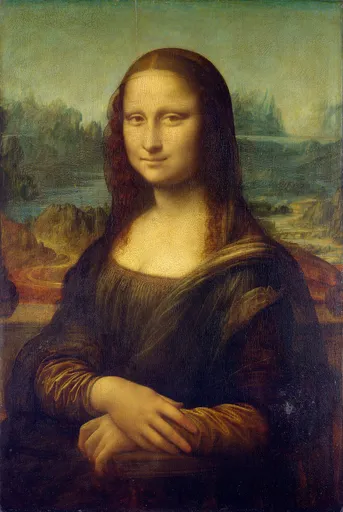
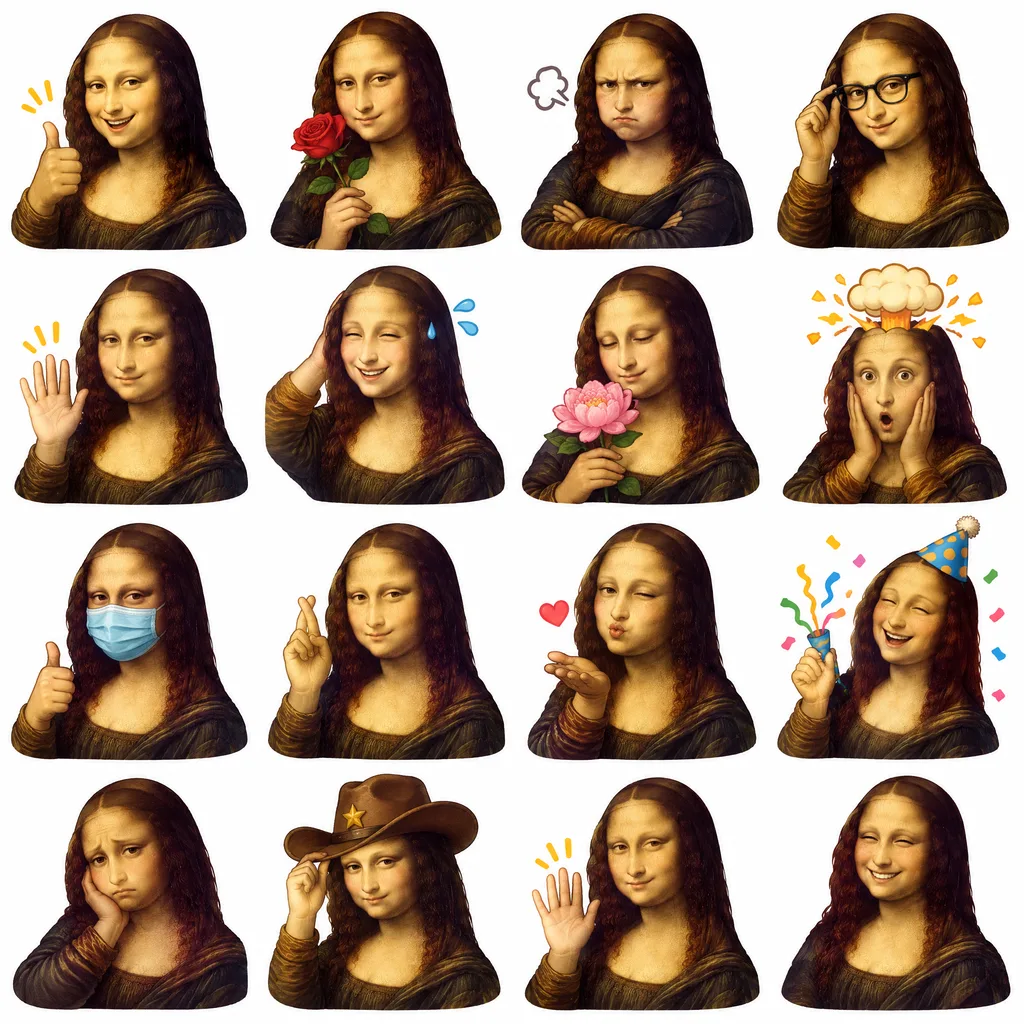 Regenerate
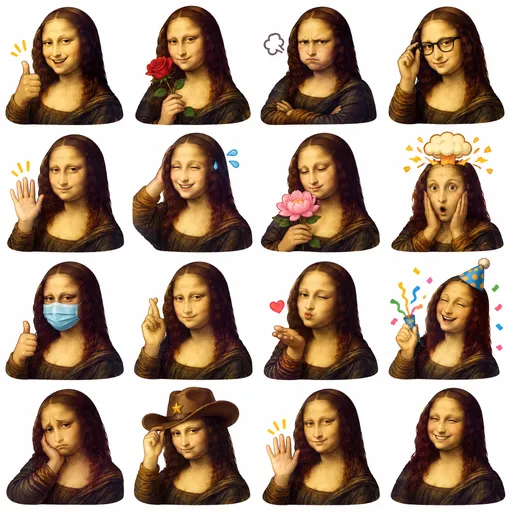
Mona Lisa, sixteen moods
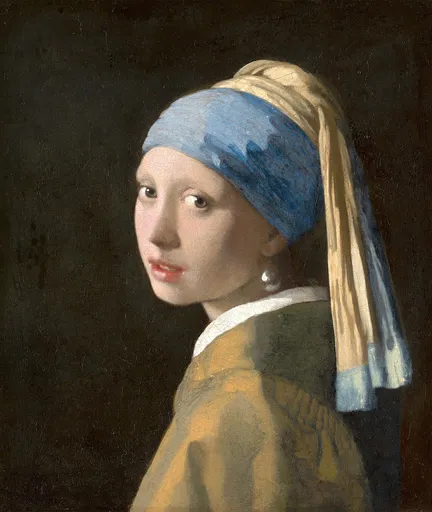
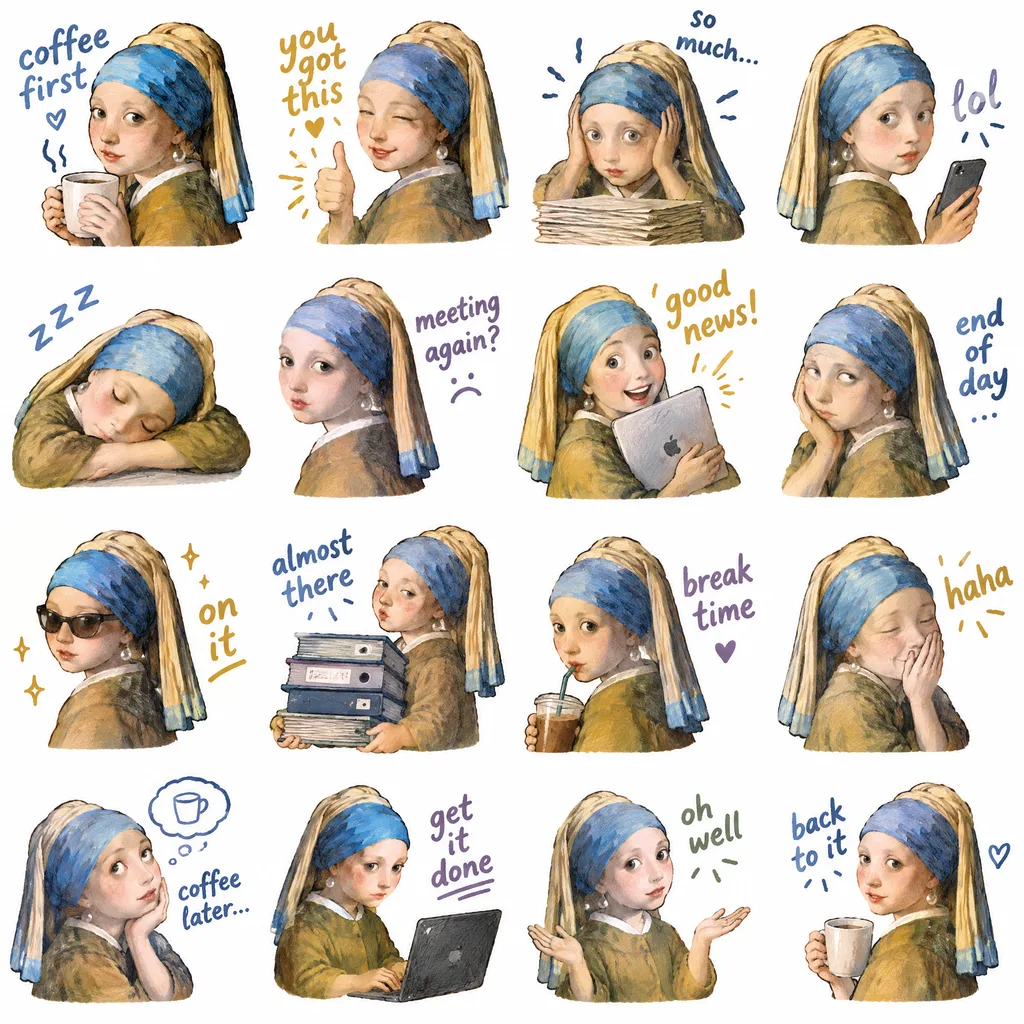 Regenerate
Pearl Earring girl at the office
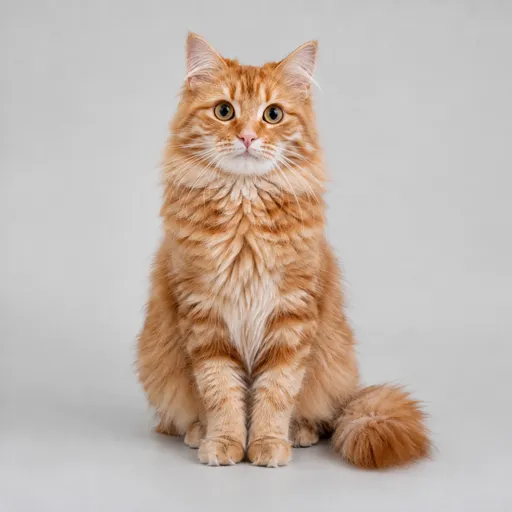
 Regenerate
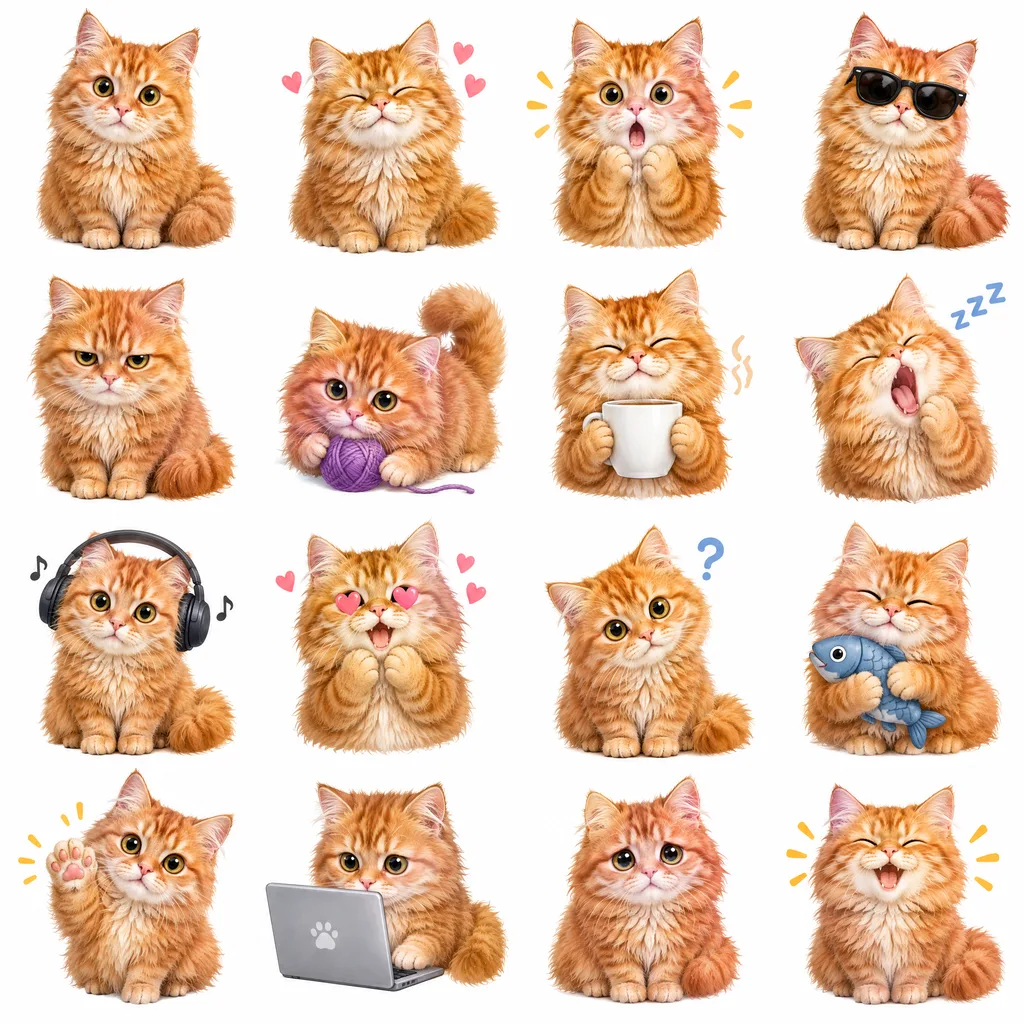
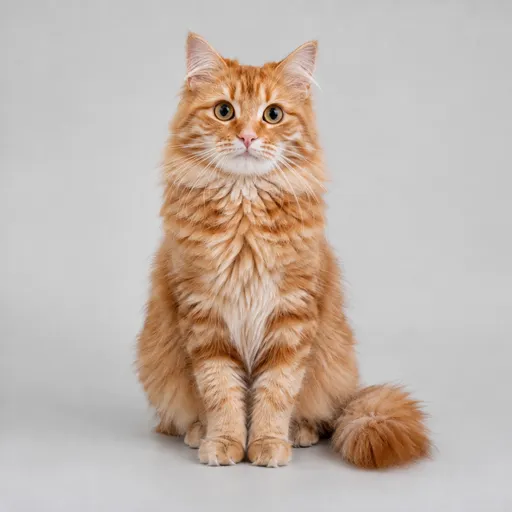
Chibi tabby for the group chat
 Regenerate
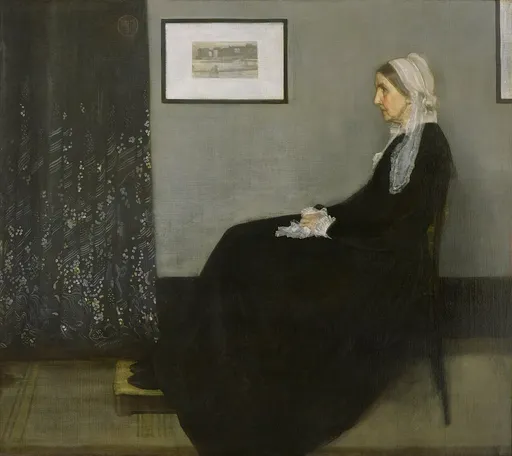
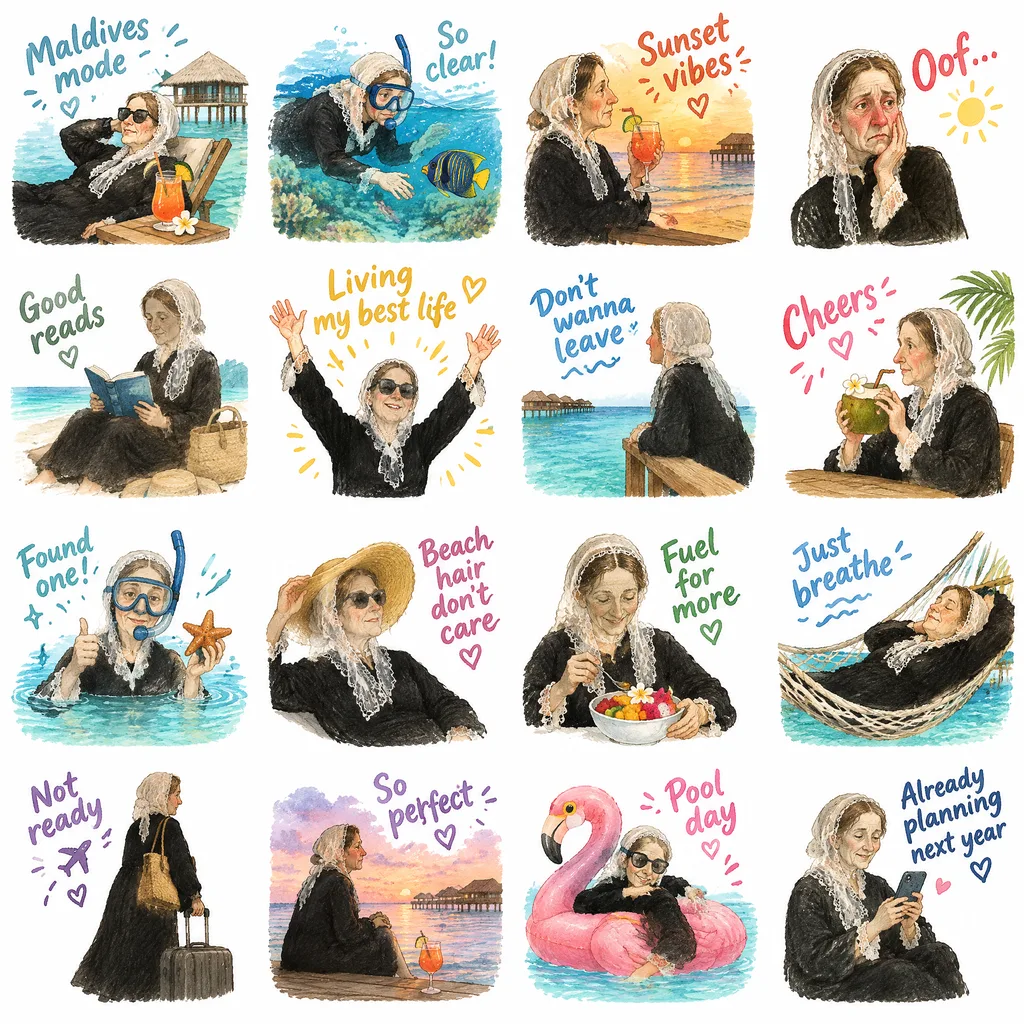
Whistler's Mother in the Maldives
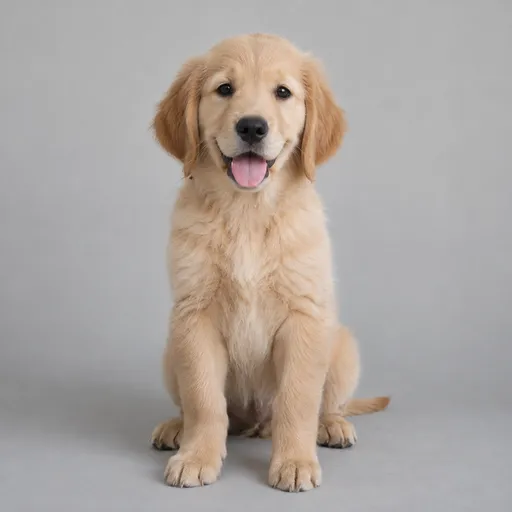
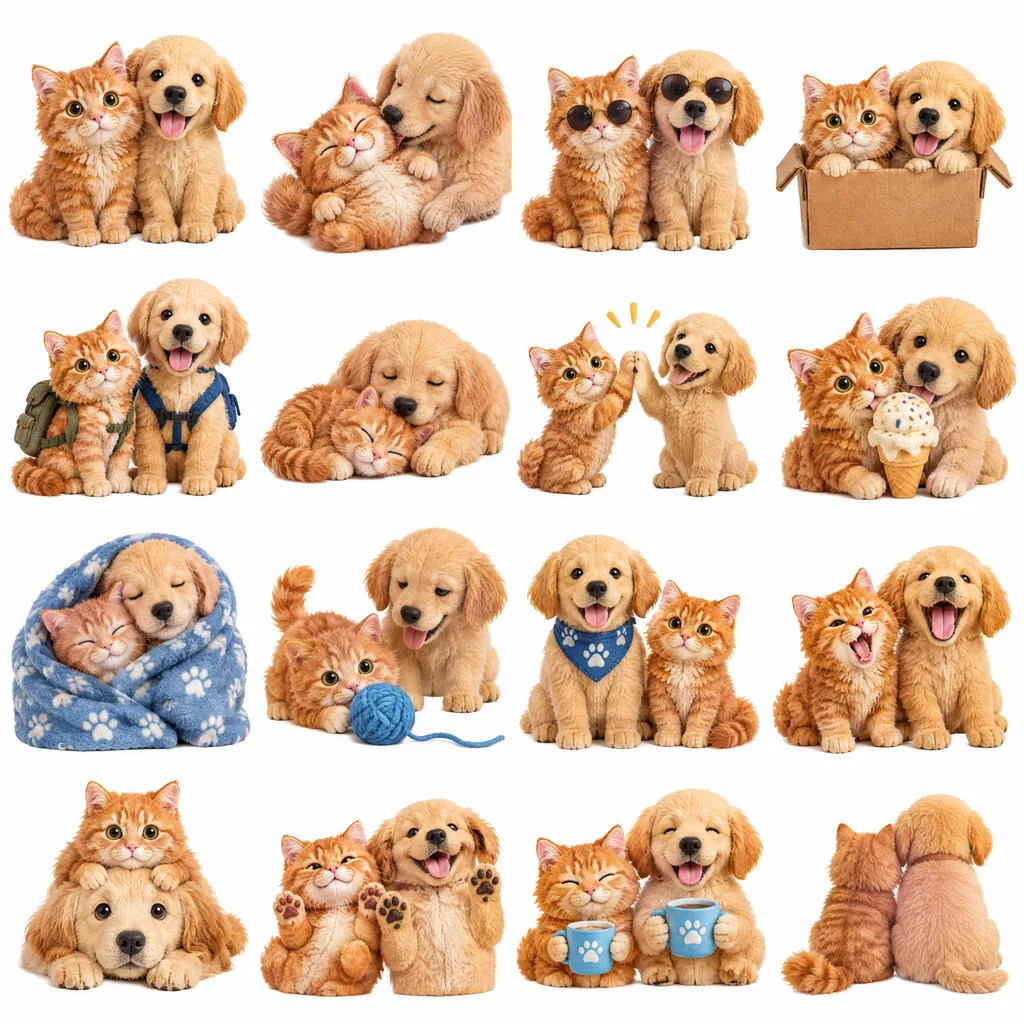 Regenerate
Plush tabby and puppy, best friends
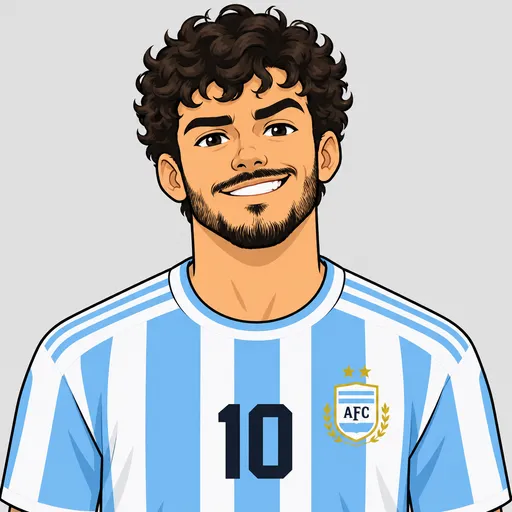
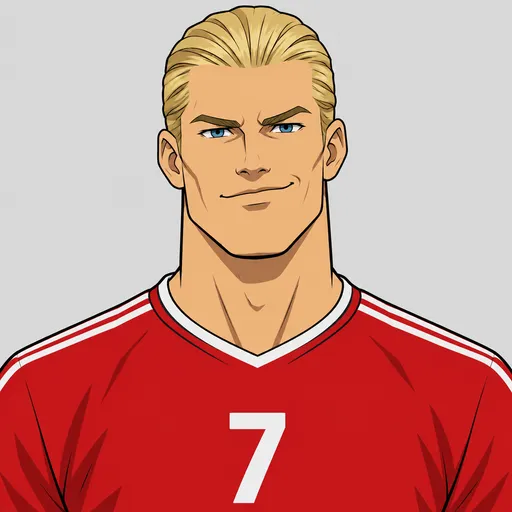
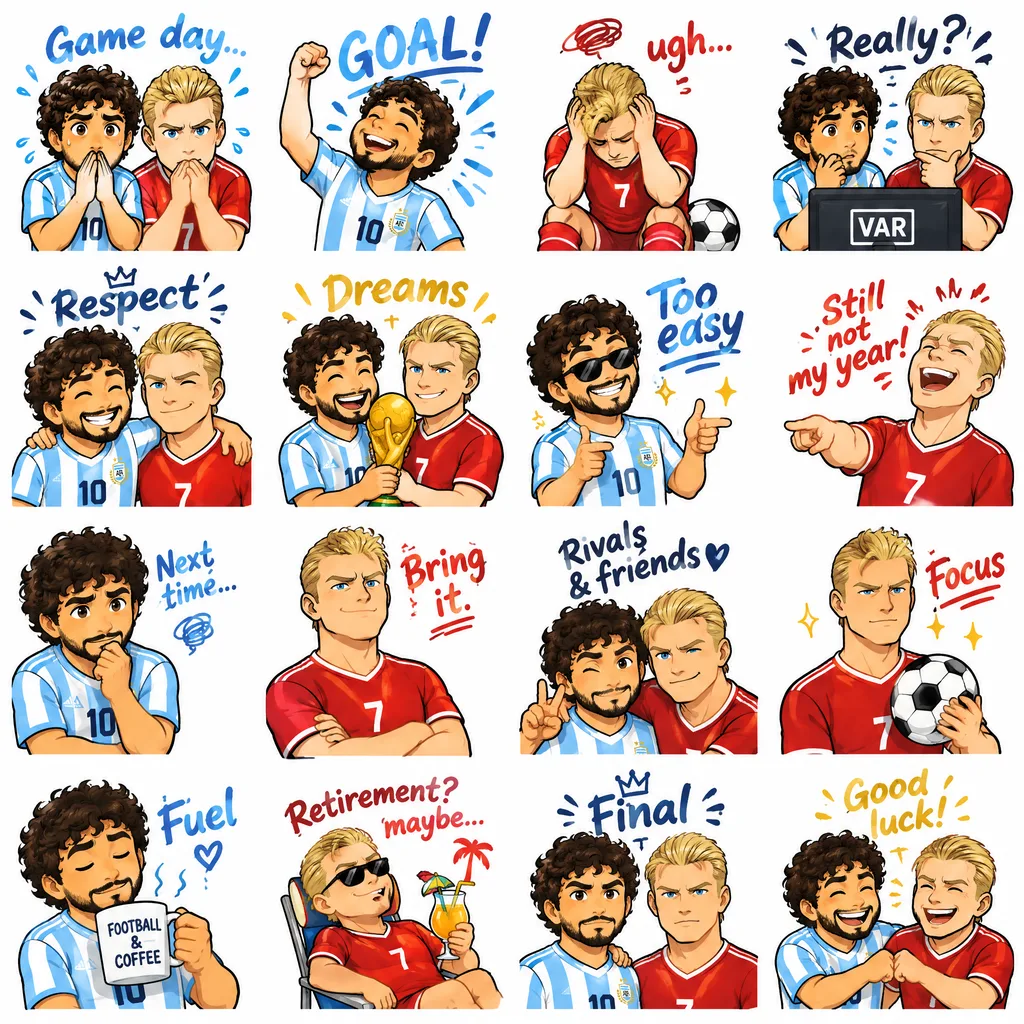 Regenerate
Two rivals at the 2030 World Cup
RegenerateMona Lisa, sixteen moods
RegeneratePearl Earring girl at the office
RegenerateChibi tabby for the group chat
RegenerateWhistler's Mother in the Maldives
RegeneratePlush tabby and puppy, best friends
RegenerateTwo rivals at the 2030 World Cup
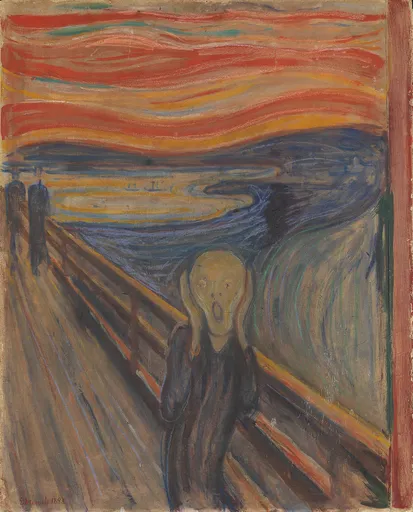
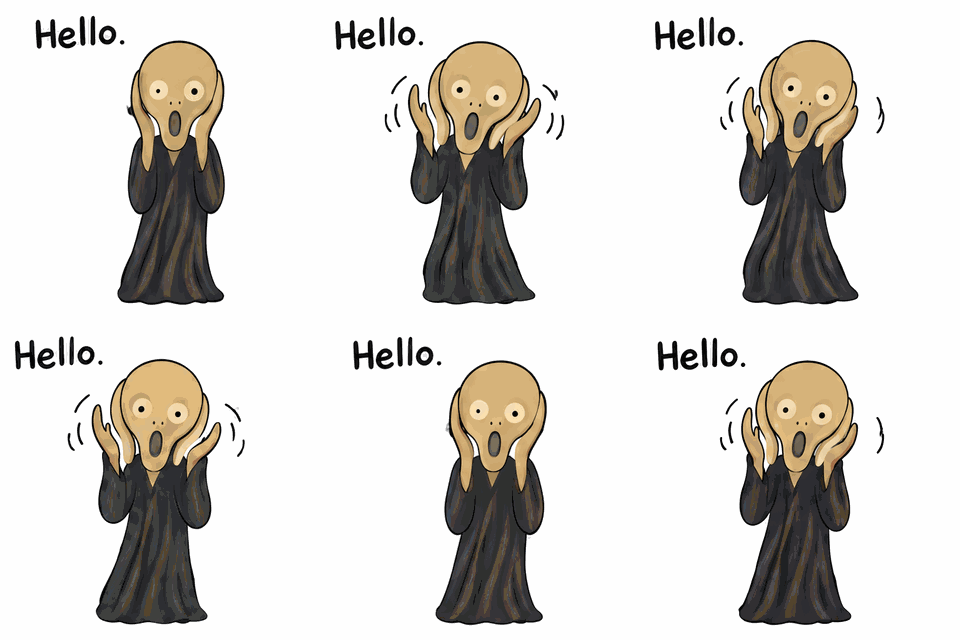 Regenerate
The Scream, 16 frames of shock
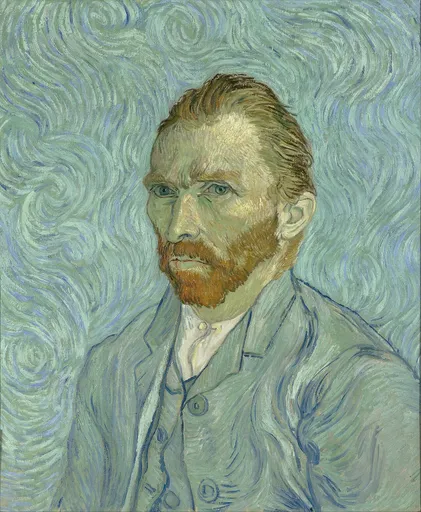
 Regenerate
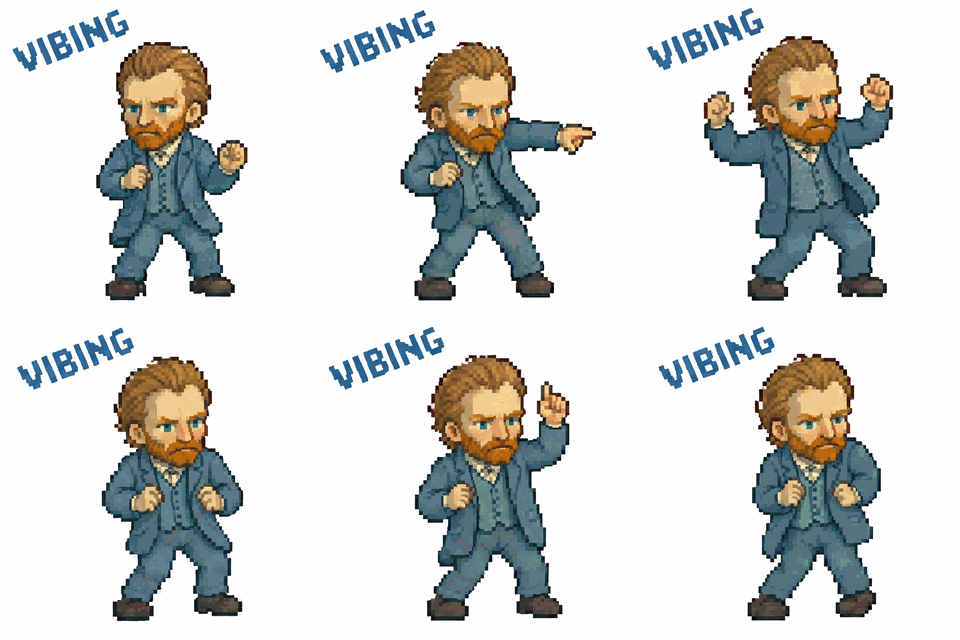
Pixel Van Gogh dancing, captioned VIBING
 Regenerate
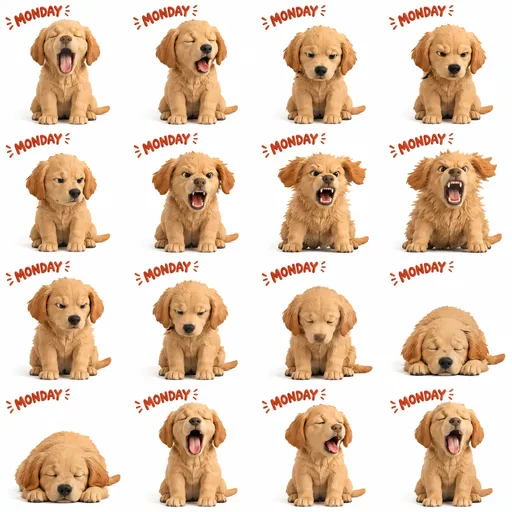
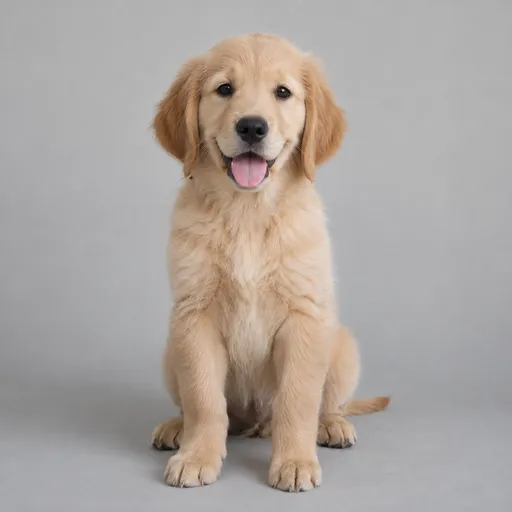
Clay puppy, sleepy to furious
 Regenerate
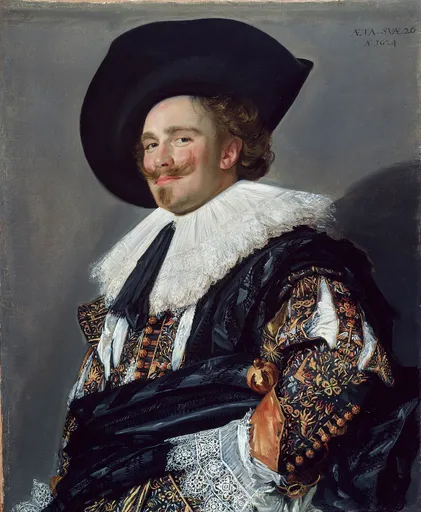
The Laughing Cavalier scores
 Regenerate
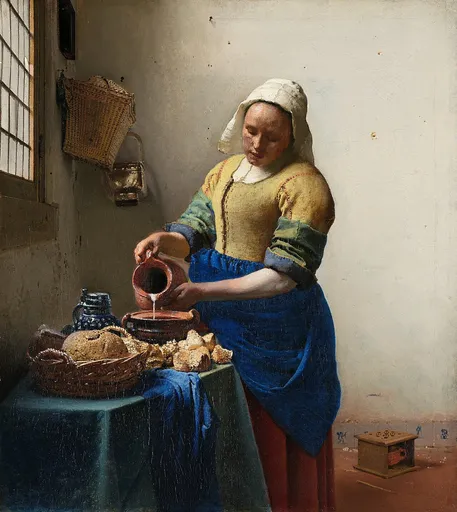
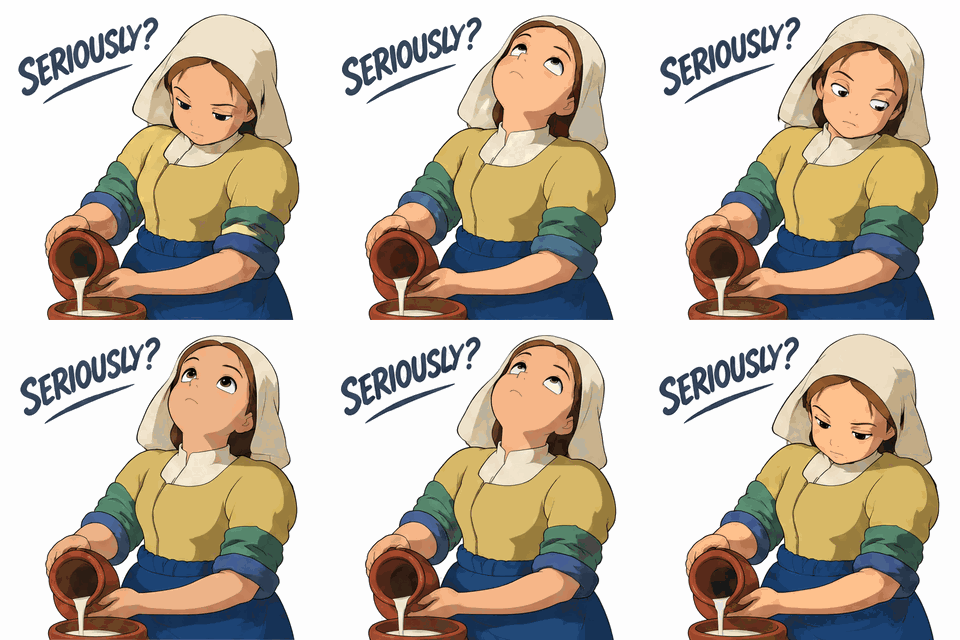
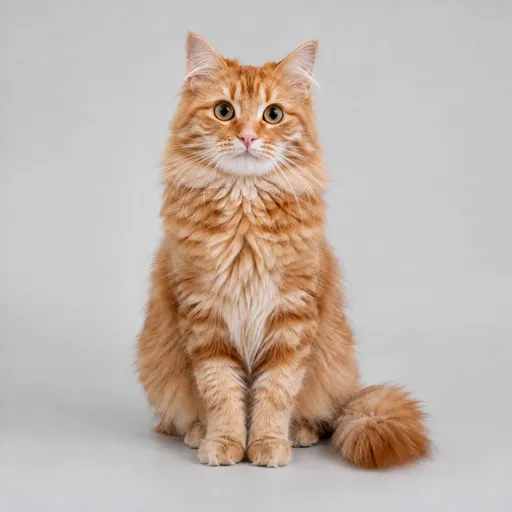
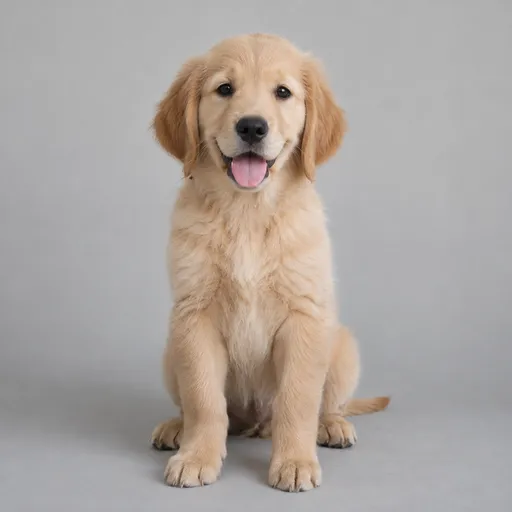
The Milkmaid rolls her eyes
 Regenerate
Tabby and puppy party, 16 frames
RegenerateThe Scream, 16 frames of shock
RegeneratePixel Van Gogh dancing, captioned VIBING
RegenerateClay puppy, sleepy to furious
RegenerateThe Laughing Cavalier scores
RegenerateThe Milkmaid rolls her eyes
RegenerateTabby and puppy party, 16 frames
Create images and video on one platform. Choose a model or start with a preset, then refine your results.
Use one credit balance for images and video. Keep generated assets together so they are easy to find and reuse.
Choose from models by OpenAI, Google, FLUX, ByteDance and MiniMax, with more added over time. Switch models without another account or separate top-up.
Product shots, image sets and virtual try-on come with preset prompts. Follow the steps to upload images and add your requirements, without writing a prompt from scratch.
Use your product photo as a reference to change the background, lighting and composition while aiming to preserve its shape, colours, label and material details.
Change a background, revise text, adjust an expression or edit an object. Describe what you want to change and keep working on the existing image.
Generate several images at once in a range of aspect ratios for product listings, detail pages, banners and vertical content. Selected models support 4K output.
Generate images, edit photos, make videos or prepare visuals for your products.
Start from a description or edit a photo you already have.
Describe an illustration, cover or image to generate.
Upload a photo to edit its background, text, expressions or style.
One portrait becomes a set of reaction stickers.
One portrait becomes an animated sticker pack.
Split one image into separate transparent layers you can reuse or edit.
Make short clips from text, images or reference material.
Describe a scene or bring a still image into motion.
Use references to guide characters, settings and movement.
Upload a first and last frame to generate the transition between them.
Upload a video and change its colours, clothes or objects in one sentence, with the motion kept.
Put two photos into the viral Hotel Lobby rap duet.
Turn a person, pet or original character into the star of a Bulin 47-style street freestyle.
Show a chosen subject gradually turn from normal to zombie, then recognition, an embrace and a warm memory.
Put yourself or your pet behind the wheel of a flying car like the viral Roadster.
Each ceiling-fan sweep changes your outfit: four looks in one 15-second shot, for you or your pet.
Use your product photos to create images for different placements.
Place your product in a new setting and composition.
Combine product photos and selling points into detail-page visuals.
Generate views from several angles using your product photo as a reference.
Show clothing on an uploaded model photo or a generated model.
Make product ads, build a listing, edit a photo or turn an idea into a short film. See the materials and instructions behind each result, then make it your own.
Try new backgrounds, lighting and arrangements with an existing product photo, with less set-building for each creative direction.
What you need
Have a product photo and a setting in mind.
What to do
Upload the photo and optionally describe the background, light and composition.
What you get
Get a new product image to review and refine.
The materials, instructions or image set plan open in the studio. Review and adjust them before generating.
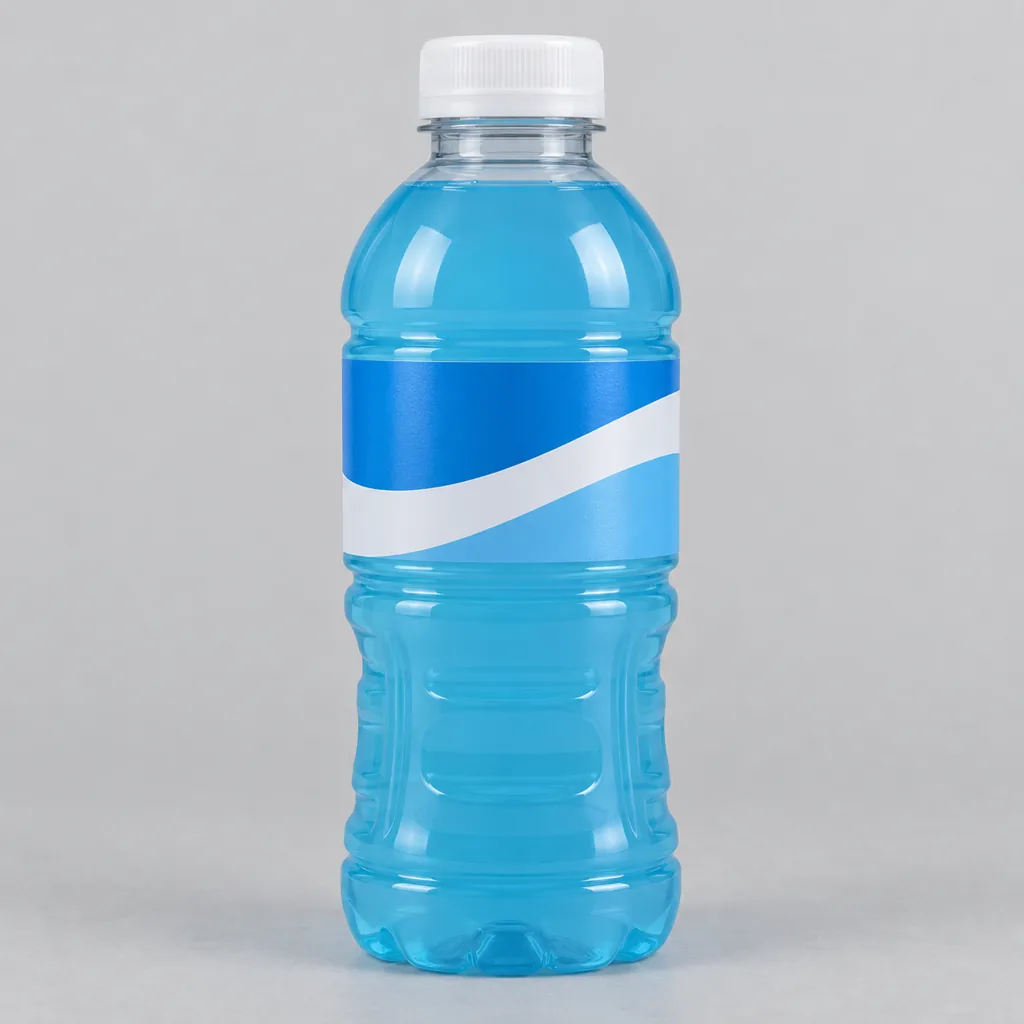
No prompt, one click
Reference materials1 / 1
Generated results1 / 1
Explore more examples
12 examples
Edit an image, explore a variation or make a clip with materials already in your workspace. Spend less time preparing them again and more time trying your next idea.
Your last result is a new starting point
Build on your images, instructions and generation history.
01A last-minute change
Choose Continue editing on a creation to bring the image into the editor, then describe the change you want.
Start with
An existing image
This time
Describe the change
Create next
A new version
Skip the download and re-upload
Open the image workspace02Another direction to explore
Reuse instructions from your generation history, revise the description or choose another model that supports your reference materials.
Start with
Instructions and references
This time
Adjust the brief or model
Create next
Another option
Less copying and preparing references
Open the studio03An image—and now a video
Switch to video, choose an existing image from your library and describe the action and camera movement to generate a clip.
Start with
An image from your library
This time
Describe action and camera
Create next
A video clip
Use the same material in a new format
Open the video workspaceGet a first version. Then make it fit.
Start my next versionProduct images, photo edits or a short video? Compare the available models by what you want to make, then open your choice in the workspace. One account, one credit balance.
Image creation
Start with words or bring a photo or product image. Check which models support your materials.

OpenAI
Bring multiple visual references into one brief
Cost at default settings
13 credits
1:1 · 1K
OpenAI
Keep working on photos and product images
Cost at default settings
15 credits
1:1 · 1K

Infographics, posters and recurring characters at a low price
Cost at default settings
22 credits
1:1 · 1K
Cards and posters that need real, current facts
Cost at default settings
25 credits
1:1 · 1K
Complex briefs where the text in the image must read right
Cost at default settings
48 credits
1:1 · 1K
Quick edits and variations at 1K
Cost at default settings
20 credits
1:1

ByteDance
Cinematic stills and posters where detail and in-image text both matter
Cost at default settings
45 credits
1:1 · 1K
ByteDance
4K output at the same price as 2K
Cost at default settings
45 credits
1:1 · 2K

FLUX
Generate and edit in one model, up to 10 reference images
Cost at default settings
55 credits
1:1 · 1K
FLUX
Change backgrounds, objects or style in one sentence
Cost at default settings
50 credits
1:1
FLUX
Edits where detail and consistency matter
Cost at default settings
95 credits
1:1
FLUX
Sharp, natural images from a text description
Cost at default settings
35 credits
1:1 · 1MP
FLUX
Large images with the most detail, up to 4MP
Cost at default settings
80 credits
1:1 · 1MP
FLUX
Explore a composition before choosing a direction
Cost at default settings
0 credits
1:1

Microsoft
Photoreal scenes and in-image text, with optional web search
Cost at default settings
50 credits
1:1 · 1K
Microsoft
Same features, faster and cheaper
Cost at default settings
25 credits
1:1 · 1K
Video creation
Consider the clip length and resolution, then choose a model. Each price uses the settings shown below.
8-second clips with sound at the best value
Cost at default settings
200 credits
16:9 · 720P · 8s
The fewest credits — test an idea from text first
Cost at default settings
100 credits
16:9 · 720P · 8s
Final cuts that need the best picture
Cost at default settings
1430 credits
16:9 · 720P · 8s

MiniMax
Turn the clip in your head into a first version
Cost at default settings
408 credits
16:9 · 768P · 5s
ByteDance
Leave more room for a longer clip
Cost at default settings
687 credits
Auto · 480P · 5s
ByteDance
Try another model for a different take on your clip
Cost at default settings
472 credits
Auto · 480P · 5s
ByteDance
Describe the scene, action and camera movement
Cost at default settings
130 credits
Auto · 480P · 5s

Kling
Describe the scene, action and camera movement
Cost at default settings
1000 credits
16:9 · 720P · 5s

Wan
Describe the scene, action and camera movement
Cost at default settings
290 credits
Auto · 480P · 5s
Prices use default settings for one generation without reference video. Changing quality, duration or references can change the cost. Zero-credit models have free usage limits. Review the actual cost before generating.
See the source images, read the instruction, then try it with your own materials.
Upload a photo or product image and describe the scene and focus. You can also start with words alone.
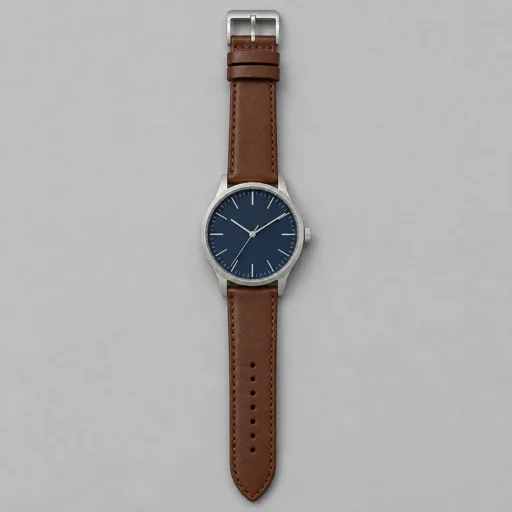
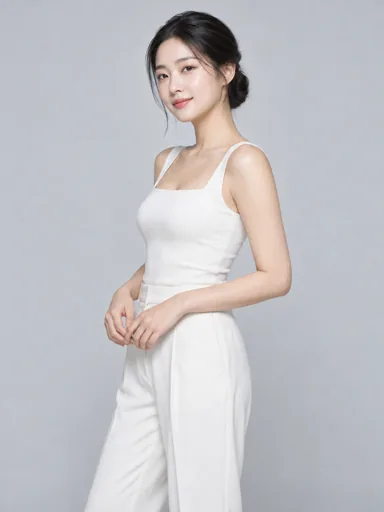
The two source images for this example
The original instruction
Have the model in @2 wear the watch from @1, a close-up by a cafe window, the wrist as the focal point
Choose a model, aspect ratio and resolution, and check the cost. Follow progress and view results in the workspace.
Download the result you choose, or use it as a reference for another edit. Earlier work stays in your library for later.
The result from this generation
On the wrist, cafe close-up
A real result made here. Load it to change the images or instruction. Each new generation may differ.
Try this example. Then bring your own idea.
ImgAI (imgai.ai), also called Image AI, brings image and video creation, reference materials and work history into one workspace.
A product launch, an unfinished listing, a story that needs an image. Start with a relevant example.
E-commerce sellers
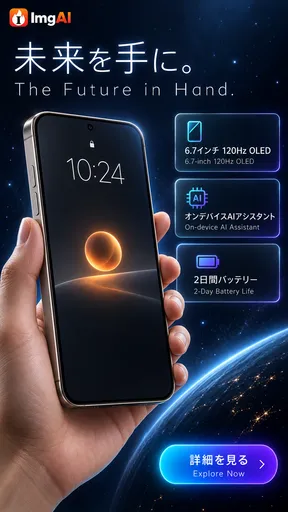
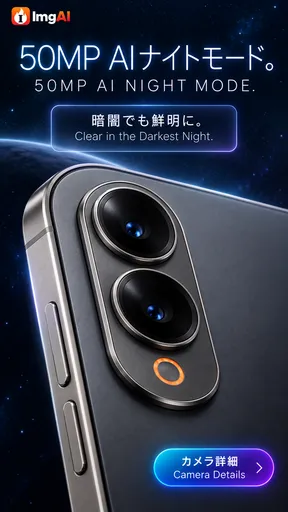
Explain the features, show the details and give the set a consistent look. Start with your product photos and information, then refine each image.
What to bring
Product photos, a logo and the features buyers should remember.
One product brief becomes the starting point for a full set.
Poster 1

Poster 2
Poster 3
Creators
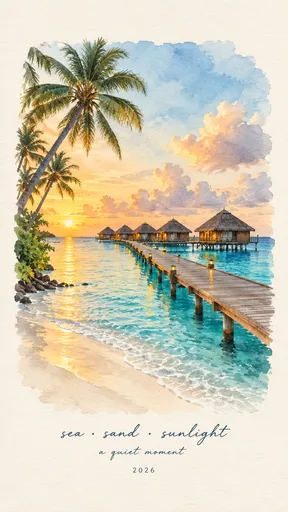
The story is written, but the image still feels wrong. Turn a photo into an illustration and try a different texture, palette or layout.
What to bring
A photo and a style you want to explore.
Keep the story in the photo. Explore how to tell it.
Original photo
Watercolor print
Founders
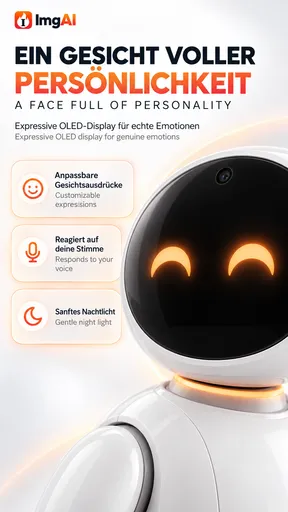
Your introduction, feature explanations and launch posts all need visuals. Build a first campaign from product photos and a brief, then revise as your plans take shape.
What to bring
Product photos, a logo and an introduction to what it does.
Put a first version in front of people, then work through the details.

Poster 1

Poster 2
Poster 3
One credit balance for images and video. See what each generation costs, then choose how much you need.
For personal projects and everyday edits.
$15.99/mo
USD · billed monthly
6,900
credits / month, shared across images and video
For regular product launches and content.
$39.99/mo
USD · billed monthly
19,200
credits / month, shared across images and video
For several projects and more iterations.
$79.99/mo
USD · billed monthly
43,700
credits / month, shared across images and video
For frequent generation and larger workloads.
$159.99/mo
USD · billed monthly
96,000
credits / month, shared across images and video
Cost shown before generation
One balance across models
Credits returned for failed tasks
Make something first.
Try the free models, then choose a subscription or a one-time credit pack to match your creative needs.
Clear answers about generation costs, commercial use and what happens to your work.
Creating & delivering
What you can make, how to refine it and what you can export.
ImgAI is a browser workspace for AI image and video generation. Create images from text, edit photos, make product photography and virtual try-on images, or turn text and images into video. Available models and inputs vary by workflow; select a workflow in the studio to see its options.
Options depend on the model and workflow. The studio shows the currently supported resolution, aspect ratio and video duration. Choose settings for your marketplace listing, social cover or vertical video before generating. For additional versions, reuse your reference material and adjust the output settings.
Upload a product reference and specify what to preserve or change—for example, keep the packaging and replace the background. References help with consistency, but generation can alter text, logos or details. Compare the result with the real product before using it in a listing, and reuse the output as a reference for further edits.
Yes. Upload an image in the image-to-video workflow and describe the motion and camera movement you want. Some models also accept first and last frames, video references or audio references; check the studio for available options. Image and video tasks are generated and charged separately using the same account balance.
Credits & billing
Know the costs before committing your budget.
Yes. You can try the free image model without an account. Signing up also gives you 50 credits to try credit-based generation. Free usage has limits; see the Free credits page for current allowances and reward rules.
Images and videos use the same credit balance. Cost depends on the model, output count and settings, including video duration where applicable. The workspace shows the credits required before you submit. Check the cost for your chosen settings; there is no single images-per-credit or seconds-per-credit rate across models.
Credits for tasks marked as failed are returned automatically. A successfully generated result still uses credits if it does not match your expectations; a new generation after revising the prompt has a new cost. Contact support with the task details if you see an unexpected charge or task status.
Under the current terms, cancellation stops future renewals and paid benefits remain until the end of the billing period. Credits already in your account, including subscription and purchased credits, are not removed or expired by cancellation. Cash refunds are separate and subject to refund conditions; see the pricing page and terms.
Rights & privacy
Understand commercial use, public visibility and how inputs are processed.
Under ImgAI’s terms, you own your generated content to the extent permitted by applicable law and the model provider’s terms. Commercial use is also subject to the selected model’s terms. You need the necessary rights to uploaded materials, branding and likenesses. Review the output and relevant terms before delivery or publication.
Yes. Prompts, reference images and other relevant inputs are sent to the selected model’s service provider to process your generation. ImgAI’s privacy policy and the provider’s data terms both apply. Review them before uploading confidential material. Making a work private does not prevent its inputs from being processed by the model provider.
Creations from anonymous users and unpaid accounts are public. Paid users can choose private generation in the workspace; check the visibility setting before starting. Private works are not displayed as public creations, but inputs needed for generation are still processed by the model provider.
Have a question about your project? Contact us