




 Reference to VideoRegenerate
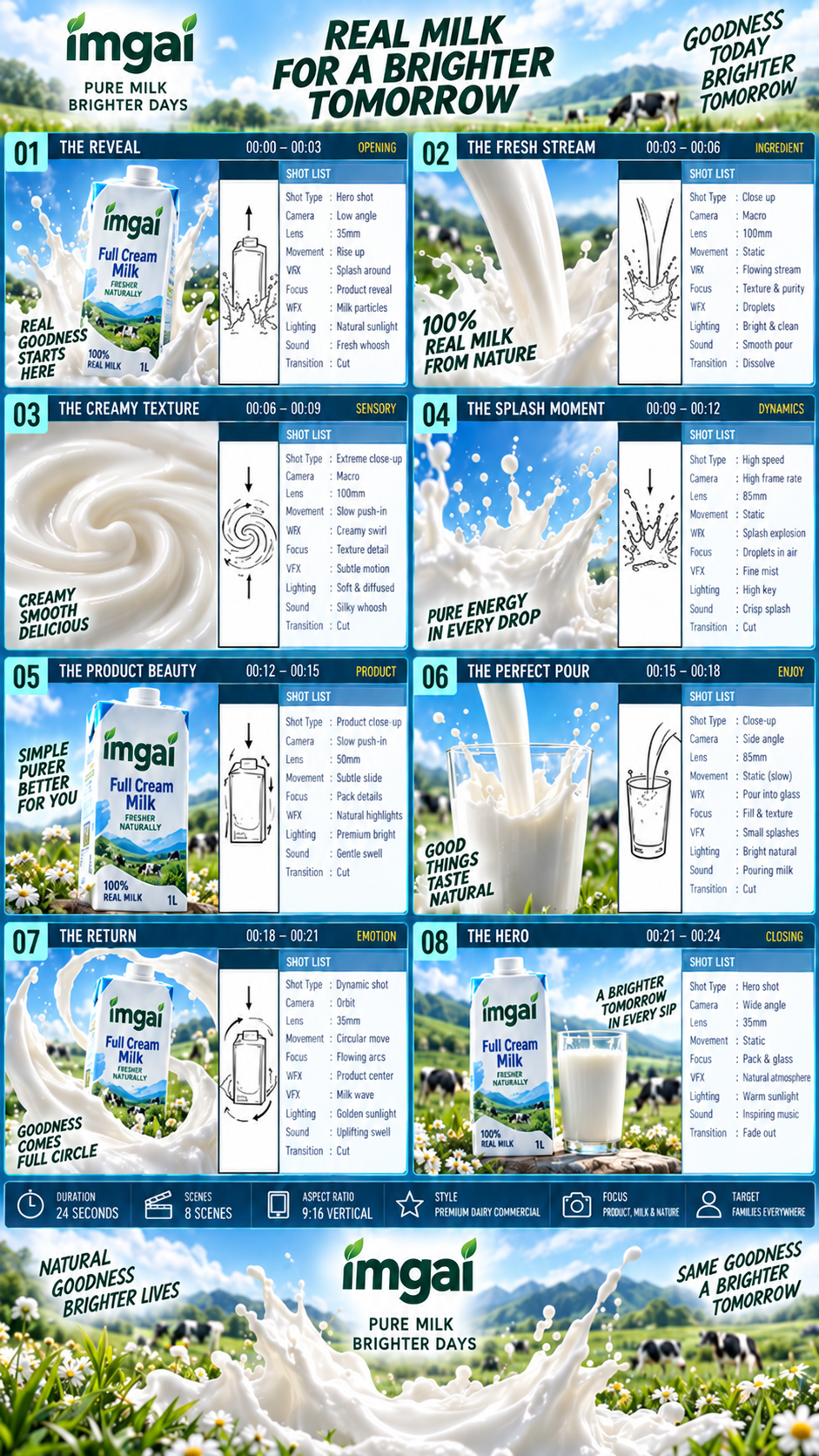
One poster becomes a milk commercial
Use reference material to guide a new video
Review results, manage assets and access generation history in AI Studio.
Keep a subject, setting or visual direction in mind while describing a new shot. Reference material guides the model; it does not have to become the first frame.
Provide at least one visual reference and a prompt. Image, video and accompanying audio support depends on the selected model; audio alone does not replace a visual reference.
You receive a generated clip guided by the material and prompt. Check subject consistency, camera motion and any generated sound rather than assuming an exact copy.
Upload references that clearly show the subject or visual direction. Check which media types the model accepts.
Explain what moves, where it happens and how the camera behaves. Give each reference a clear role in the scene.
Choose supported duration and format settings, review the credit quote, then generate. Watch the full clip before downloading.
Product teasers, ad spots, title sequences and space walk-throughs. Start with text or an image, then choose a landscape or vertical format.
Every clip below is a real job run here. Tap one and the prompt and stills load — run it yourself.
Reference to VideoRegenerateOne poster becomes a milk commercial
 Reference to VideoRegenerate
Take her hand, spin into five destinations
 Reference to VideoRegenerate
Following the red line into the old town
A product reveal shot
Use the reference bottle as the product. A slow camera move reveals it on a stone table in morning light; the bottle stays still.
Upload the product reference. It guides the object appearance; the model composes a new opening frame.
Try this exampleImage-to-video uses the uploaded image as the starting frame. Here the references guide the new scene without fixing that exact opening frame.
Only when the selected model supports that input. Audio references need compatible visual references alongside them; inspect the upload controls and limits.
No exact consistency is guaranteed. Faces, product details and proportions can shift during motion; review the whole clip and simplify difficult actions if needed.