




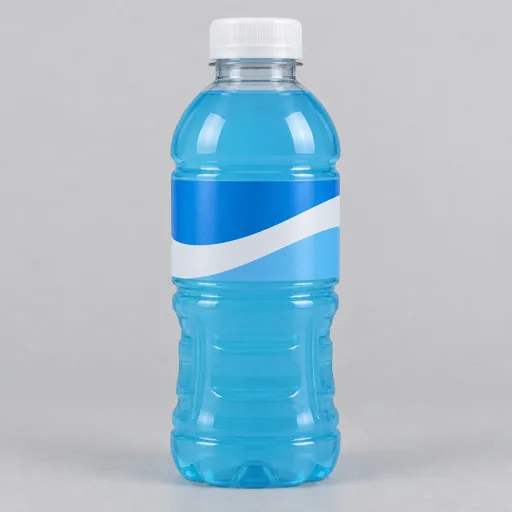
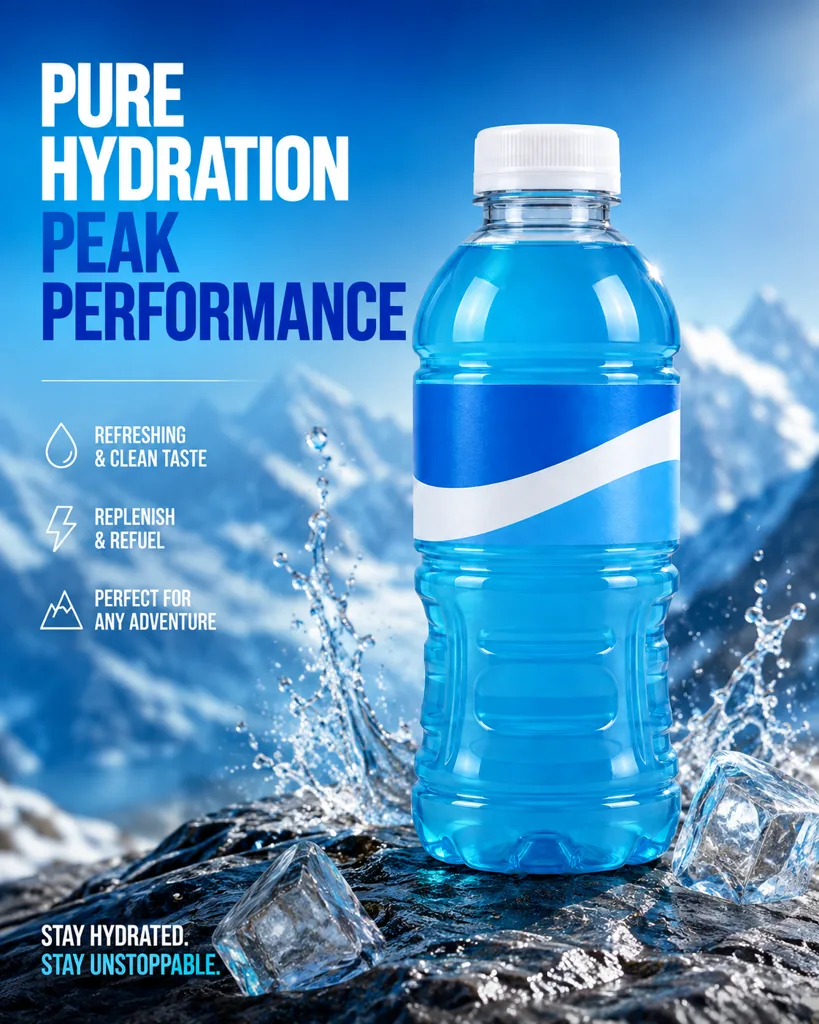
 Regenerate
No prompt, one click
Give your product a new setting
Review results, manage assets and access generation history in AI Studio.
Turn a product reference into a new presentation image: a clean studio view, a tabletop scene or a lifestyle setting. This scene creates a single product image.
Upload at least one product image with visible shape and material. You may add a scene description; leaving it blank uses the product-scene preset.
You receive a product presentation image. Compare labels, proportions, accessories and surface details with the real item before publishing.
Use a source where the item is not heavily cropped or hidden. More references can help when the model supports them.
Add the background, placement and lighting you want. Keep those directions separate from the product features that must remain.
Generate and inspect the result. Download a suitable version or revise the scene if it distracts from the item.
Every card below is a real job run here. Tap one and the source photos and prompt load — run it yourself.
RegenerateNo prompt, one click
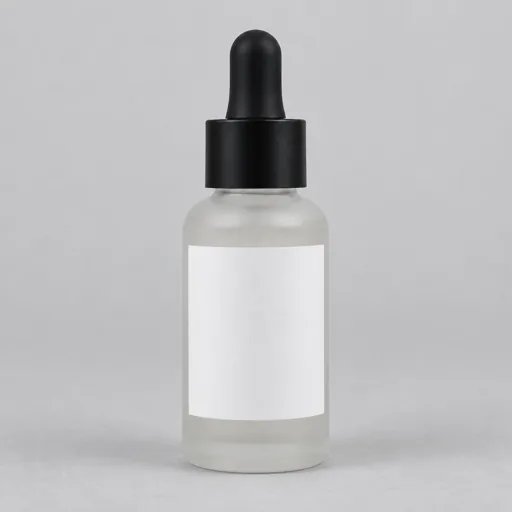

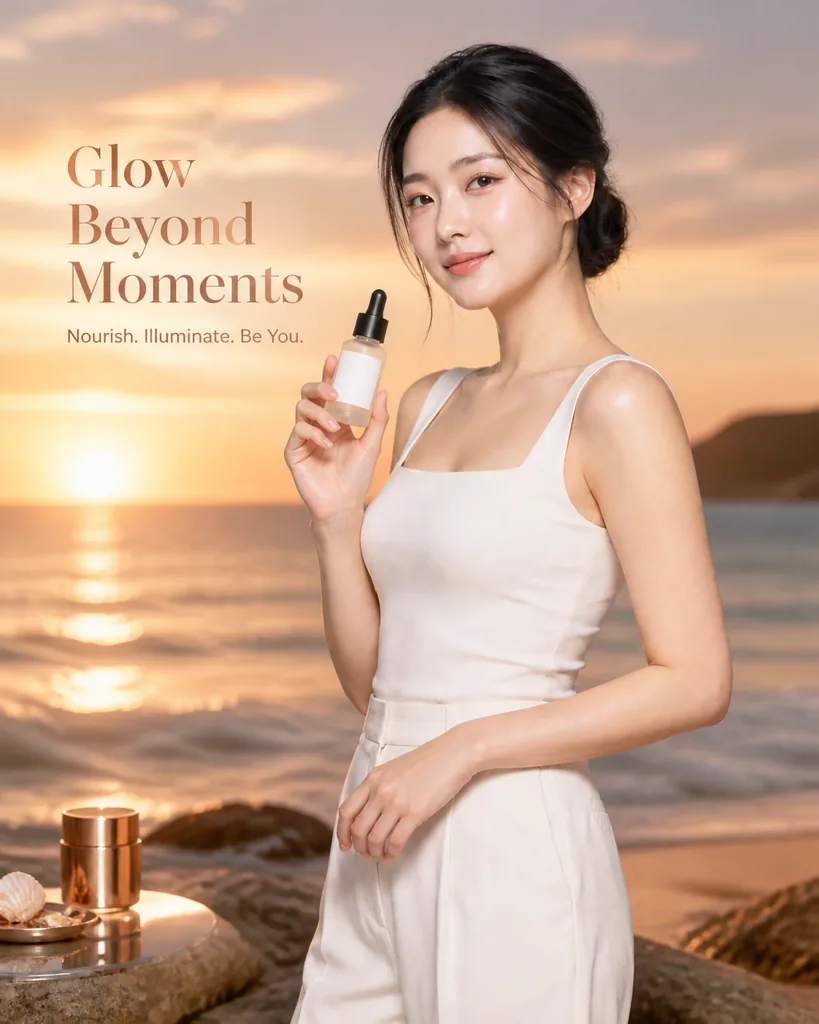 Regenerate
Held by a model, sunset ad
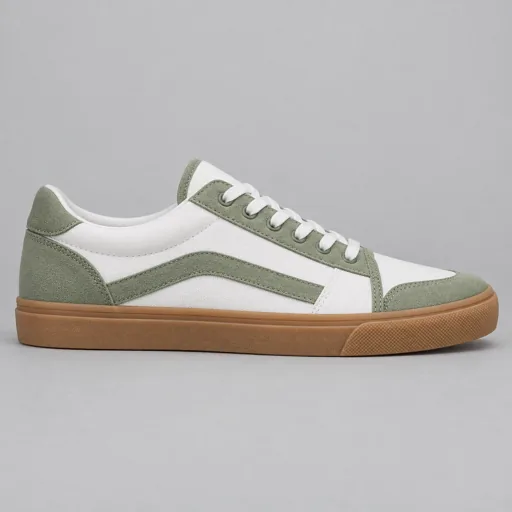
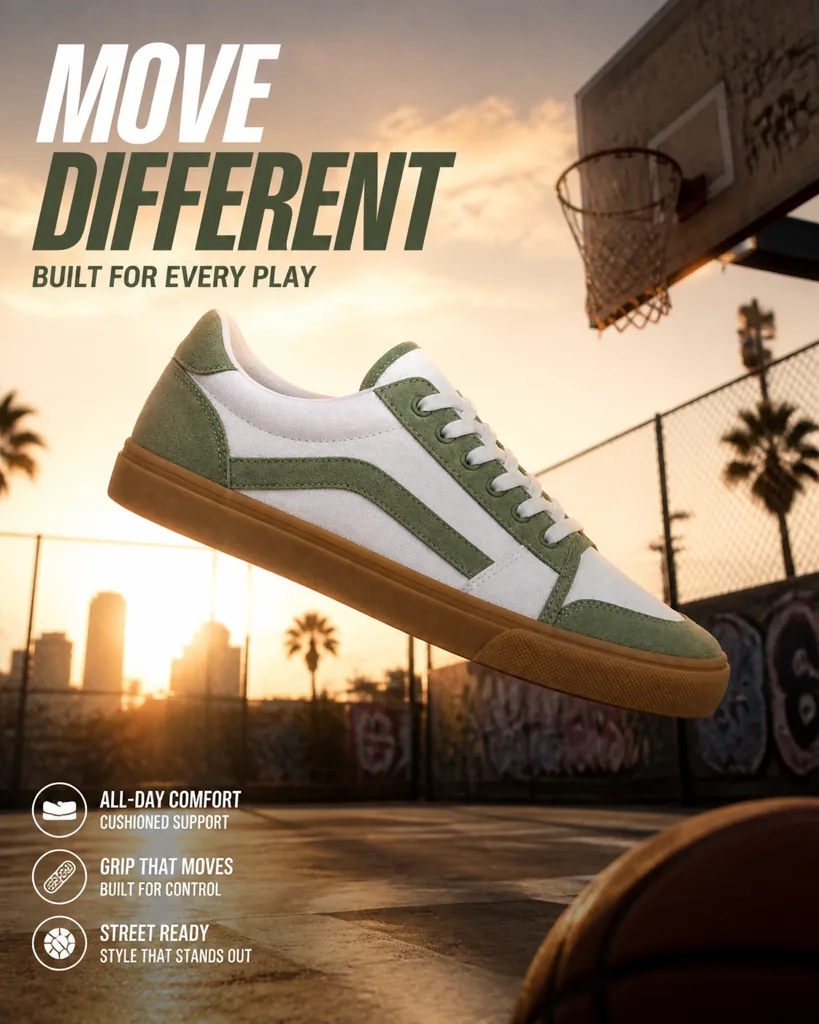 Regenerate
Backlit court, shoe mid-air

 Regenerate
Neon rim light, tech mood
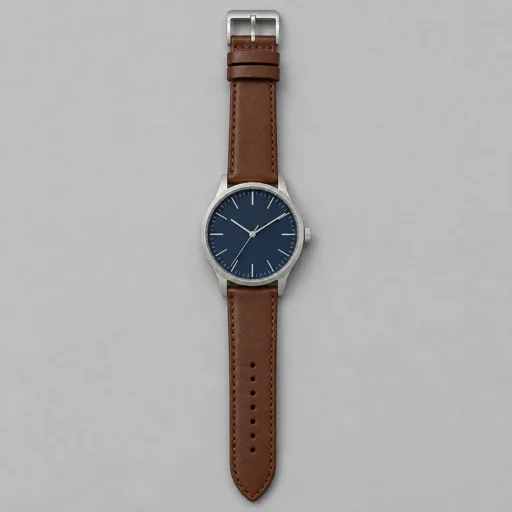

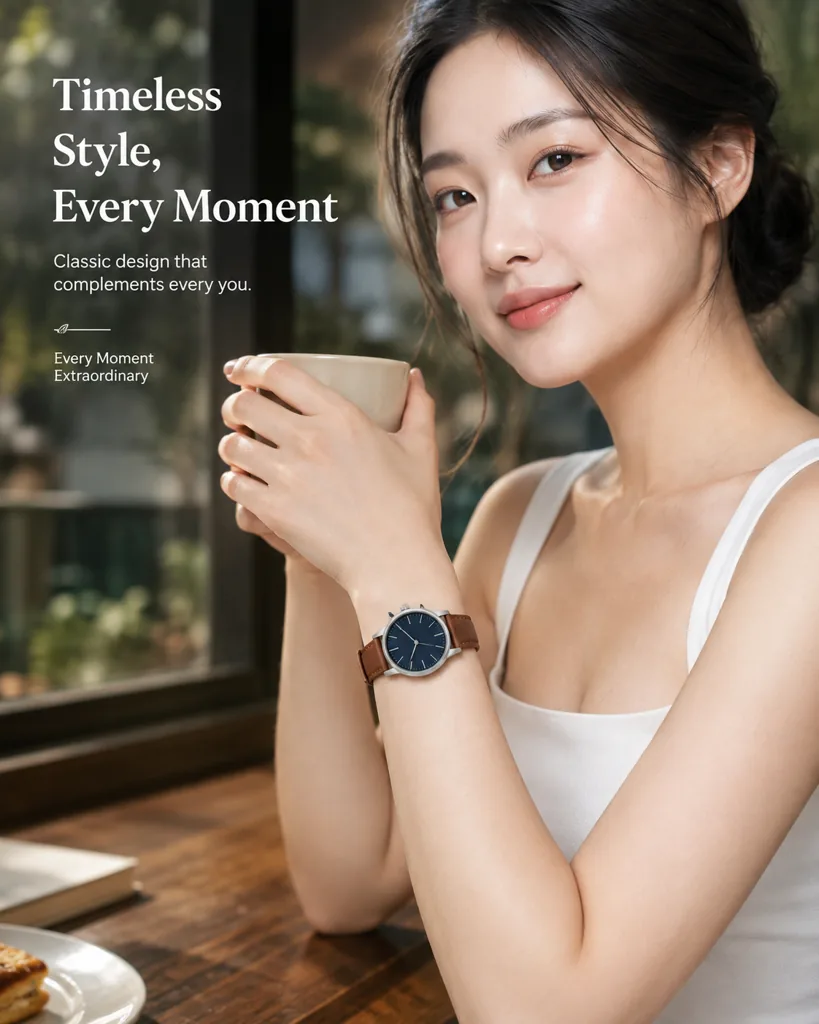 Regenerate
On the wrist, cafe close-up
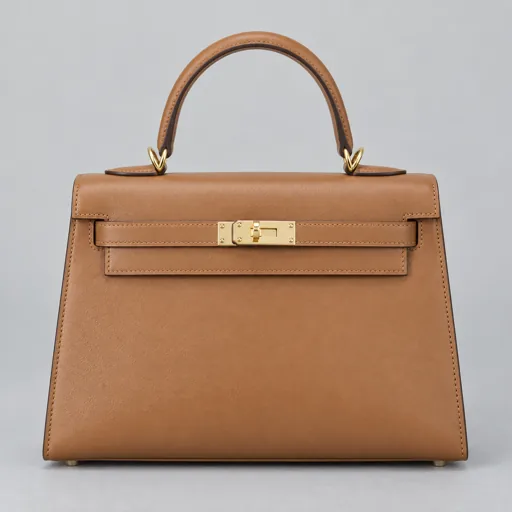
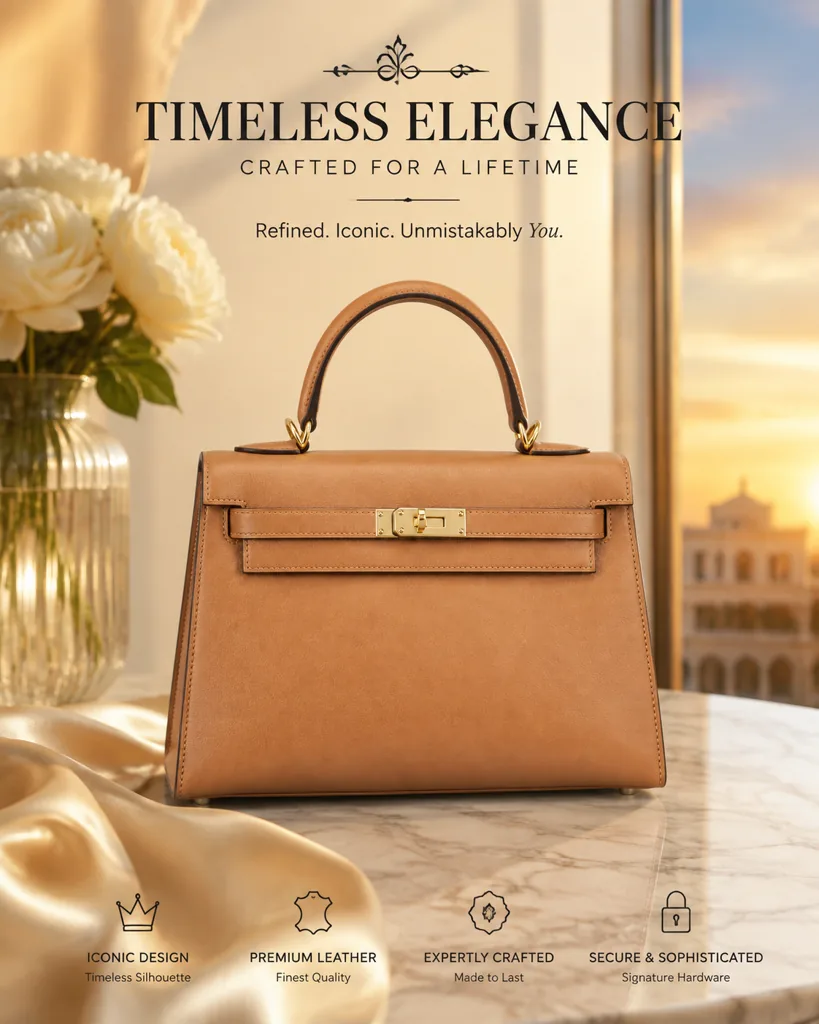 Regenerate
Marble, silk and morning light
RegenerateNo prompt, one click
RegenerateHeld by a model, sunset ad
RegenerateBacklit court, shoe mid-air
RegenerateNeon rim light, tech mood
RegenerateOn the wrist, cafe close-up
RegenerateMarble, silk and morning light
A skincare bottle on stone
Place this bottle on a pale stone surface, soft light from the left, a neutral background and a natural contact shadow.
Upload a clear bottle photo. The prompt describes a single product composition, not a pack of listing images.
Try this exampleNo. A product reference is required, but the text is optional. Add it when you need a particular environment or composition.
Exact reproduction is not guaranteed. Check brand marks and small print carefully; use your original artwork for details that must be exact.
Use Product Image Set for four views as a sheet or separate images, or Product Detail Posters when you want to plan a longer set of layouts and selling points.