


 Text / Image to VideoRegenerate
The avatar cat climbs out
AI video generatorTurn ideas and photos into short videos
Generating takes you to the studio, where your results, assets and history live.
ImgAI is an online AI video generator for turning written ideas, product photos, portraits and illustrations into moving scenes. Create product showcases, ad clips and social videos using text, an opening image, first and last frames, or reference media. Available aspect ratios, durations, resolutions and audio options depend on the model you choose.
Explore real product shots, character motion and creative scenes to find a starting point for your own footage.
Every clip below is a real job run here. Tap one and the prompt and stills load — run it yourself.
Text / Image to VideoRegenerateThe avatar cat climbs out
 Reference to VideoRegenerate
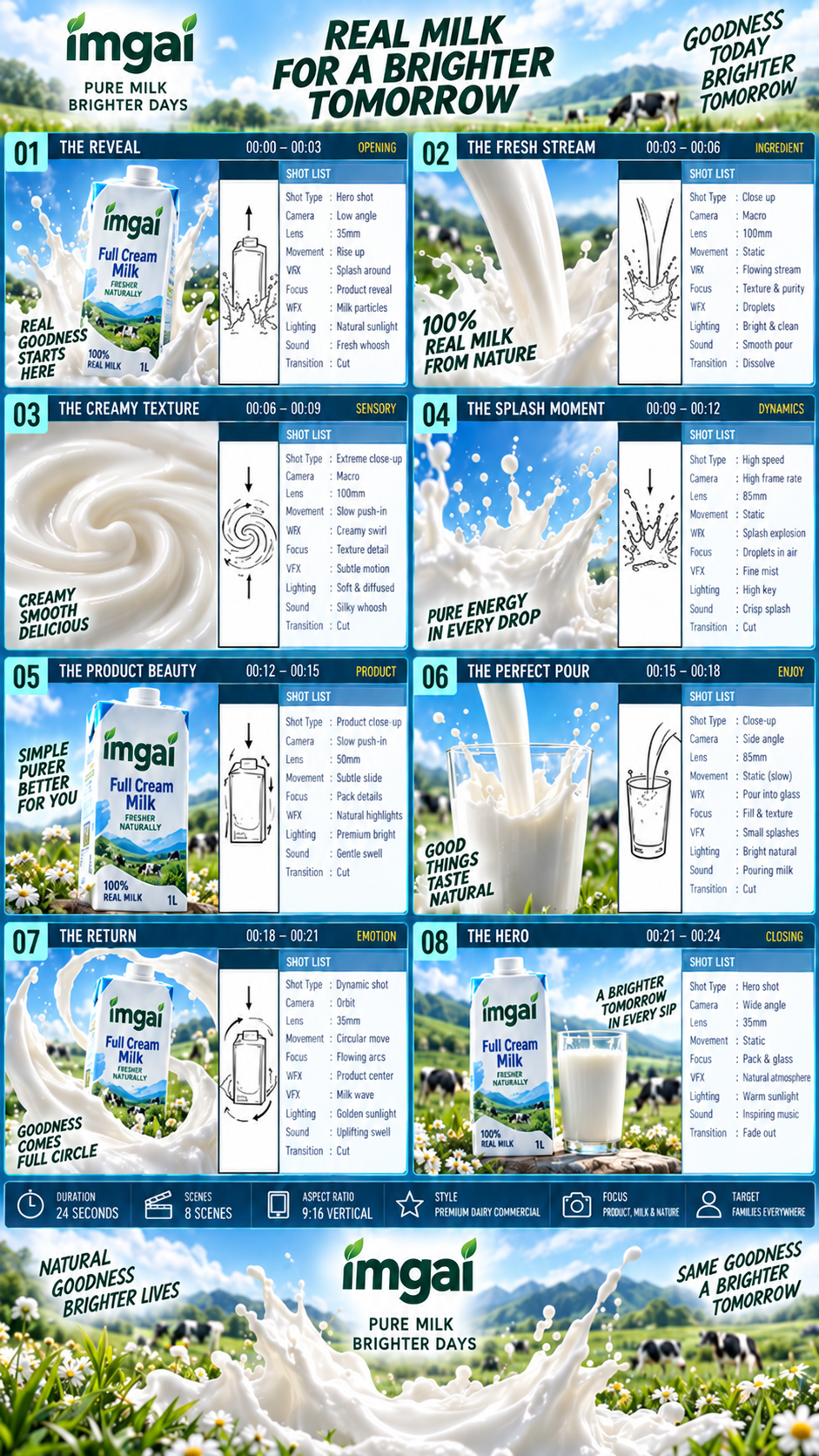
One poster becomes a milk commercial
 Reference to VideoRegenerate
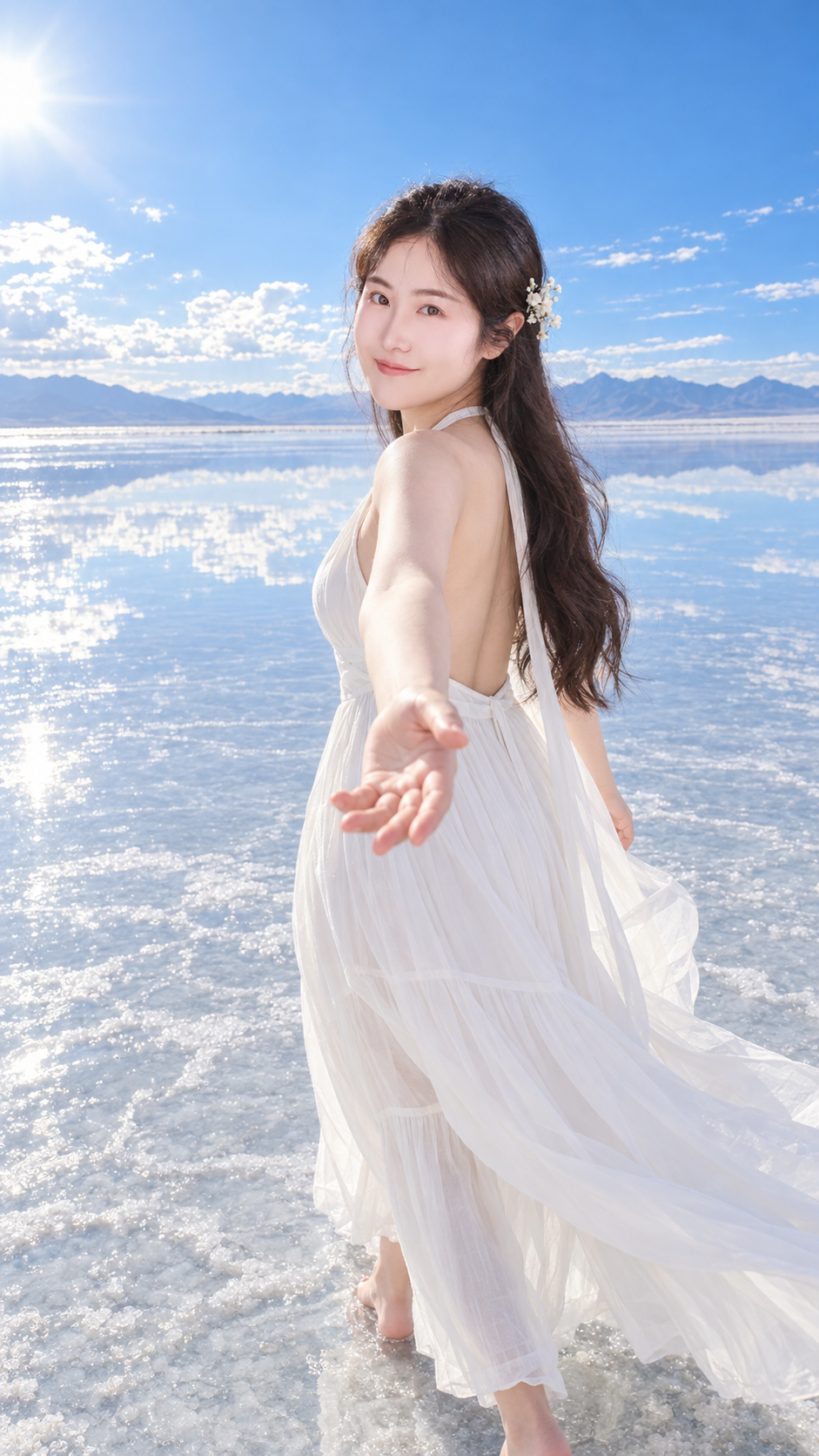
Take her hand, spin into five destinations
 Text / Image to VideoRegenerate
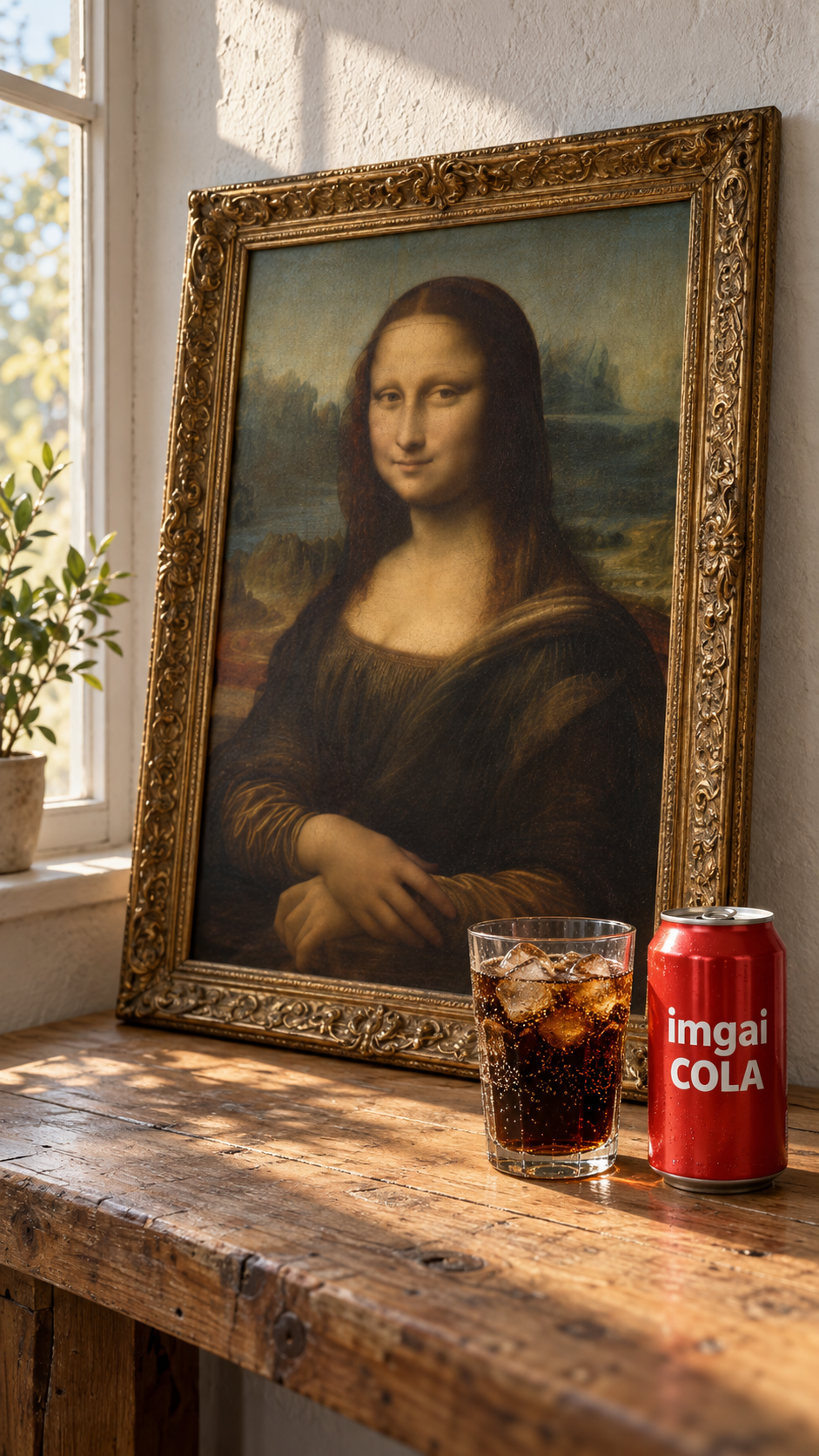
Mona Lisa sneaks a sip
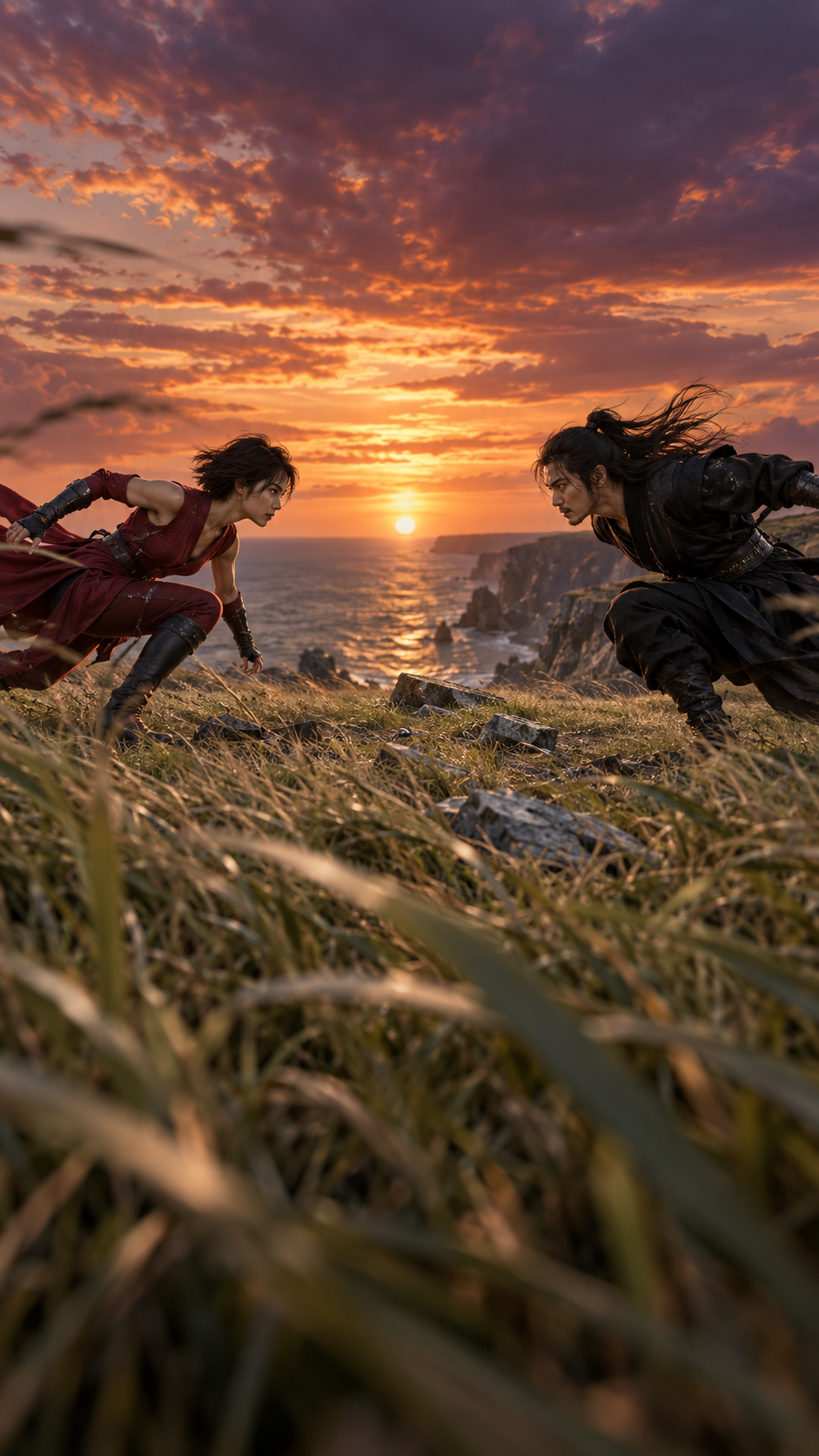 Text / Image to VideoRegenerate
A ten-second duel on the cliff
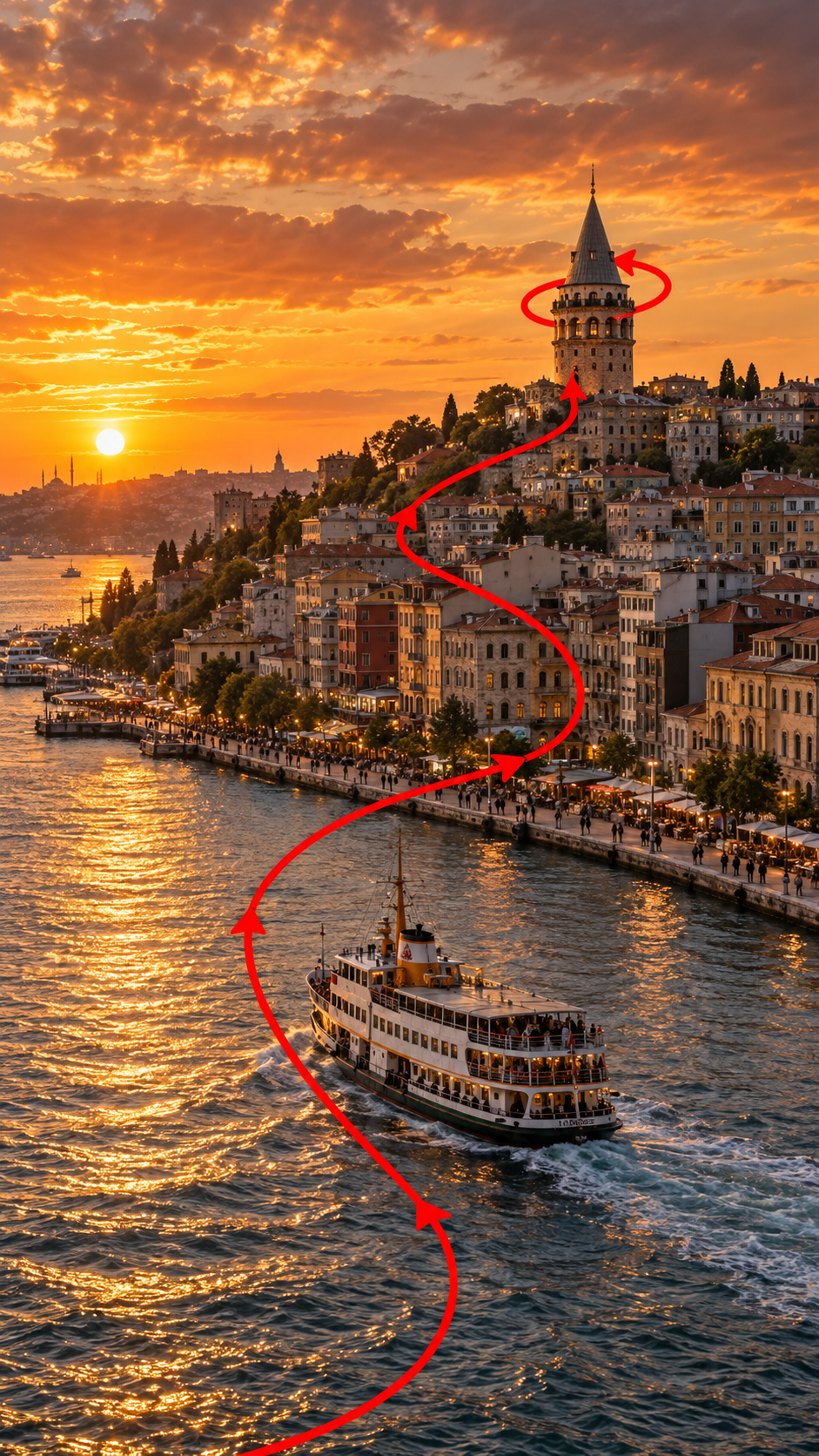 Reference to VideoRegenerate
Following the red line into the old town
Text / Image to VideoRegenerateThe avatar cat climbs out
Reference to VideoRegenerateOne poster becomes a milk commercial
Reference to VideoRegenerateTake her hand, spin into five destinations
Text / Image to VideoRegenerateMona Lisa sneaks a sip
Text / Image to VideoRegenerateA ten-second duel on the cliff
Reference to VideoRegenerateFollowing the red line into the old town
Start with text for a new idea or a photo you already have. Use first and last frames to define the endpoints, or reference media to guide the look and motion.
Describe the subject, setting, action and camera movement without uploading an image. For example: “Morning light fills a café. A barista places a cup on the table as the camera slowly moves closer.” Use it to explore ad concepts, establishing shots and storyboard ideas.
Upload a clear product photo, portrait or illustration as the opening frame, then describe what should move and how. Try steam rising from a cup or a slow camera move around a product. A complete subject and uncluttered background make changes easier to review.
Provide an opening and closing image, then describe the action or transition between them. Try product reveals, scene changes or character movements. Keep the subject, framing and lighting compatible across both images, and check the result for distortion or abrupt changes.
Choose a model that accepts the media you need: images for a subject’s appearance, video for camera movement, or audio for rhythm and sound. Explain the role of each reference in your prompt. Supported file types, counts and lengths depend on the selected model.
Compare models by input type, target clip length and output quality. The cards show current options and default costs; check the settings again when switching models.
Video creation
Consider the clip length and resolution, then choose a model. Each price uses the settings shown below.

MiniMax
Turn the clip in your head into a first version
Cost at default settings
408 credits
16:9 · 768P · 5s

ByteDance
Leave more room for a longer clip
Cost at default settings
687 credits
Auto · 480P · 5s
ByteDance
Try another model for a different take on your clip
Cost at default settings
472 credits
Auto · 480P · 5s
Model cards show capability ranges, not a promise that every setting can be combined. Frame inputs and reference media may change the available options. Check the generator for the settings that apply to your clip.
For text to video, describe the subject and action. For image to video, upload a clear opening image. Select the appropriate workflow for first and last frames or other reference media, and check that your model supports those inputs.
Specify subject movement, camera direction, lighting and mood. Choose landscape or portrait for your intended placement, then set the available duration, resolution and audio options. Review the credit cost before submitting.
Track progress in the studio and play the result to check distortion, motion continuity and sound. Download the clip when it works, or adjust the prompt or references and generate again. Download separate shots for further editing in a video editor.
Instead of “a premium product ad,” try “a perfume bottle stands on a dark table and releases one fine spray.” Start with one subject and one main action in a short shot. You can generate separate shots for a longer edit.
“The product slowly rotates while the camera stays still” describes a different shot from “the product stays still while the camera moves around it from left to right.” Specify what moves, its direction and speed. Avoid asking for a push-in, orbit and rapid cuts all at once.
Example: “A white ceramic cup sits on a wooden table by a window. Steam rises slowly as the camera moves closer. Soft morning light and quiet café ambience.” Add sound effects or dialogue when the model supports audio, then review the soundtrack and lip sync in the result.
Review the subject’s appearance, motion continuity and camera direction first. Simplify the action or try a shorter clip if movement is too complex. If product details change, improve the reference image and state what should remain consistent. Adjust one requirement at a time to compare results.
Video generation requires an account and credits. The cost depends on the model, output duration, resolution and inputs such as reference video. Try a shorter clip to check the shot before choosing a longer or higher-resolution version. The generator shows the cost before submission; credits are available through subscriptions or one-time packs.
Video generation requires an account and credits. If a signup bonus or another credit promotion is available, you can claim it under that offer’s rules. The number of clips those credits cover depends on your balance, model and settings; there is no guaranteed number of free videos. Check the cost before submitting.
Currently available models support clips up to 30 seconds, but not every model offers that duration. Check the model cards and the generator’s duration options. For longer content, generate separate shots, download them and combine them in a video editor.
Models with audio generation can produce a picture and soundtrack together, and some offer an option to turn sound off. Check the selected model’s description and settings first. Describe any dialogue or sound effects you want, then review the words, lip sync and timing in the finished clip.
Yes. Image to video uses your photo as the opening frame and generates motion from your description. A reference-guided workflow uses images to help describe the subject’s appearance without necessarily making them the first frame. To guide the ending too, choose a first-and-last-frame workflow and supply a closing image.
Available models offer landscape, portrait and square formats, with some supporting 1080p or 2K output. See the model cards for individual options. Opening-image and first-and-last-frame tasks may follow the input image’s proportions, so not every ratio and resolution can be combined. Prepare portrait references when making vertical content.
Waiting time depends on the model, clip length, resolution and service queues, so there is no guaranteed completion time. Once submission is confirmed, track the task in the studio. Sign in with the same account to find your work on another device.
Commercial use depends on the selected model’s applicable terms, rights to the input media and your intended use. Review the provider terms listed on this page and the ImgAI Terms of Service and Acceptable Use Policy in the footer. Paying for generation does not automatically grant rights to reference images, people, trademarks or music.
Check the task status in the studio first. Tasks confirmed as failed automatically return the deducted credits. A successful generation that does not match your expectations is not a failed task. Try fewer simultaneous actions, a clearer reference image or one revised camera instruction before generating again.