

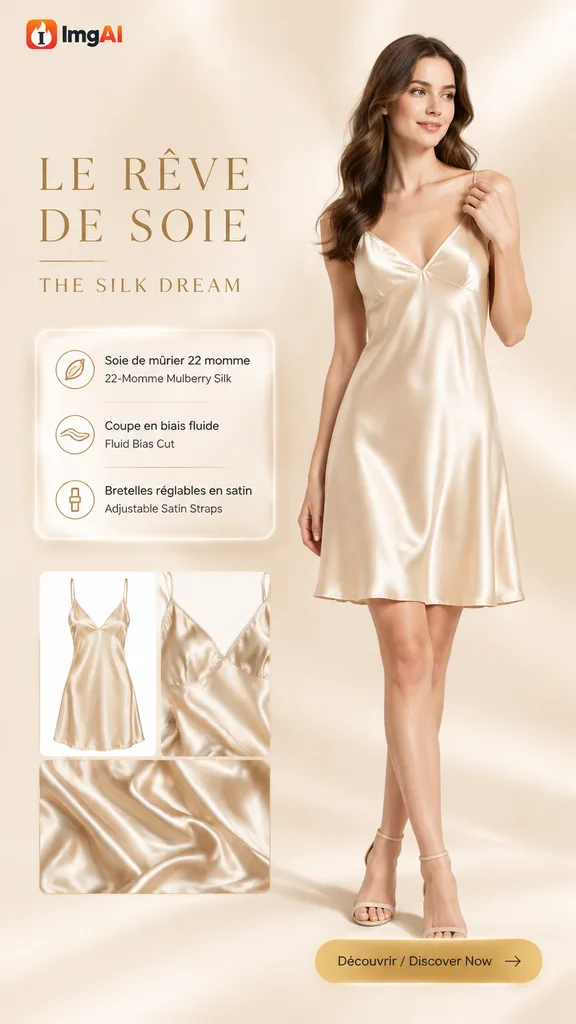
 10 postersRegenerate
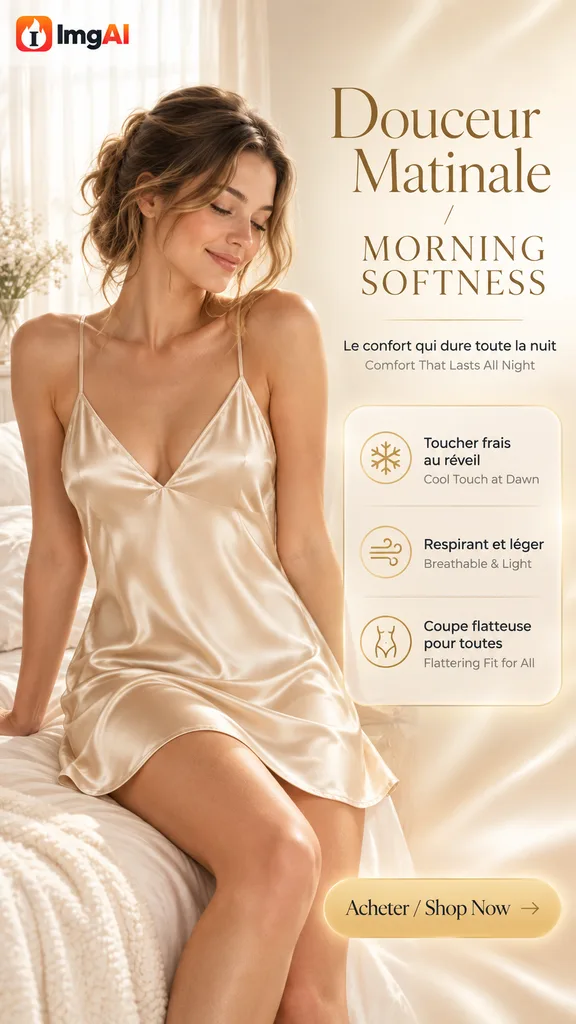
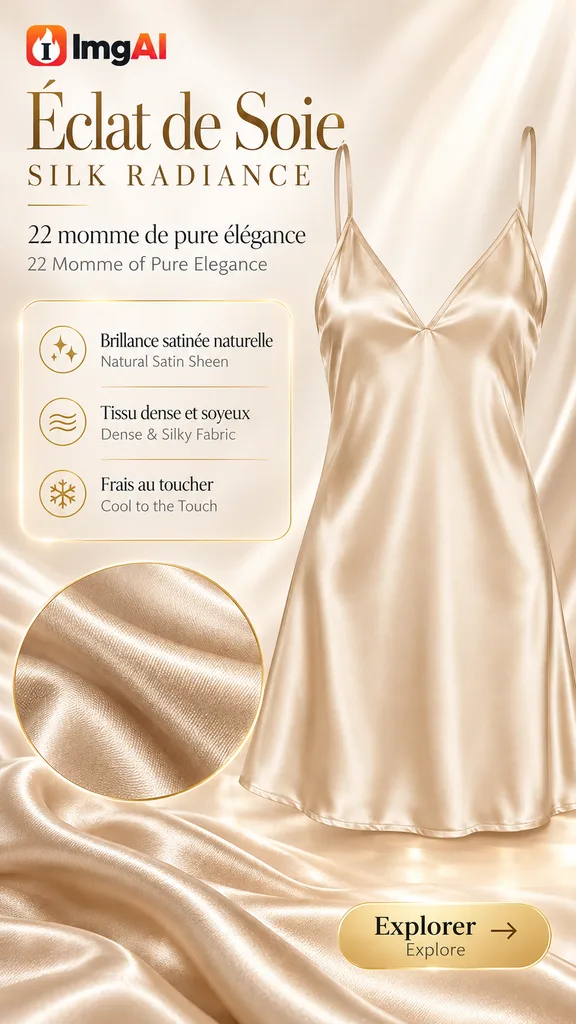
10-poster listing, French + English
AI image generator & photo editorCreate images. Reimagine your photos.
Generating takes you to the studio, where your results, assets and history live.
Create an image from an idea, edit an existing photo, or turn a product shot into new marketing visuals. ImgAI brings image generation, photo editing, product photography and virtual try-on into one browser workspace. Start with a description or reference images, then refine the result for your project.
Compare the source images with each result. Choose an example to open its prompt and references in the workspace, then adapt it to your own photo or product.
Every card below is a real job run here. Tap one and the source photos and prompt load — run it yourself.
10 postersRegenerate10-poster listing, French + English
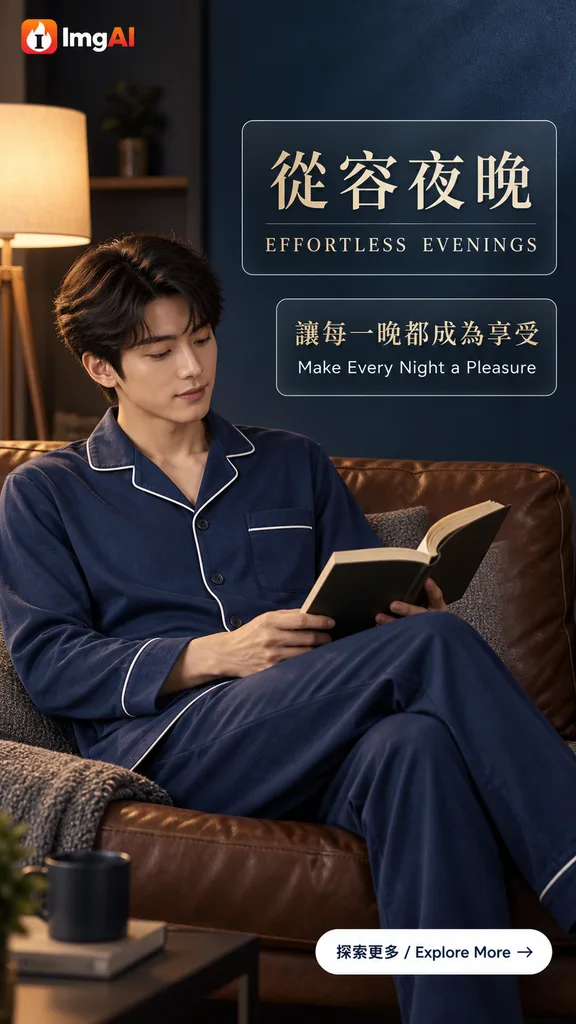
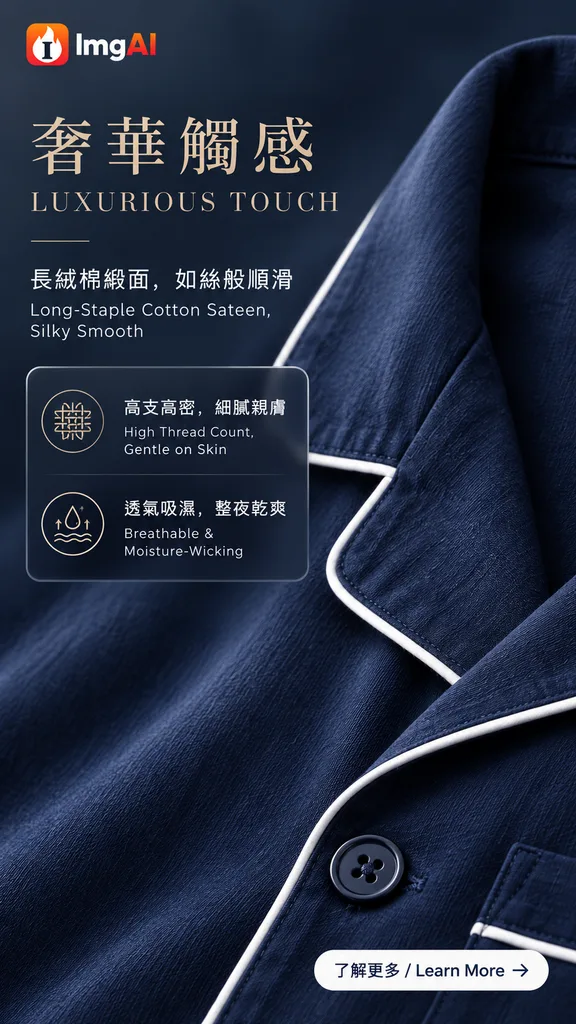
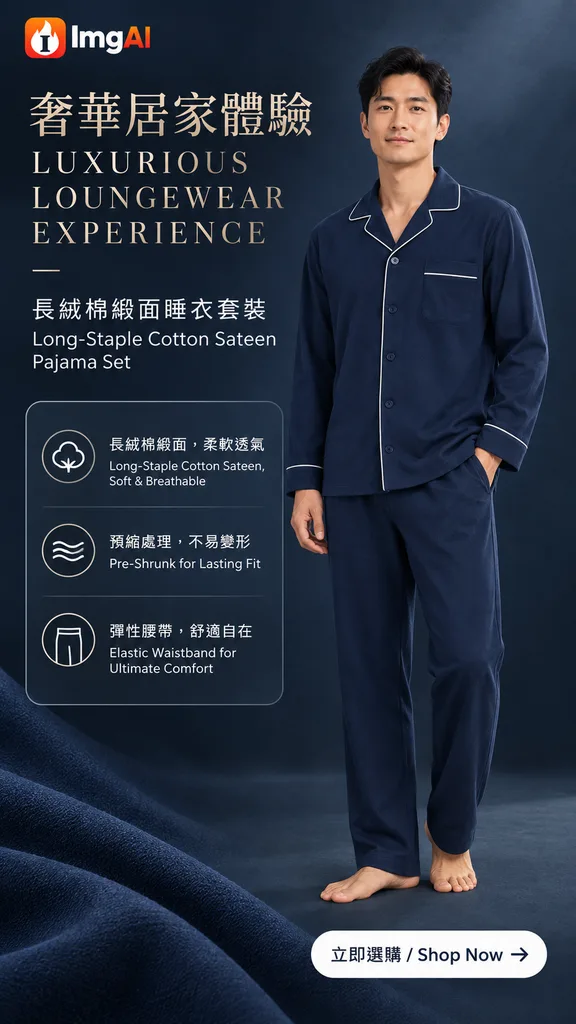 8 postersRegenerate
8-poster listing, Traditional Chinese + English
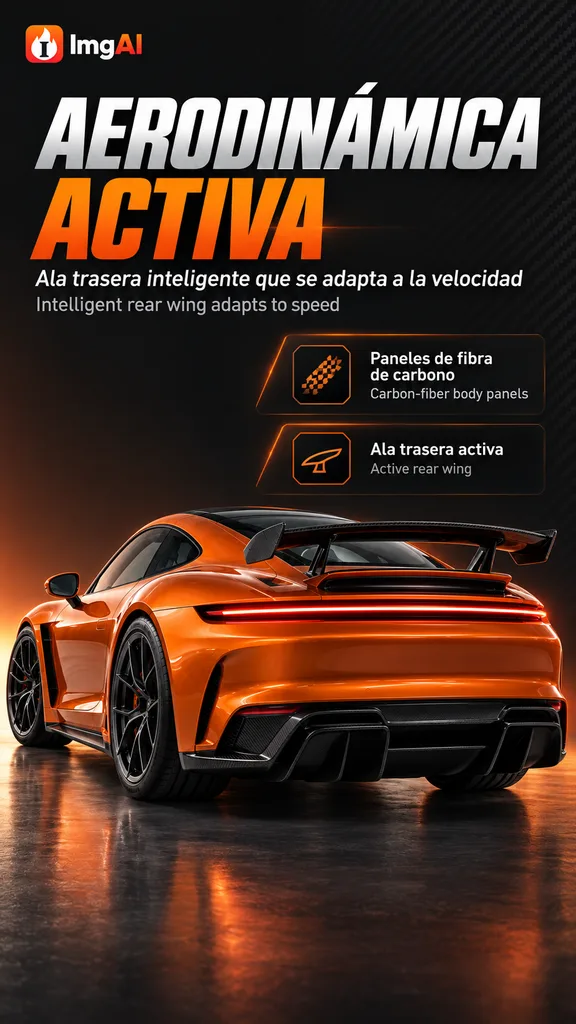
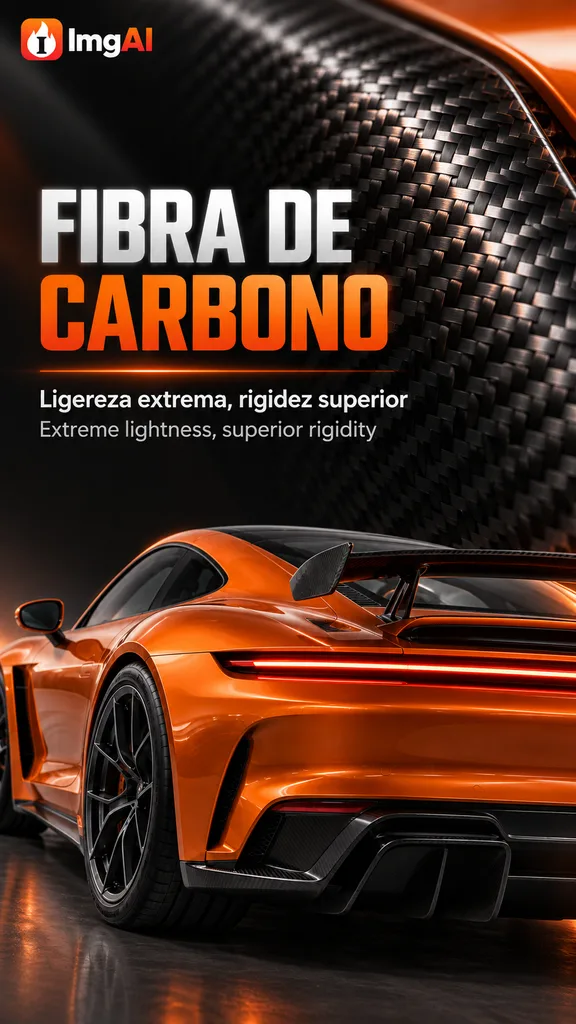
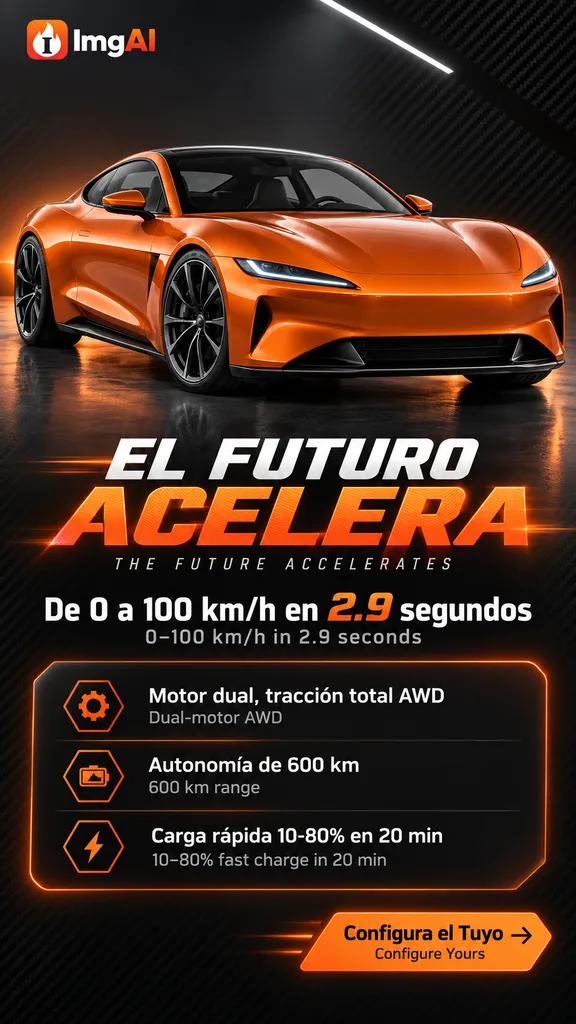 8 postersRegenerate
8-poster listing, Spanish + English
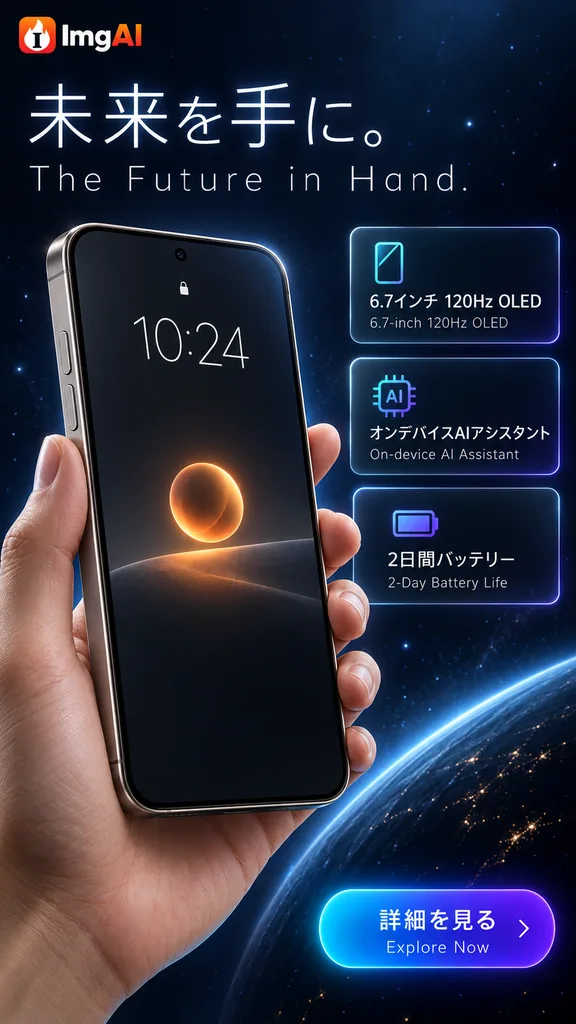 6 postersRegenerate
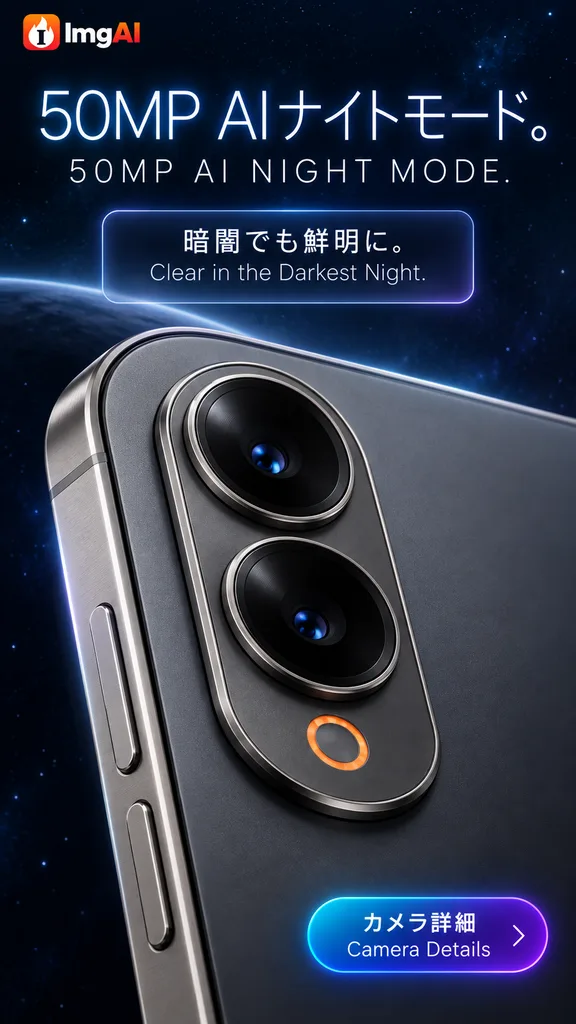
6-poster listing, Japanese + English
 6 postersRegenerate
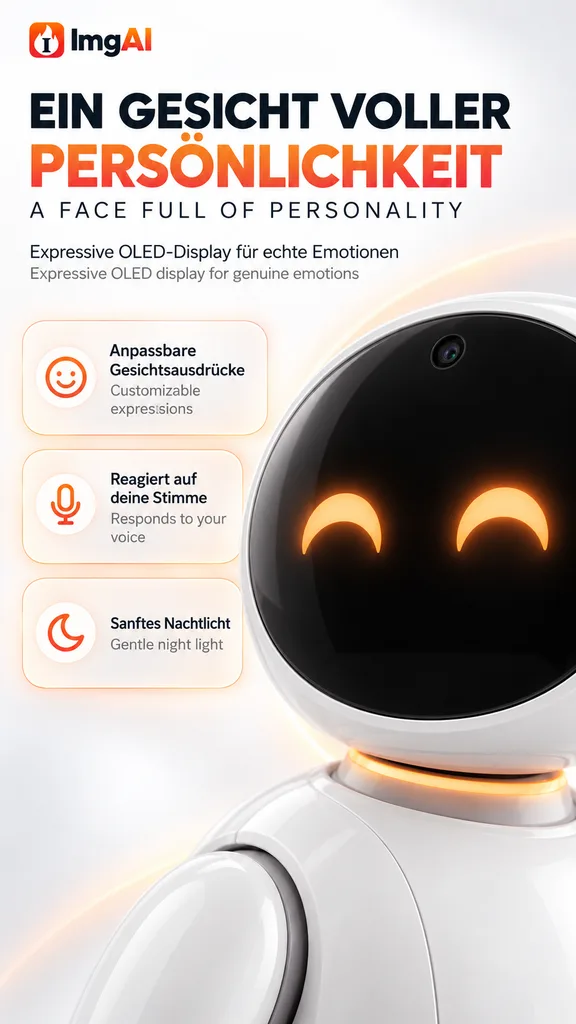
6-poster listing, German + English
 4 postersRegenerate
4-poster listing, Korean + English
10 postersRegenerate10-poster listing, French + English
8 postersRegenerate8-poster listing, Traditional Chinese + English
8 postersRegenerate8-poster listing, Spanish + English
6 postersRegenerate6-poster listing, Japanese + English
6 postersRegenerate6-poster listing, German + English
4 postersRegenerate4-poster listing, Korean + English
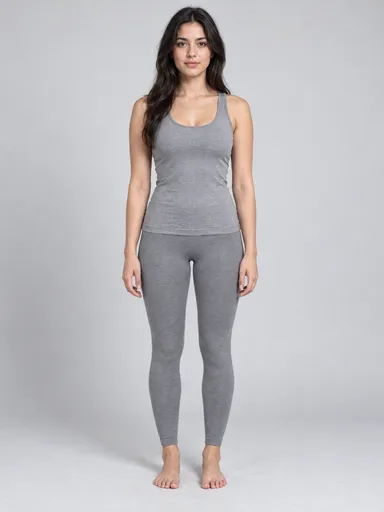
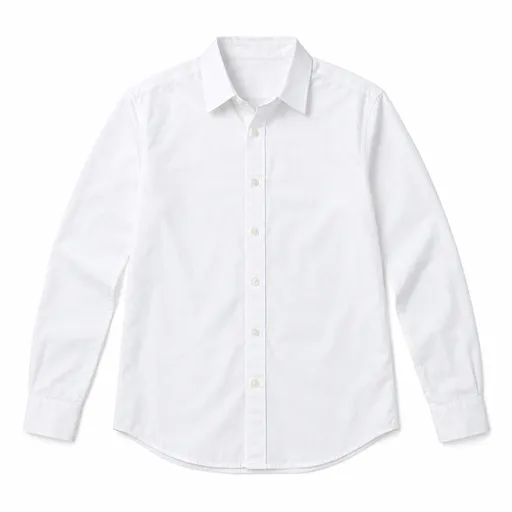
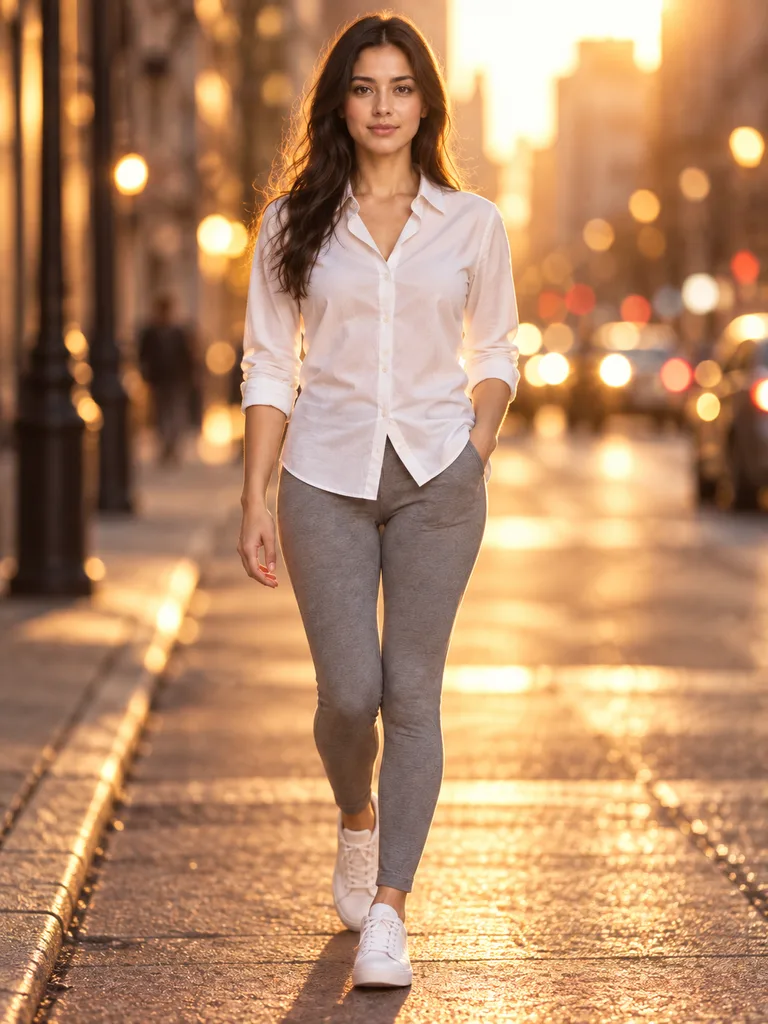 Regenerate
White shirt, backlit city street at dusk
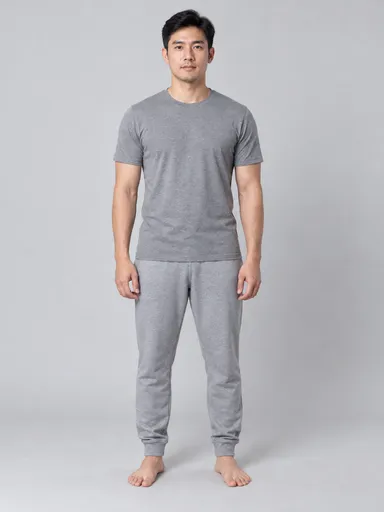
 Regenerate
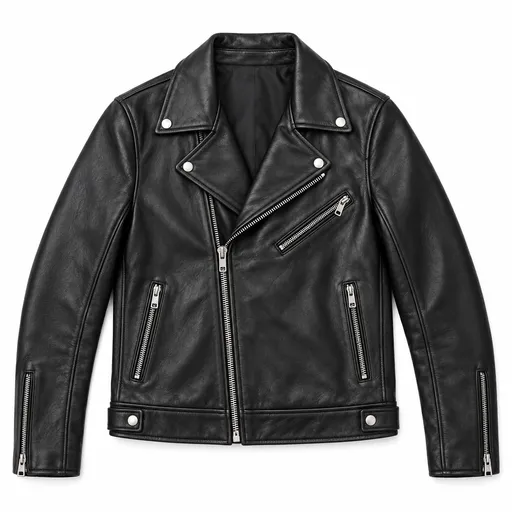
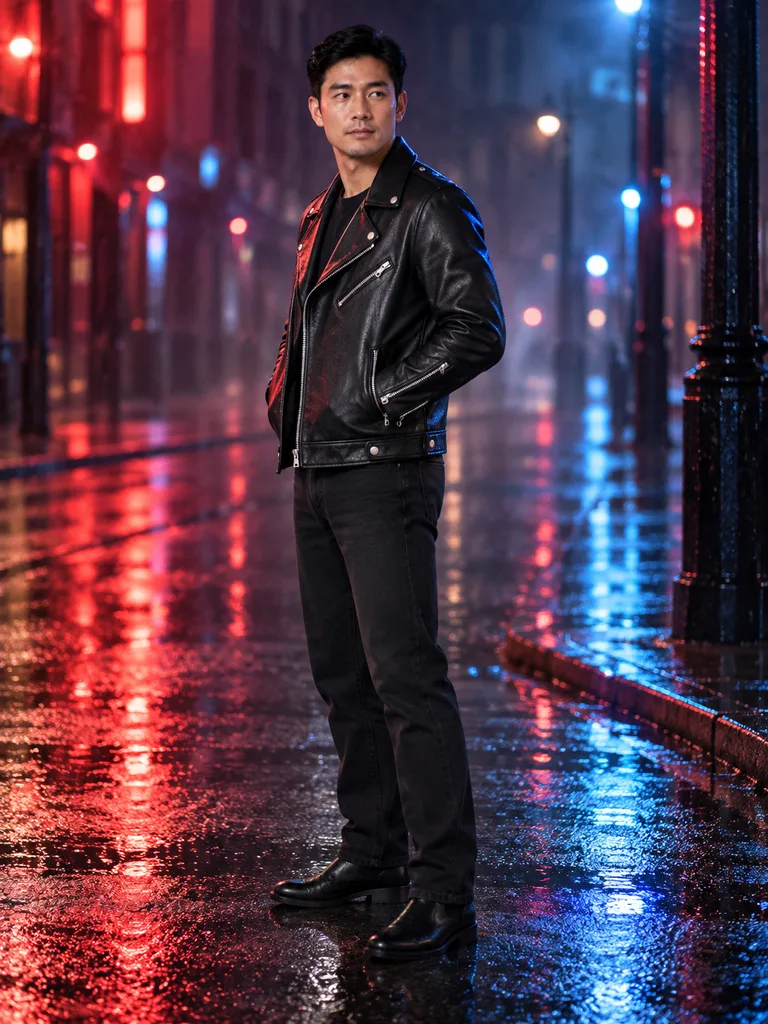
Leather jacket, neon reflections after rain
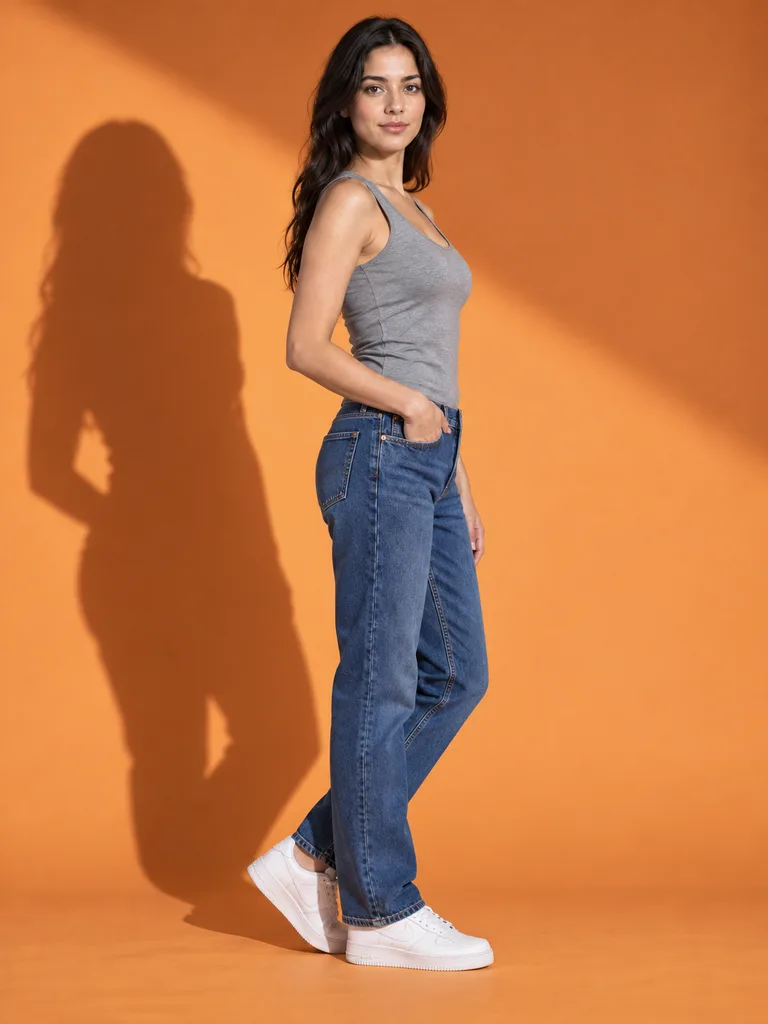 Regenerate
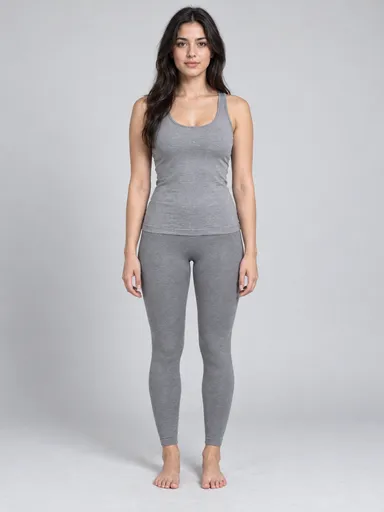
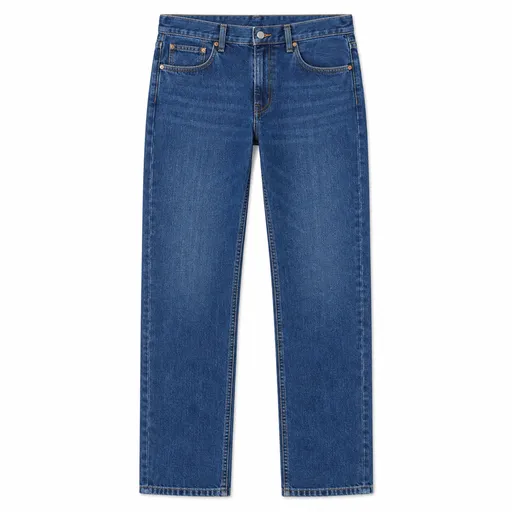
Denim under hard studio light, cast shadow
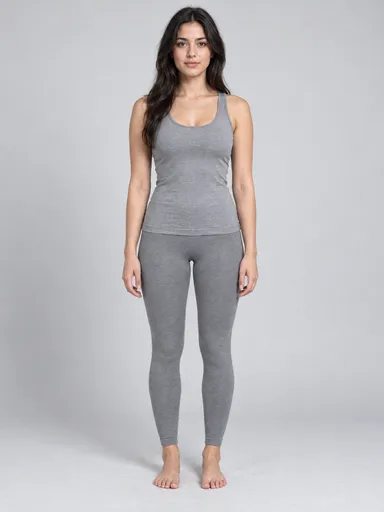
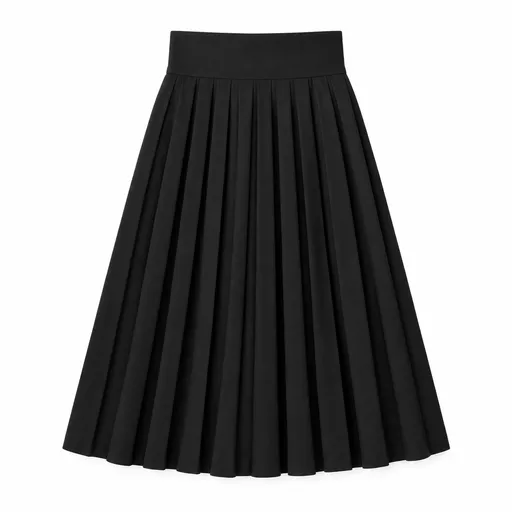
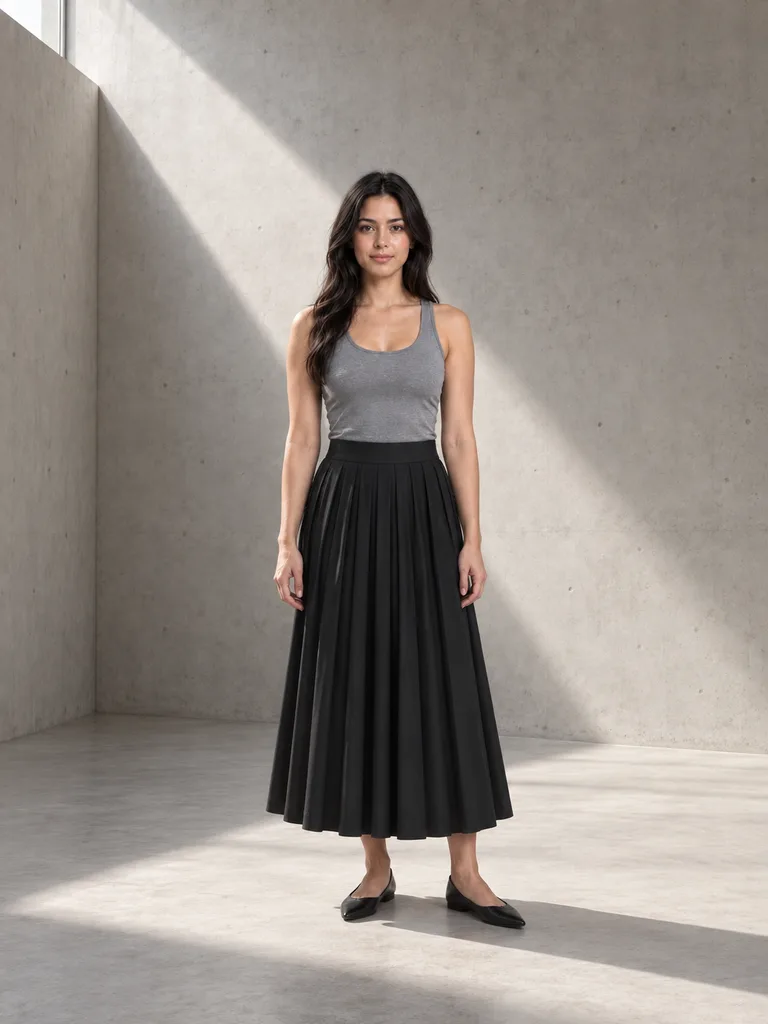 Regenerate
Pleated skirt in a shaft of window light
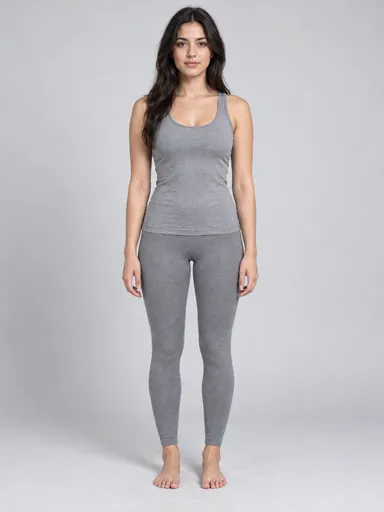
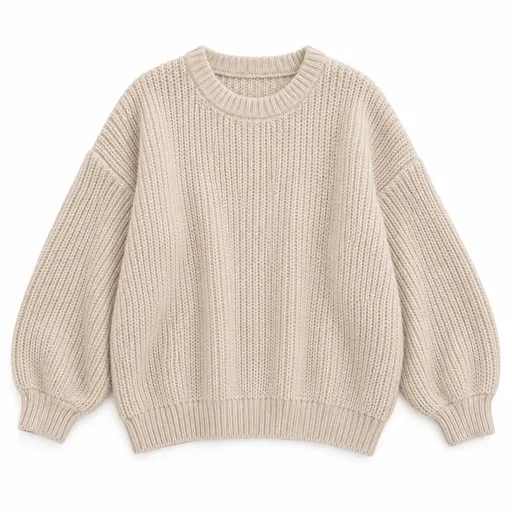
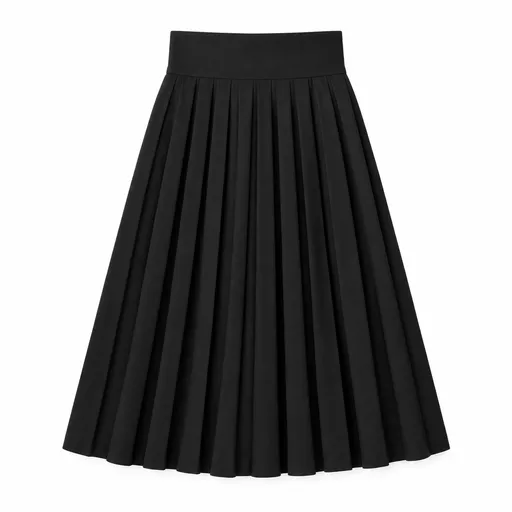
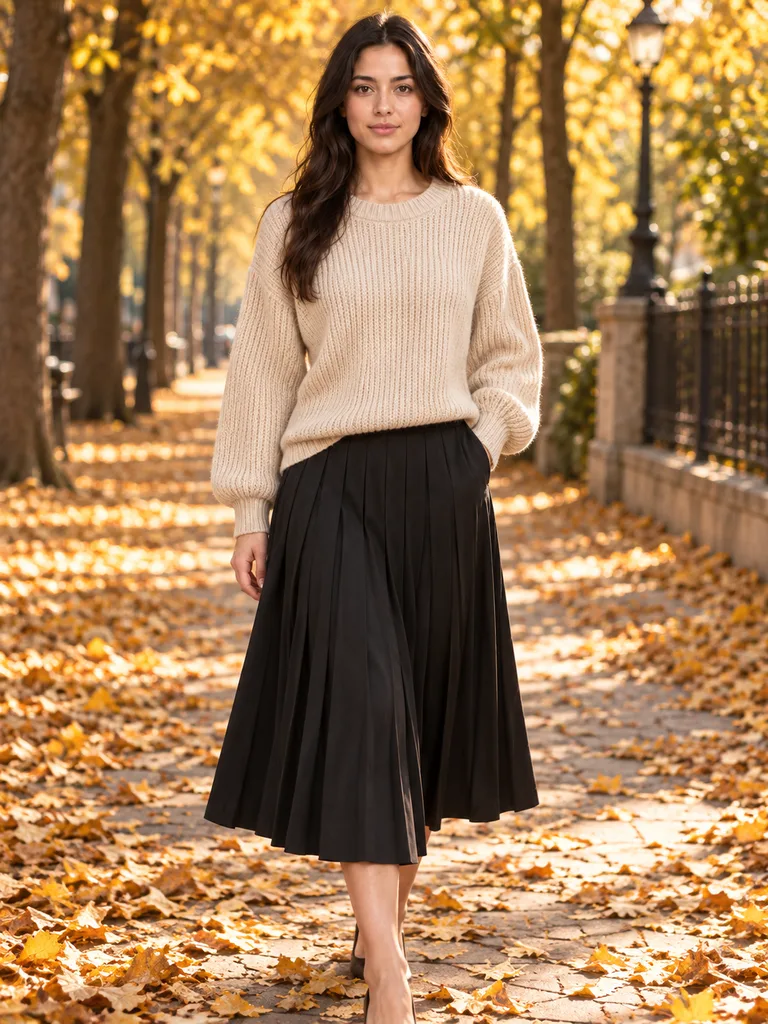 Regenerate
Knit and skirt on a leaf-strewn avenue
 Regenerate
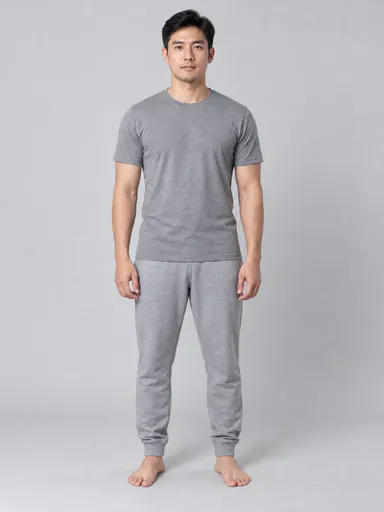
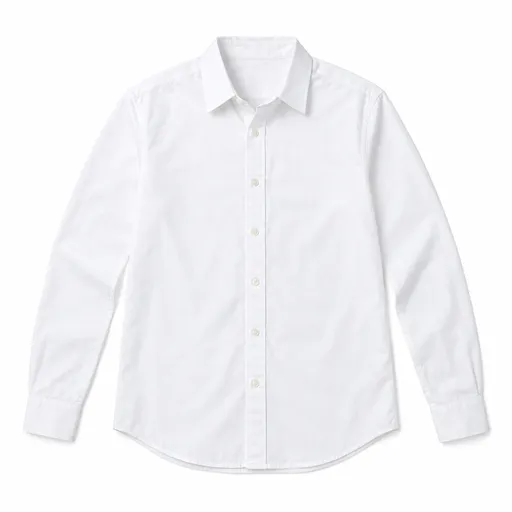
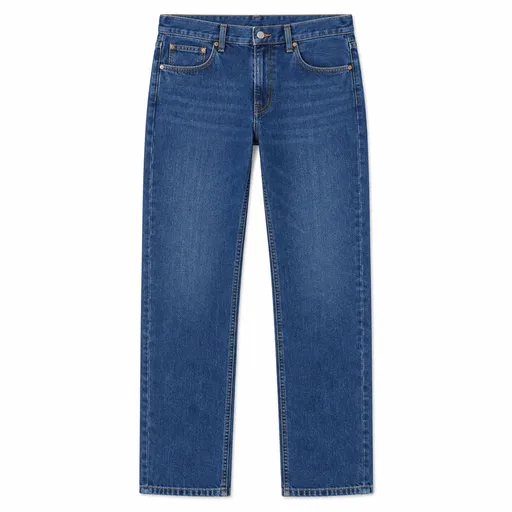
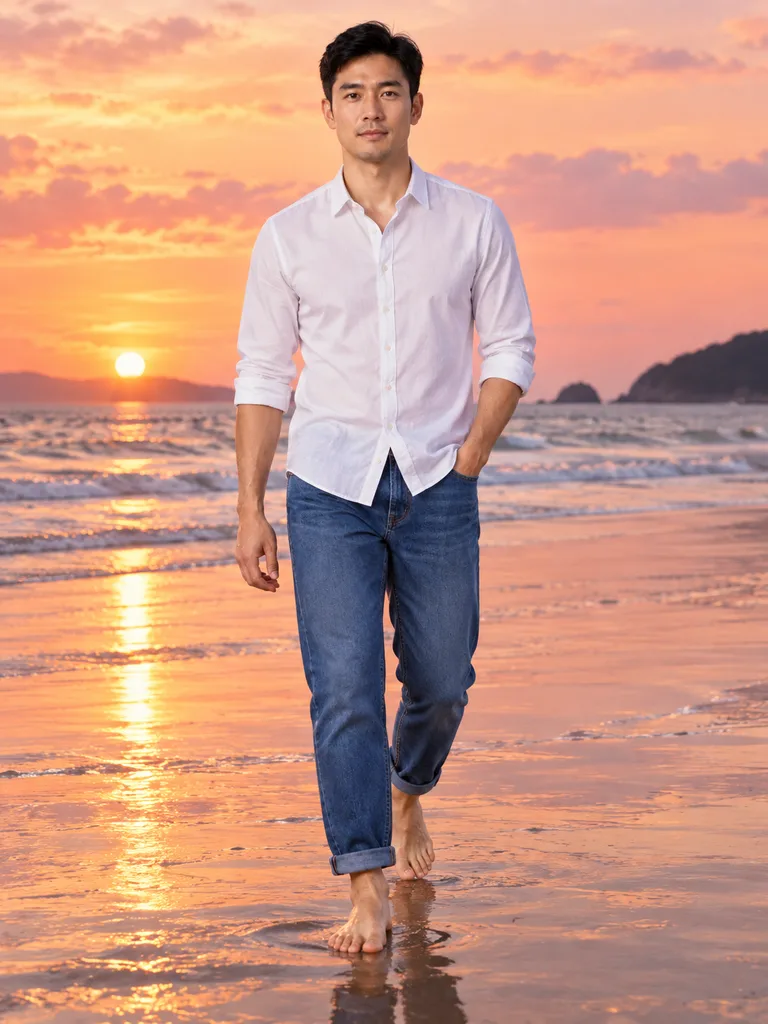
Shirt and jeans by the sea at sunset
RegenerateWhite shirt, backlit city street at dusk
RegenerateLeather jacket, neon reflections after rain
RegenerateDenim under hard studio light, cast shadow
RegeneratePleated skirt in a shaft of window light
RegenerateKnit and skirt on a leaf-strewn avenue
RegenerateShirt and jeans by the sea at sunset
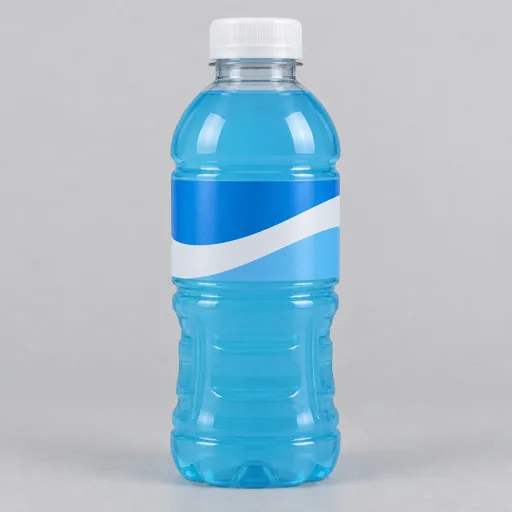
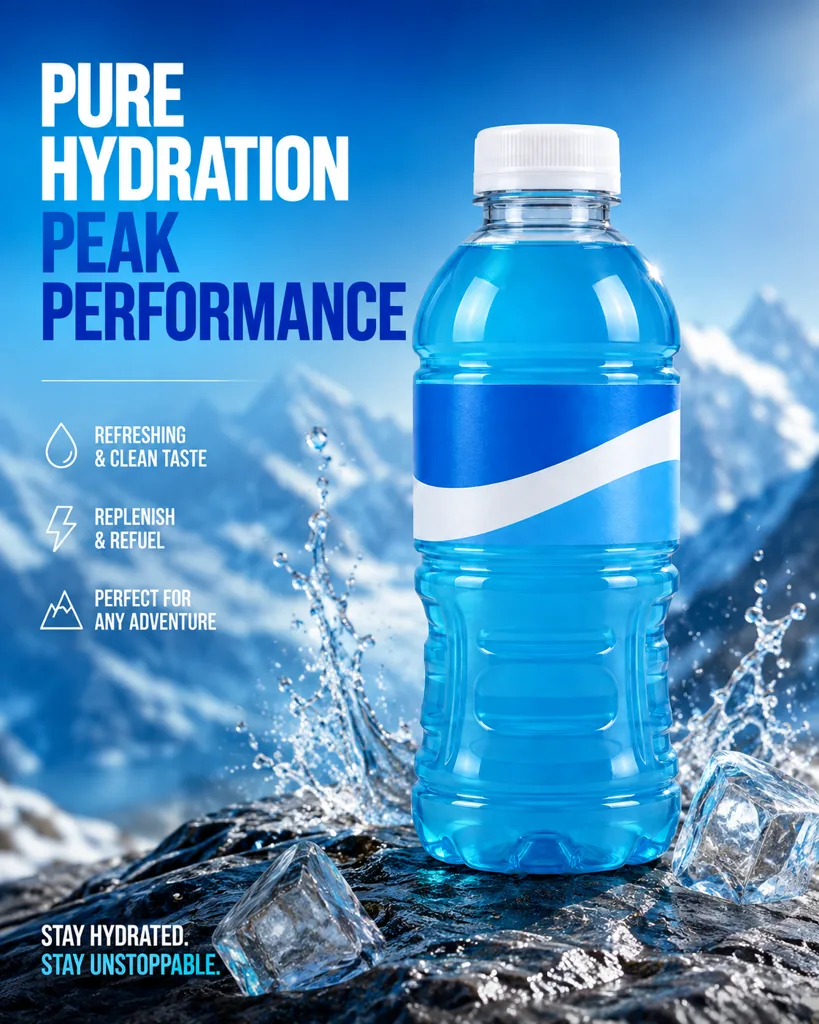 Regenerate
No prompt, one click
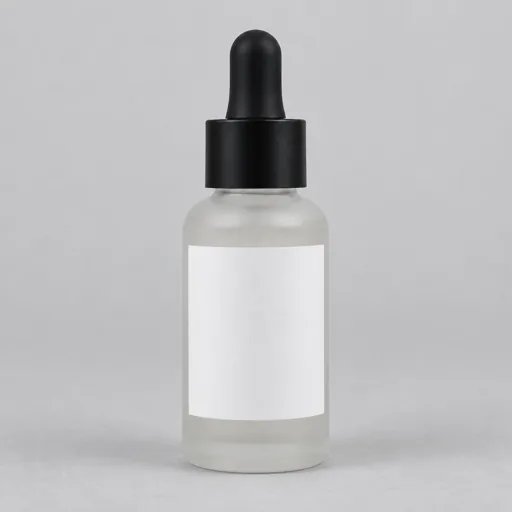
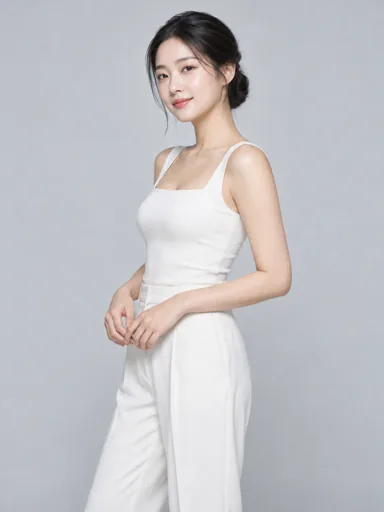
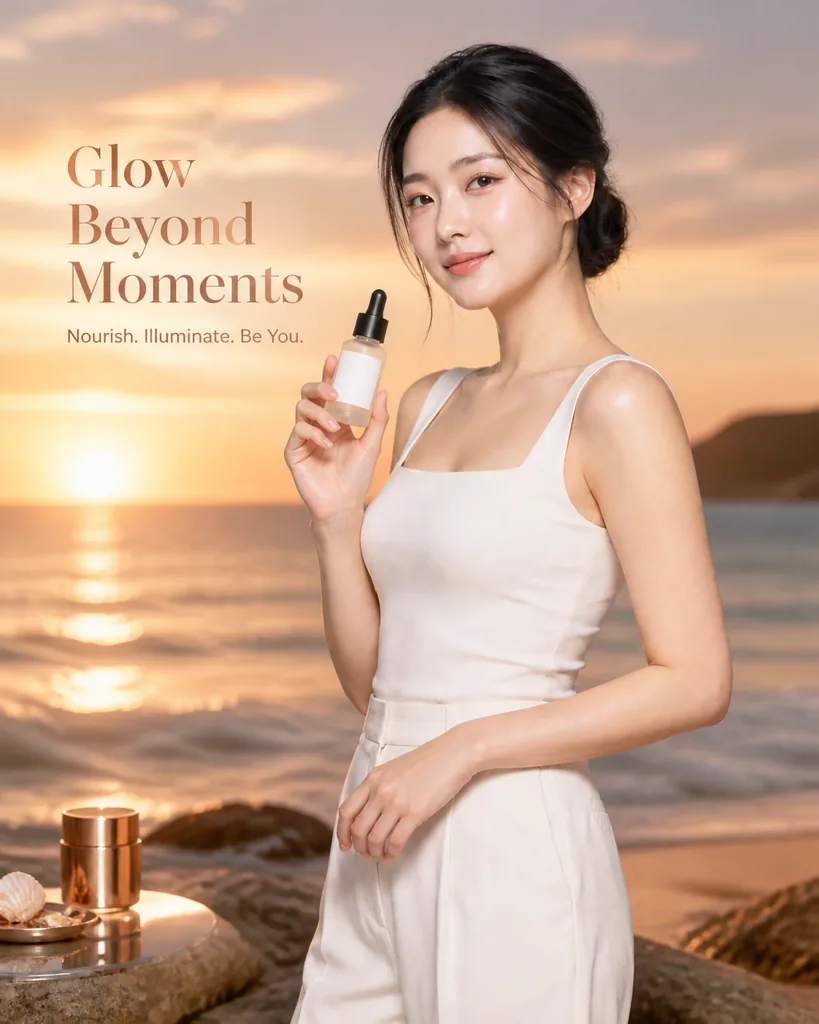 Regenerate
Held by a model, sunset ad
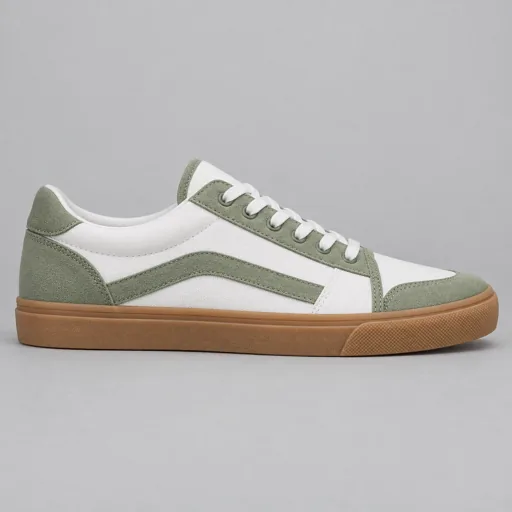
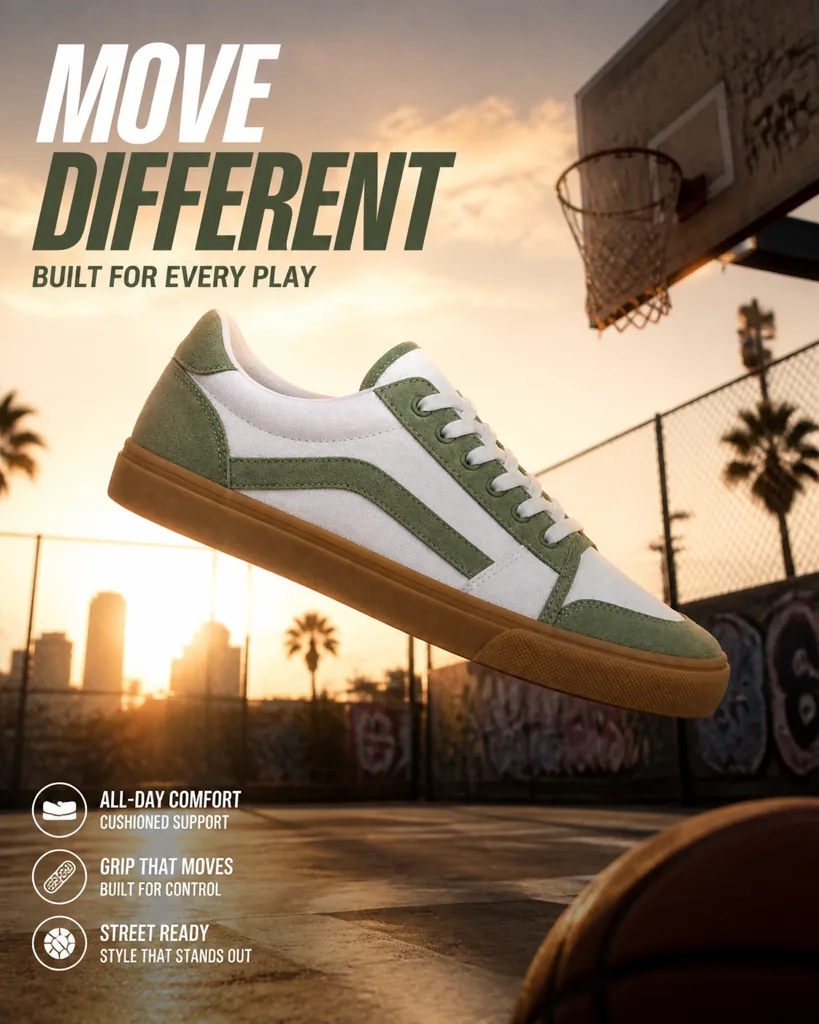 Regenerate
Backlit court, shoe mid-air
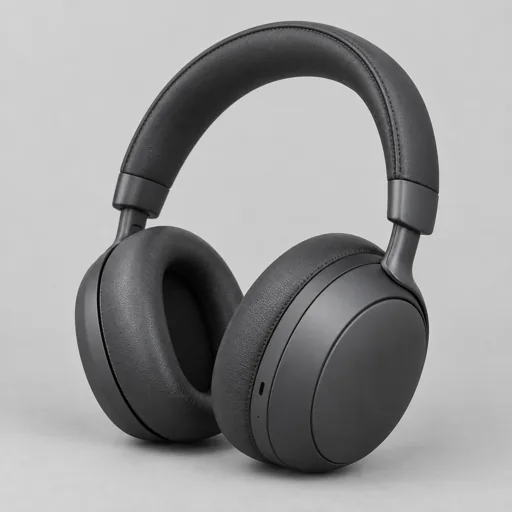
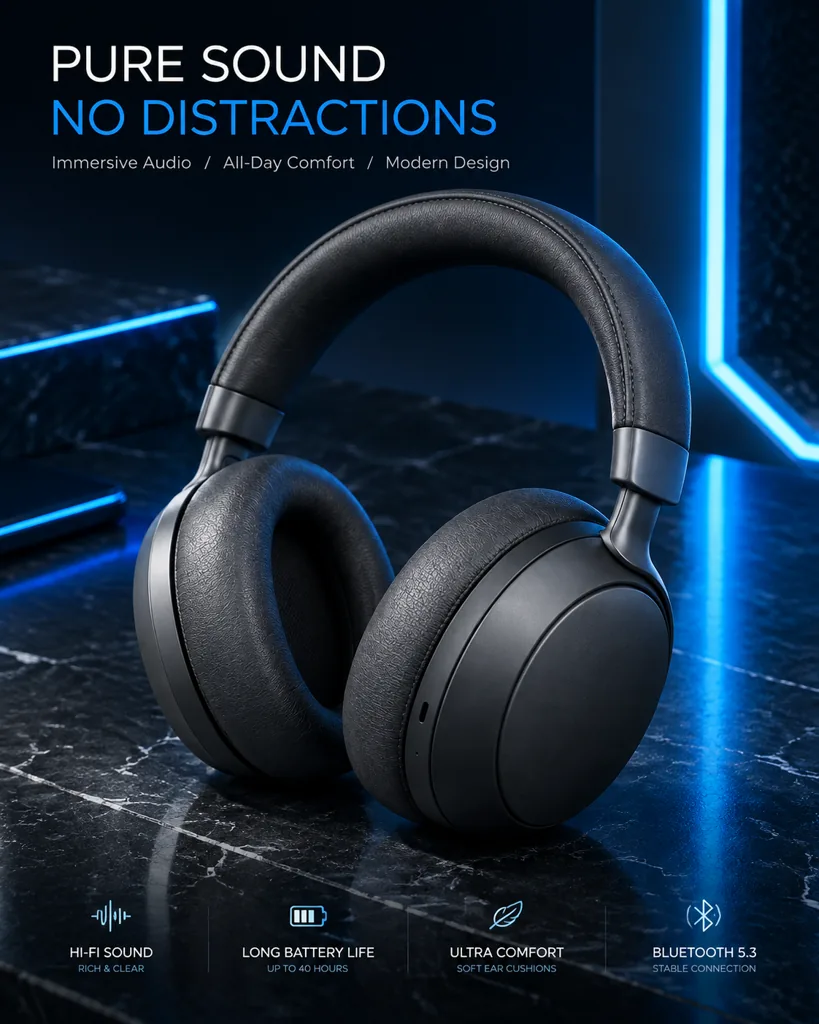 Regenerate
Neon rim light, tech mood
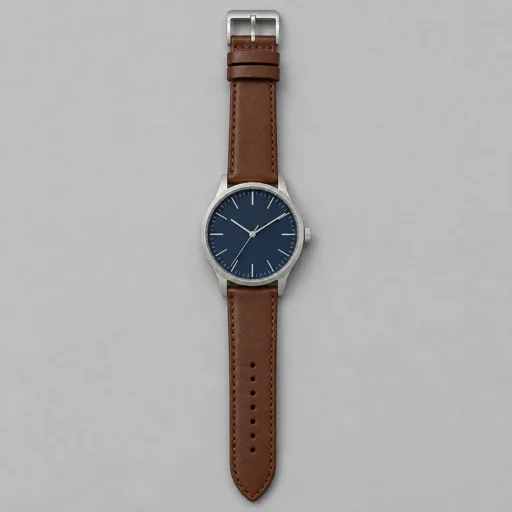
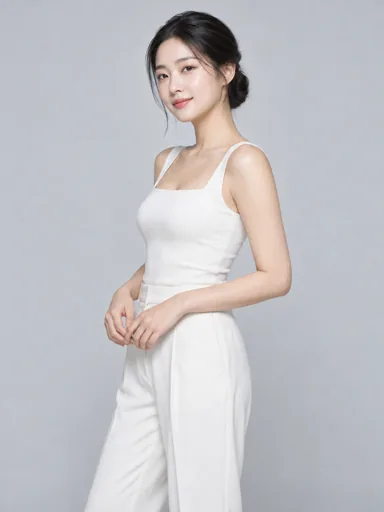
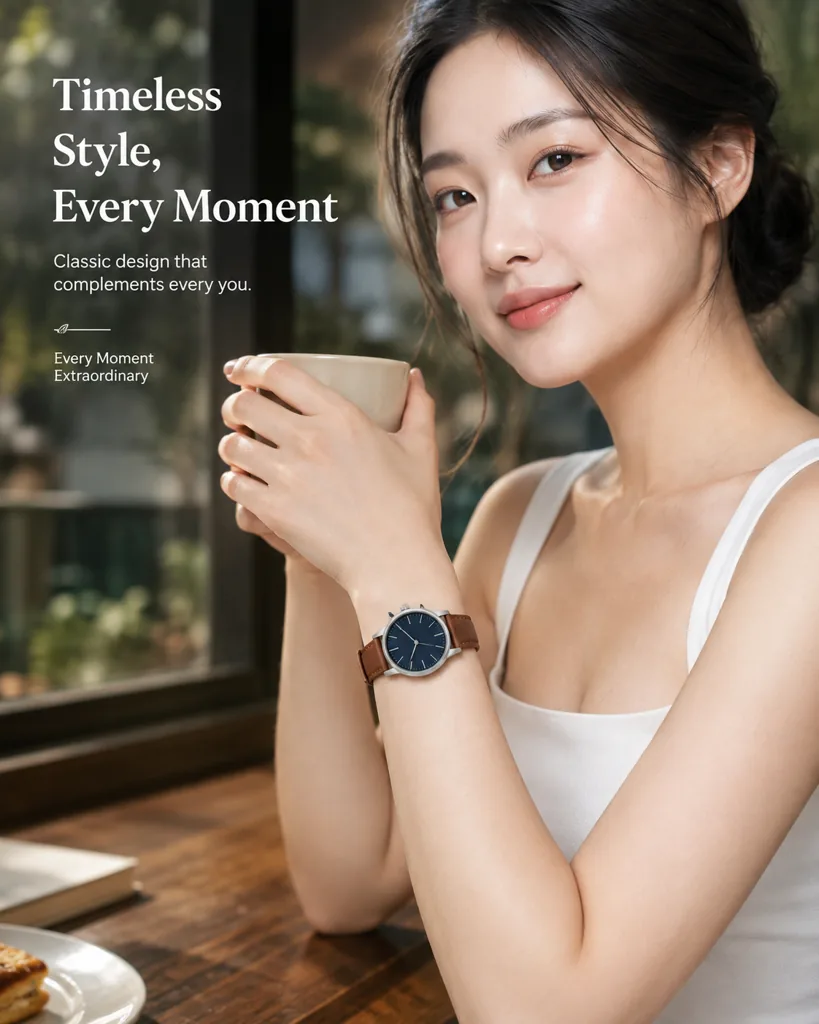 Regenerate
On the wrist, cafe close-up
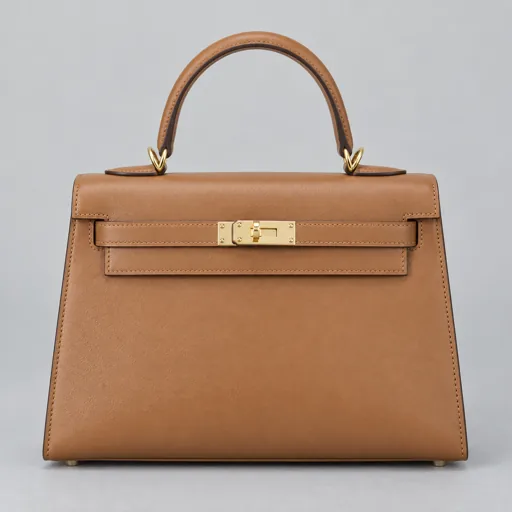
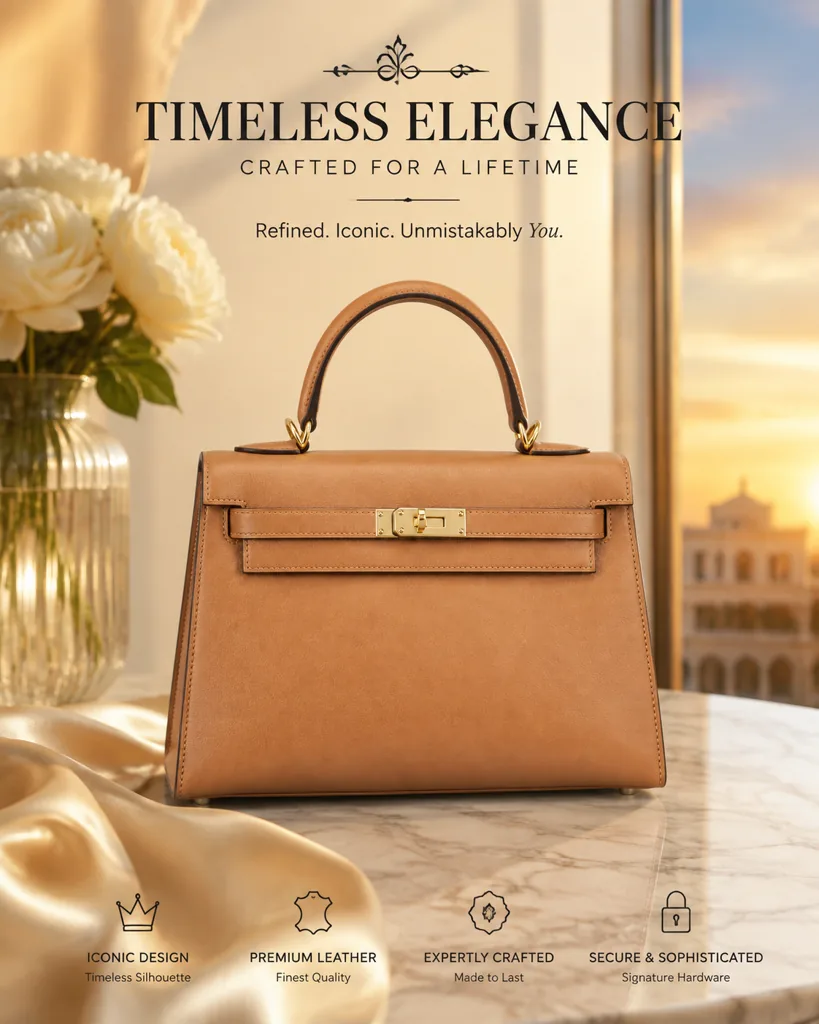 Regenerate
Marble, silk and morning light
RegenerateNo prompt, one click
RegenerateHeld by a model, sunset ad
RegenerateBacklit court, shoe mid-air
RegenerateNeon rim light, tech mood
RegenerateOn the wrist, cafe close-up
RegenerateMarble, silk and morning light
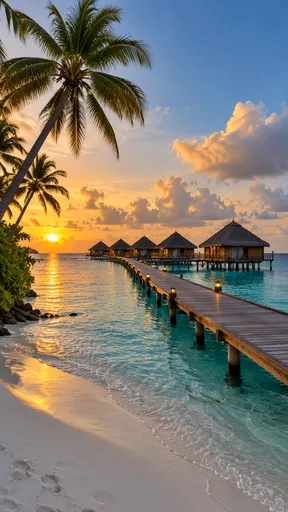
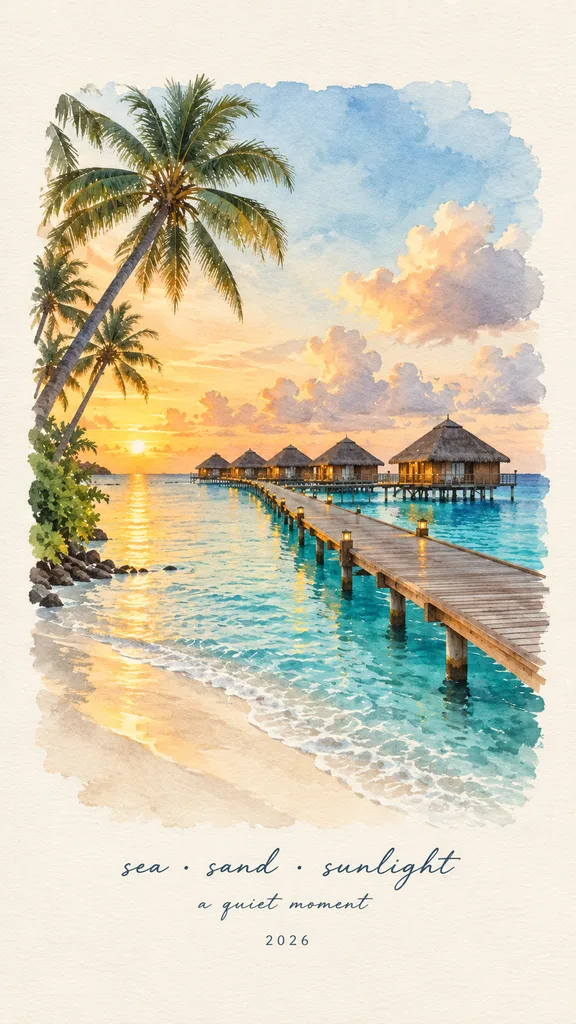 Regenerate
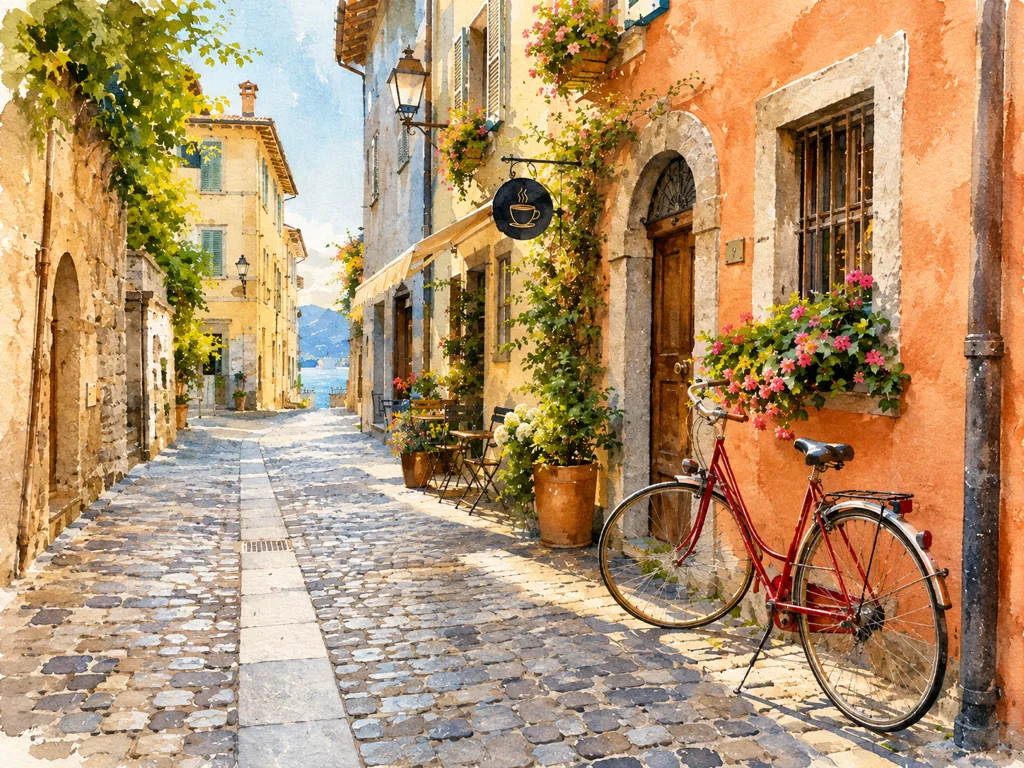
Photo into a watercolor travel print
 Regenerate
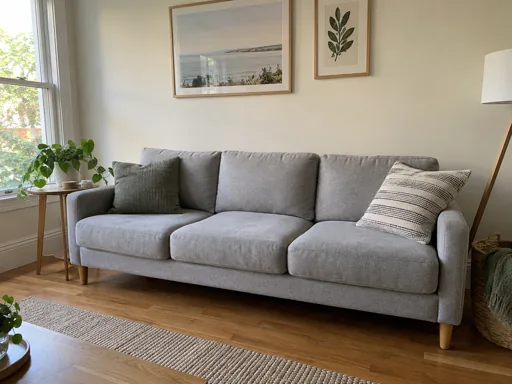
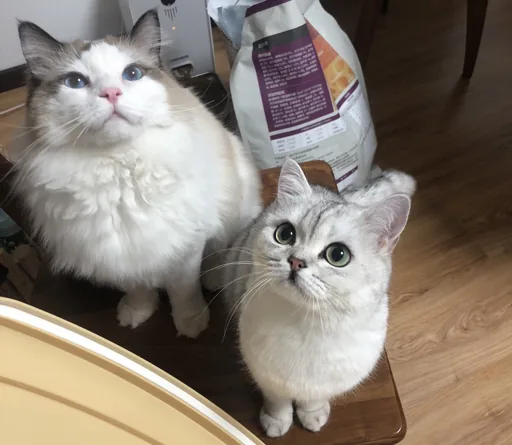
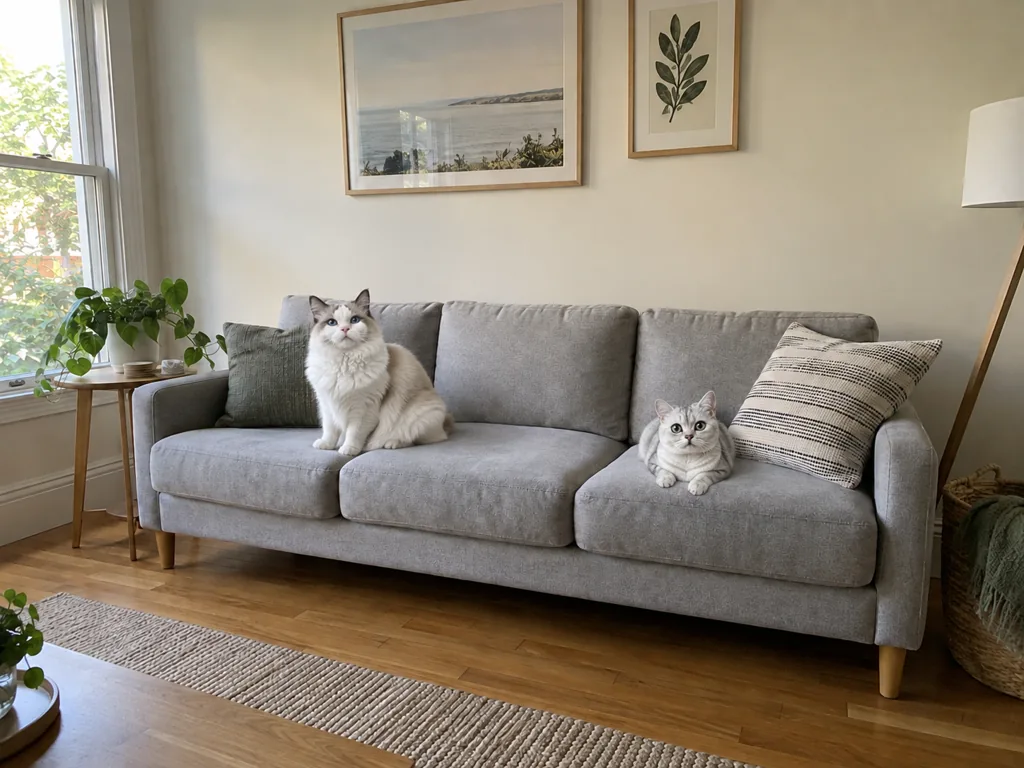
Two cats moved onto the sofa
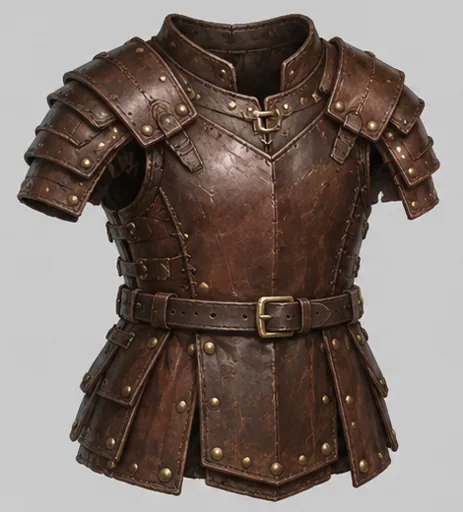
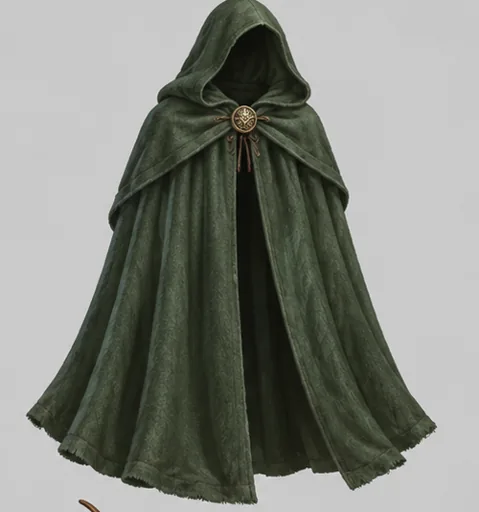
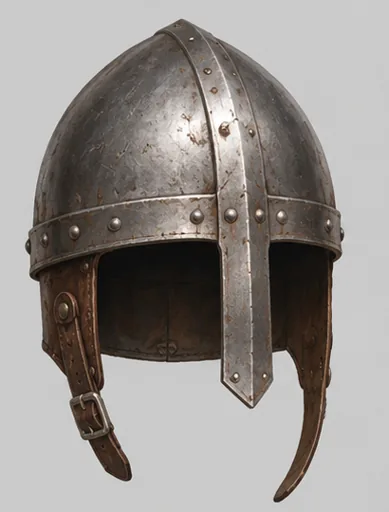
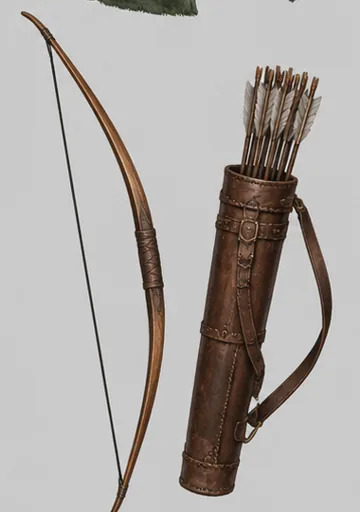
 Regenerate
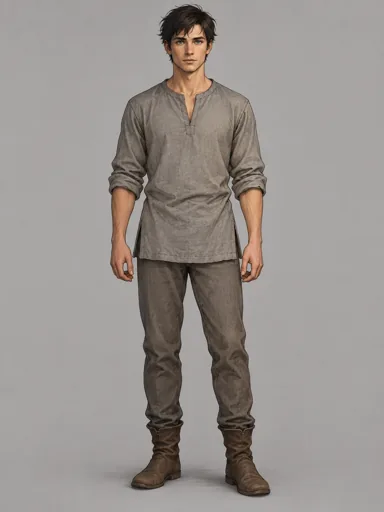
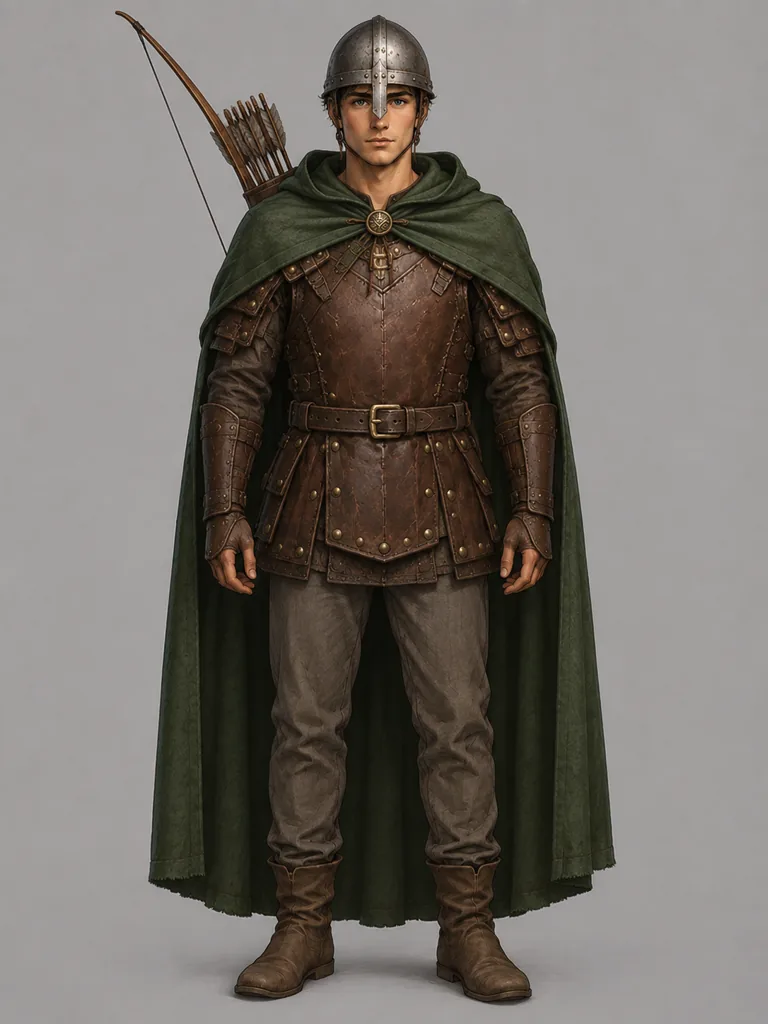
Five refs, one fully geared hero
 Regenerate
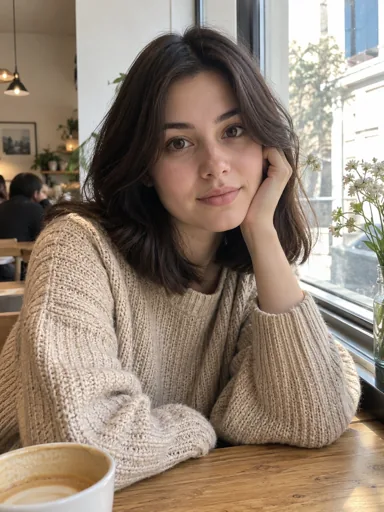
New expression, all else intact
 Regenerate
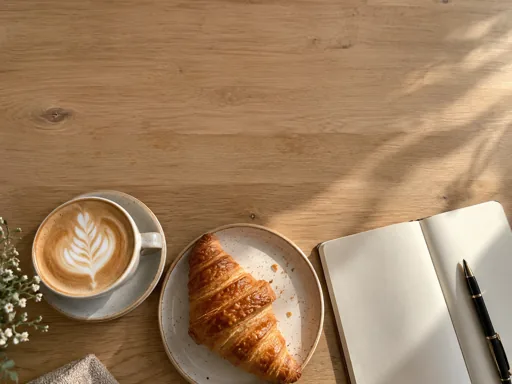
Handwritten text on the table
 Regenerate
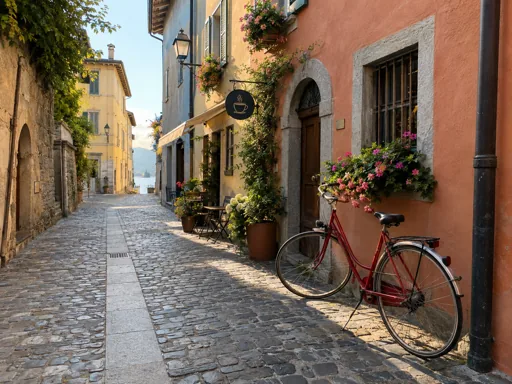
Photo turned into watercolor
RegeneratePhoto into a watercolor travel print
RegenerateTwo cats moved onto the sofa
RegenerateFive refs, one fully geared hero
RegenerateNew expression, all else intact
RegenerateHandwritten text on the table
RegeneratePhoto turned into watercolor
Start with what you have: an idea, a photo, a product image or a garment. Each workflow helps you describe a different kind of result.
Describe a scene, illustration or visual concept. Add reference images with a compatible model to guide the subject, composition or style.
Upload a photo and describe what to change: its background, an object or the visual style. Say which details should stay, then review the result before making the next edit.
Start with a product photo and describe the setting, lighting and props. Create variations for listings and ads, then check the product shape, label and color against the original.
Build a set around your product: an opening visual, selling points and close-up details. Review the proposed sections and copy before generating the images; planning does not consume generation credits.
Present a product through a main view, another angle, a detail and a use case. This workflow creates one image with four panels, rather than four separate image files.
Combine a garment image with a model photo to visualize a new outfit. You can also describe a model to generate. Review fabric details and proportions before using the image.
For photo editing and product work, check reference-image support first. Then compare output resolution and the cost of your chosen settings.
Image creation
Start with words or bring a photo or product image. Check which models support your materials.

OpenAI
Bring multiple visual references into one brief
Cost at default settings
13 credits
1:1 · 1K
OpenAI
Keep working on photos and product images
Cost at default settings
15 credits
1:1 · 1K

Cards and posters that need real, current facts
Cost at default settings
25 credits
1:1 · 1K
Complex briefs where the text in the image must read right
Cost at default settings
48 credits
1:1 · 1K
Quick edits and variations at 1K
Cost at default settings
20 credits
1:1
Prices shown use each model’s default settings for one image. Resolution, image count and workflow can change the total; check the displayed cost before generating.
Describe a new image, upload a photo to edit, or add product and garment references for a dedicated workflow. State the changes you want and the details to keep.
Choose a compatible image model, aspect ratio, resolution and image count. For a product detail set, review its plan before generating. The editor displays the cost for your selection.
Generation opens the workspace, where you can follow the task and inspect the result. Use it as a reference to refine details, or download the image when it is ready.
Describe a new image from scratch, or upload existing material with a compatible model. For a product or outfit, references help communicate the details you want to preserve.
Choose a square, landscape or portrait ratio from the selected model’s options. Describe any space you need for a headline or product copy in the composition.
Use a generated image as a reference for the next edit. Specify what to change and what to keep, then compare the result with the previous version.
Check faces, lettering and product details at full size. Choose an available output resolution for your use, and download the original generated file without an added ImgAI watermark.
Image costs depend on the model, resolution, image count and workflow. Free generation is subject to the current allowance; paid tasks use credits. Review the total in the editor before you start.
Free image generation is available within the current usage allowance. Photo editing and other workflows may require an account and credits, depending on the model and settings. Check the available allowance and generation cost in the editor before starting.
Commercial use depends on the selected model’s terms and your rights to the source material. Review the provider terms linked below and ImgAI’s terms of service for your intended use. Generated product details, text and likenesses should be reviewed before publication.
Available ratios and resolutions depend on the selected model. Use its settings to choose a square, landscape or portrait format, and check the model cards for supported resolutions. Choose the ratio for the intended placement before generating; resolution is a separate setting.
Yes, with a model that supports reference images. Upload your photos and describe what to change or combine. Use @1 and @2 to identify images, for example “put the chair from @2 into the room in @1”. The selected model determines the reference-image limit.
The image-count control lets you request 1, 2 or 4 images. The four-panel product workflow creates one image containing four panels. Product detail page sets follow the sections in the plan you review before generation. Check the total cost for the chosen workflow.
Use the original photo as a reference and describe both the change and the details to preserve. For example: “Replace the background with a warm studio backdrop; keep the bottle’s shape, label and color.” Review the output against the reference and refine it in another pass if needed; exact preservation is not guaranteed.
ImgAI does not add a watermark to downloaded generated images. The download uses the output file at the resolution produced by the selected model; downloading does not upscale a lower-resolution result.
Processing time varies with the model, output resolution, reference images and service load. After submitting, follow the task in the workspace. A completed image can be downloaded or used as a reference for another edit.